How to Create a Single Voucher
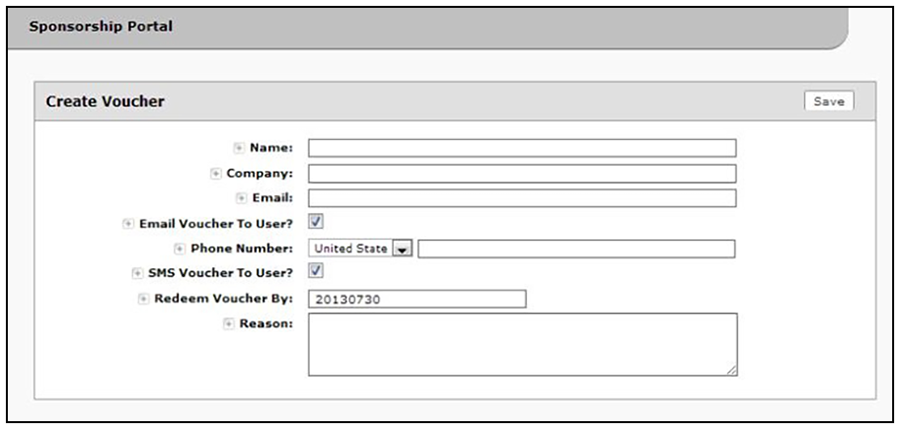
- On the Create Vouchers page, select Create one voucher.
- Enter the guest user information and
Save.
- Name - Guest user name.
- Company - Guest user company.
- Email - Guest user email address.
- Email Voucher to User? - Checked by default. If checked and Email is entered, a voucher is sent to guest user by email.
- Phone Number - Select country and enter guest user phone number.
- SMS Voucher to User? - Checked by default. If checked and Phone Number is entered, a voucher is sent to
guest user by SMS.
Note: Voucher notifications sent by Email or SMS are stored on the Notifications tab on the ES Admin UI Dashboard.
- Redeem Voucher By - The date after which the voucher may no longer be redeemed.
- Reason - The reason the guest user is provided access.
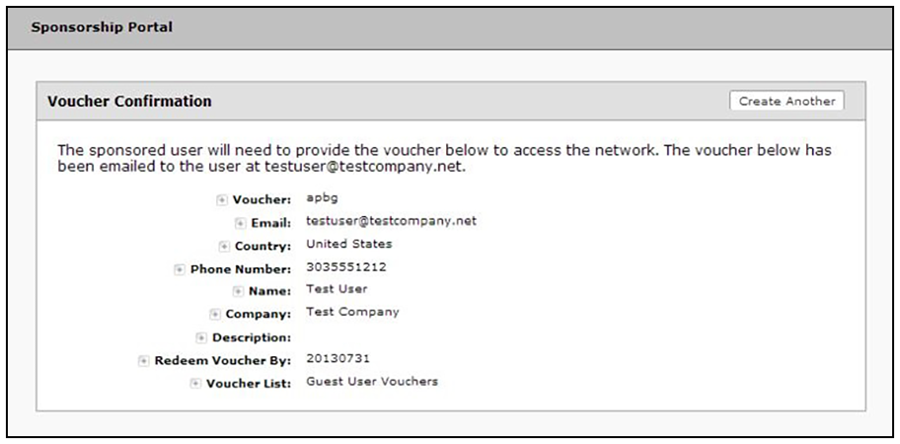
Note: When you create a single voucher, a voucher is automatically generated according to the format specified when you created the voucher list. See Adding a Voucher Prompt to the Enrollment Workflow.