Requiring Sponsor Approval for Self-Service Guest Pass Authentication
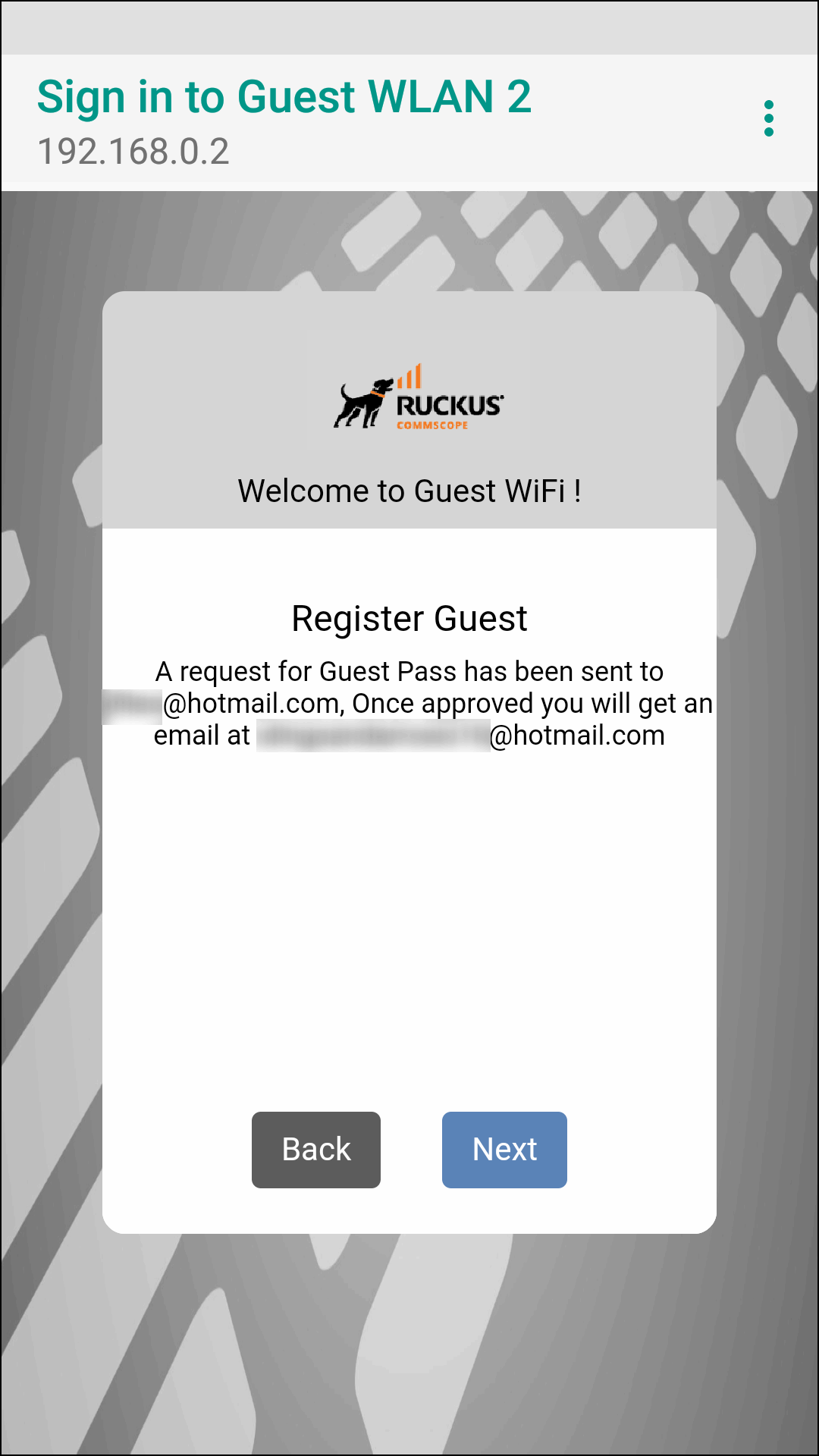
The Sponsor receives the email request and clicks a link to allow this user access to the guest WLAN. After the registration is approved, RUCKUS Unleashed generates a guest pass and sends it to the user through email or SMS (or both) using the contact information the user provided.
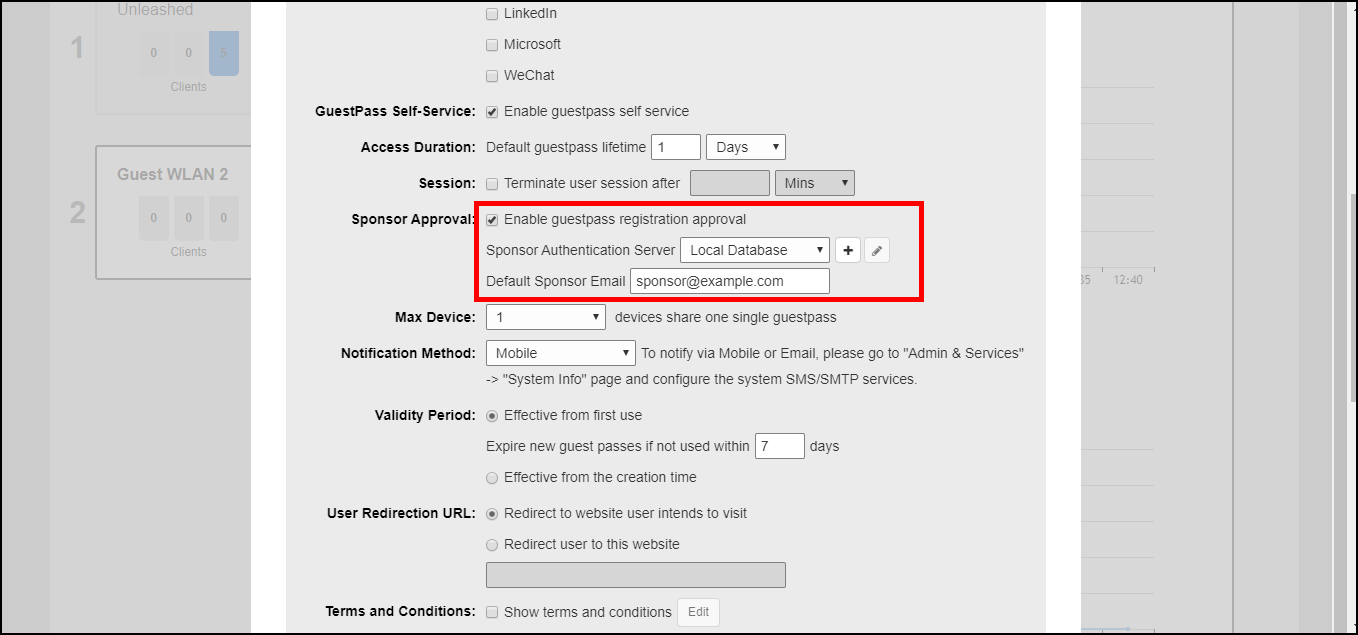
To configure sponsor approval, select the Sponsor Approval check box, select a sponsor authentication server (default is local database), and optionally enter a Default Sponsor Email address.
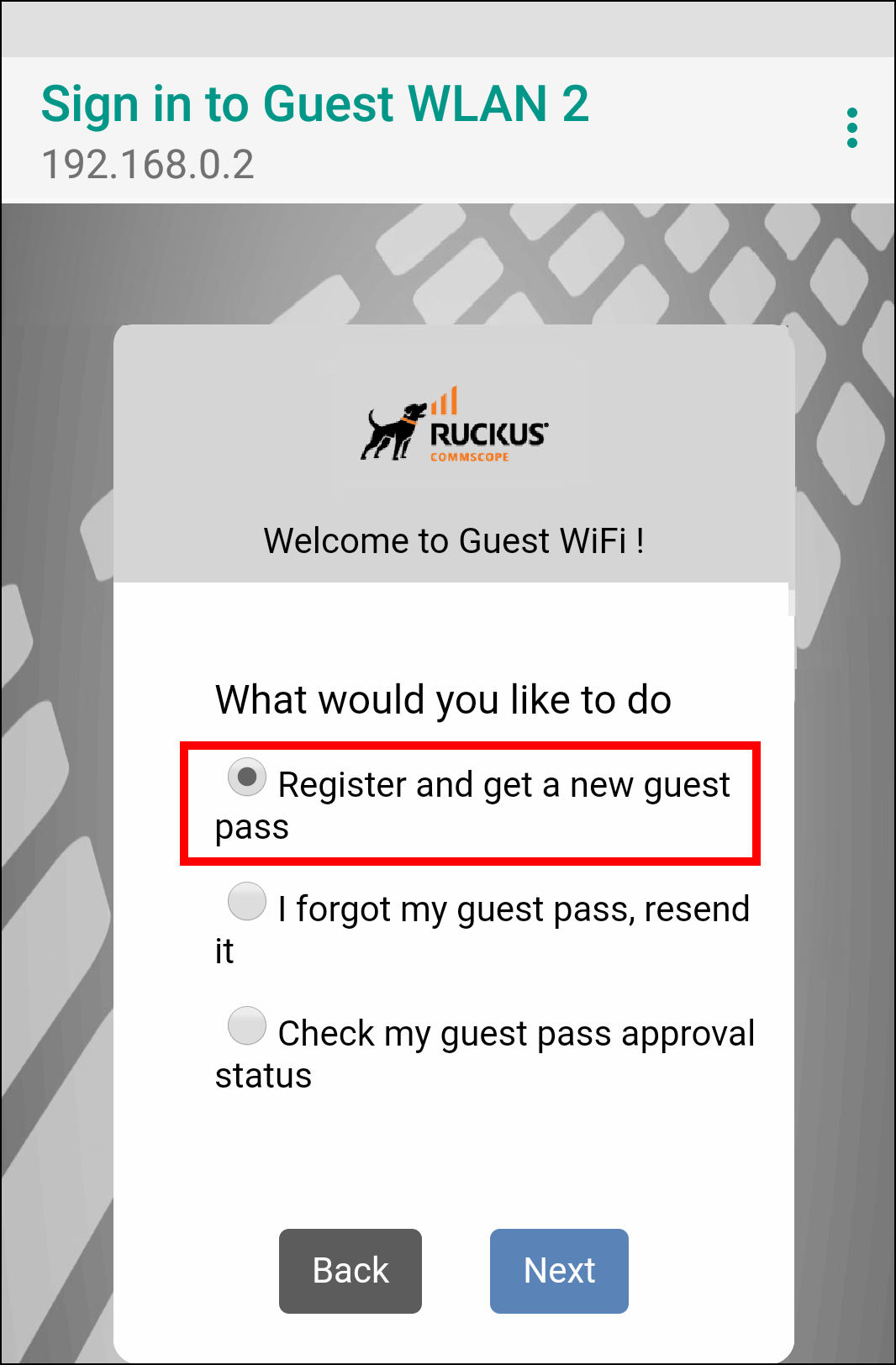
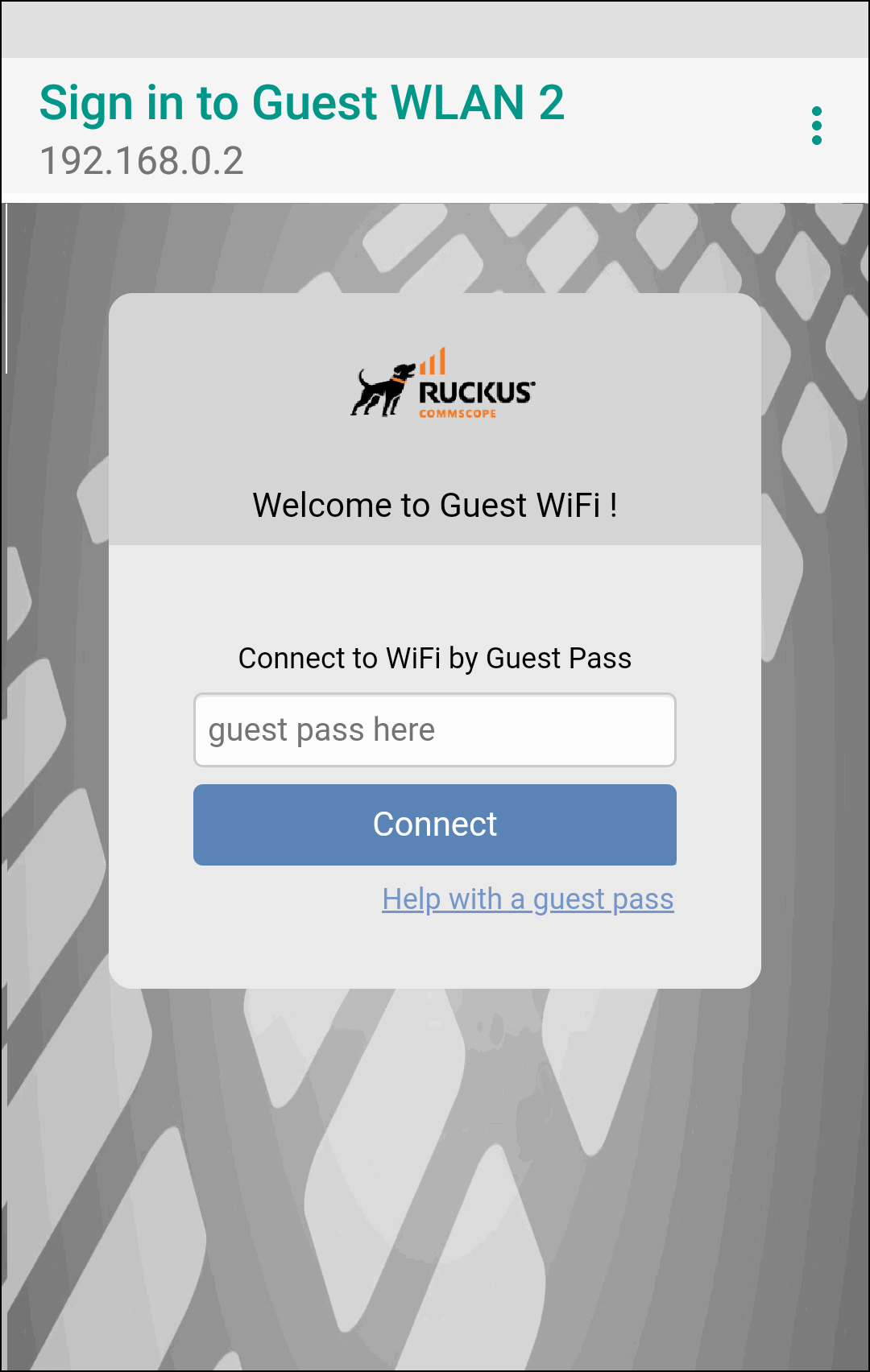
When a user connects to a guest WLAN with Sponsor Approval enabled, the Welcome to Guest WiFi page allows the guest to request a self-service guest pass by clicking the Help with a guest pass link.
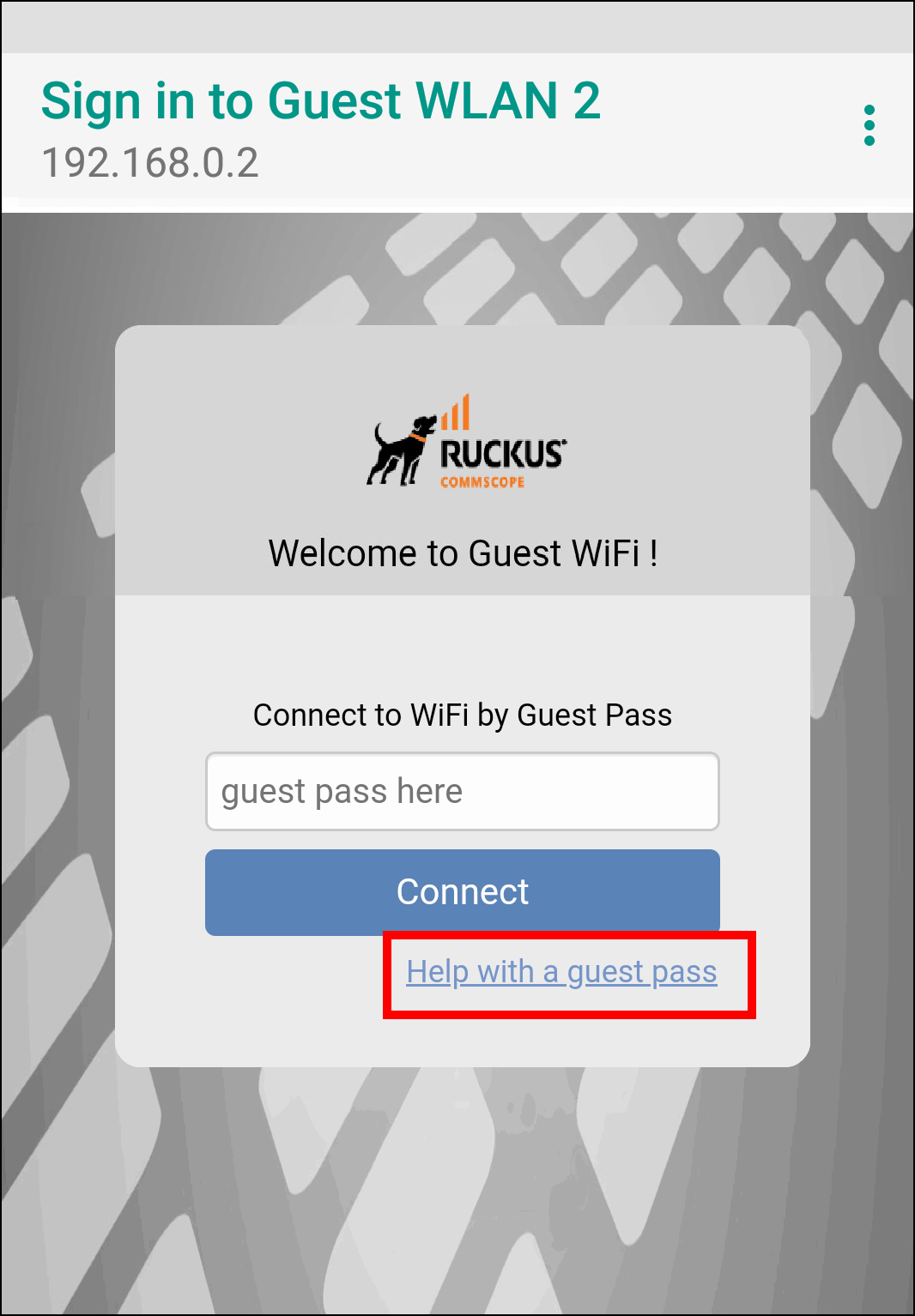
Complete the following steps to request, approve, and activate a sponsor-approved guest pass:
- On the What would you like to do screen, select Register and get a new guest pass, and click Next.
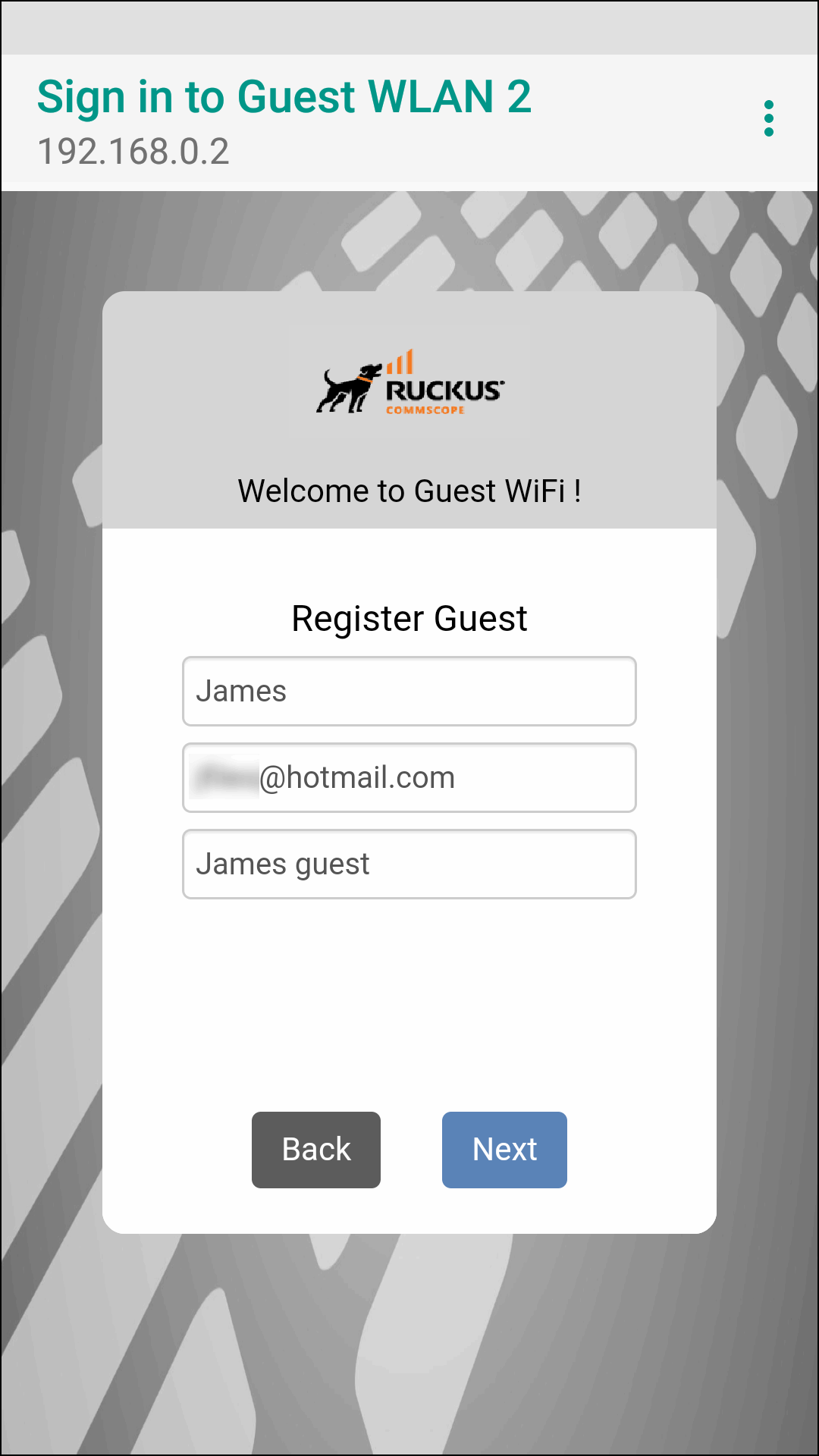
- Enter a username, an email address or phone number to which the guest pass key will be sent, and the sponsor's email address, and click Next.
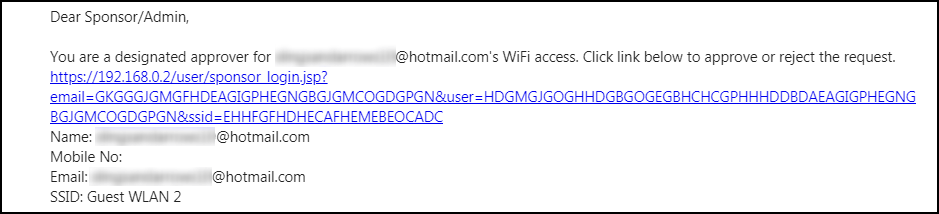
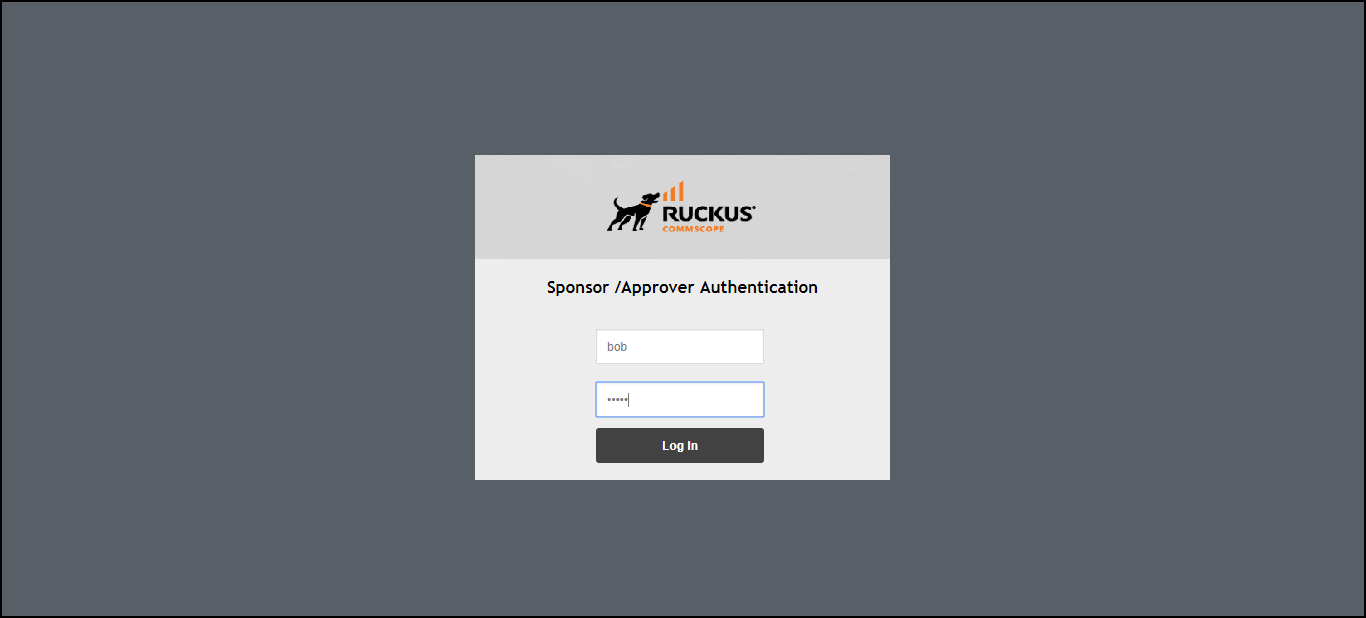
- As the sponsor opens the email and clicks the link to open the Sponsor/Approver Authentication page.
- On the Sponsor/Approver Authentication page, enter a valid User Name and Password and click Log in to continue.
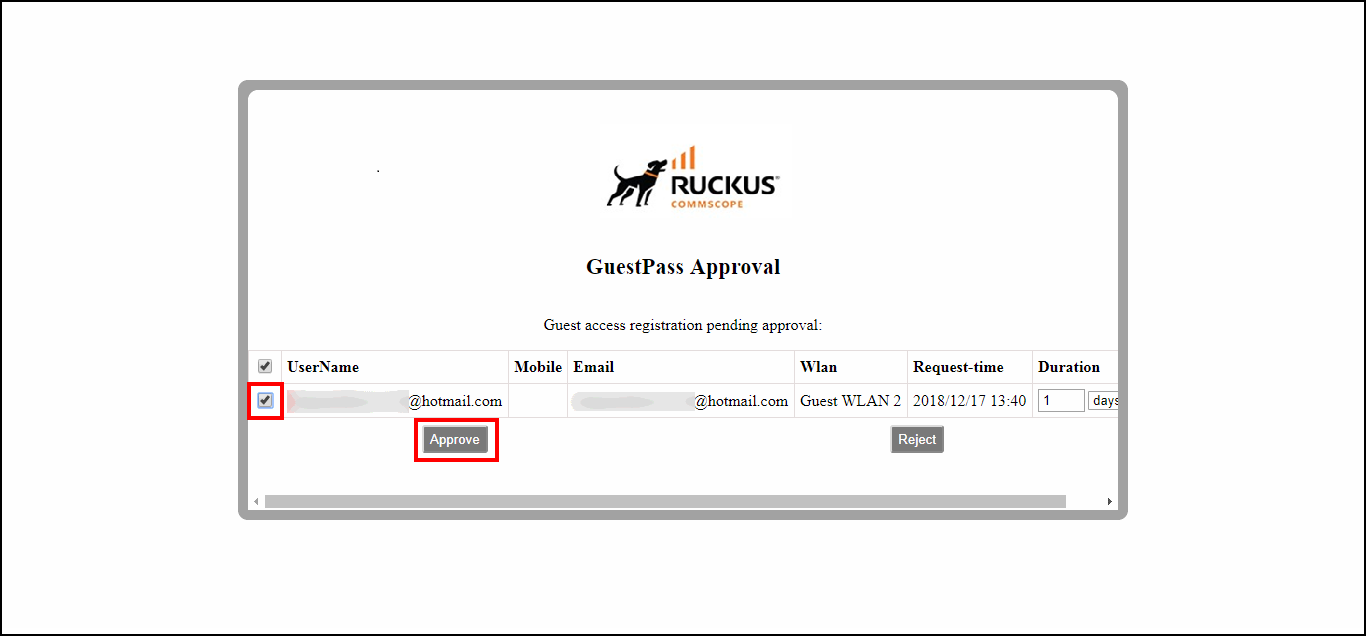
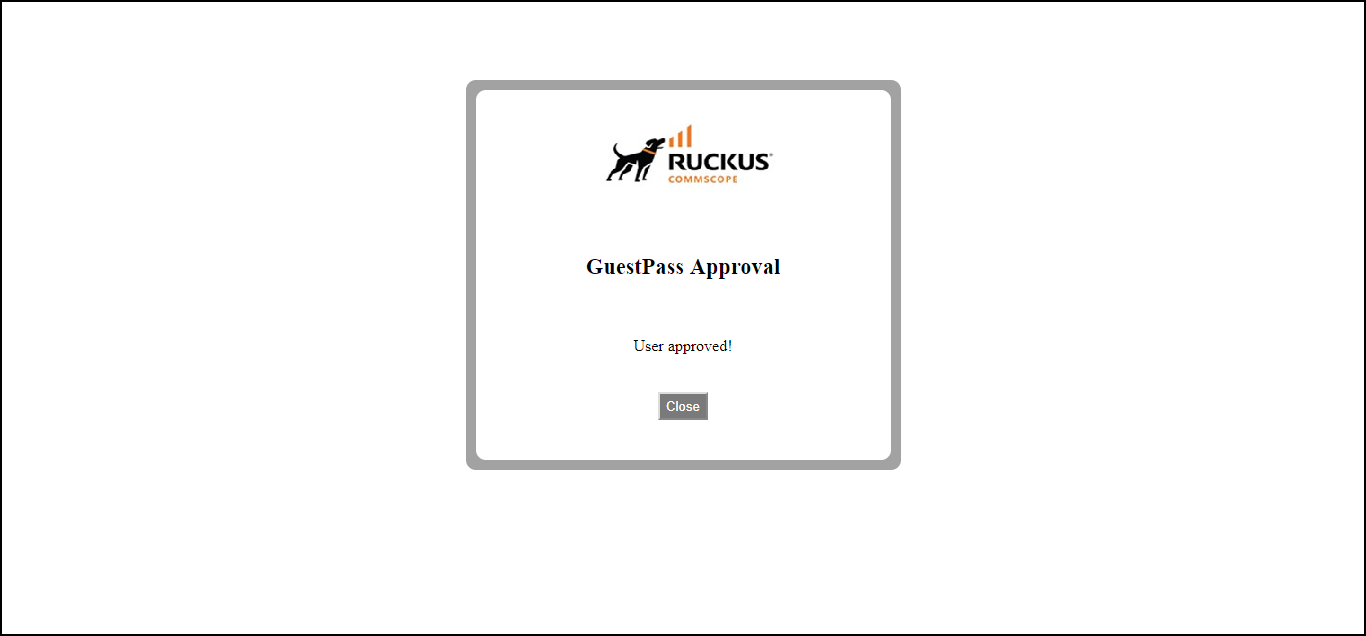
- Upon successful login, the Guest Pass Approval page displays the name, phone number, and email addresses of all pending guest pass requests. Select the check box next to each guest pass you wish to approve, set the Duration for each, and click Approve to approve them.
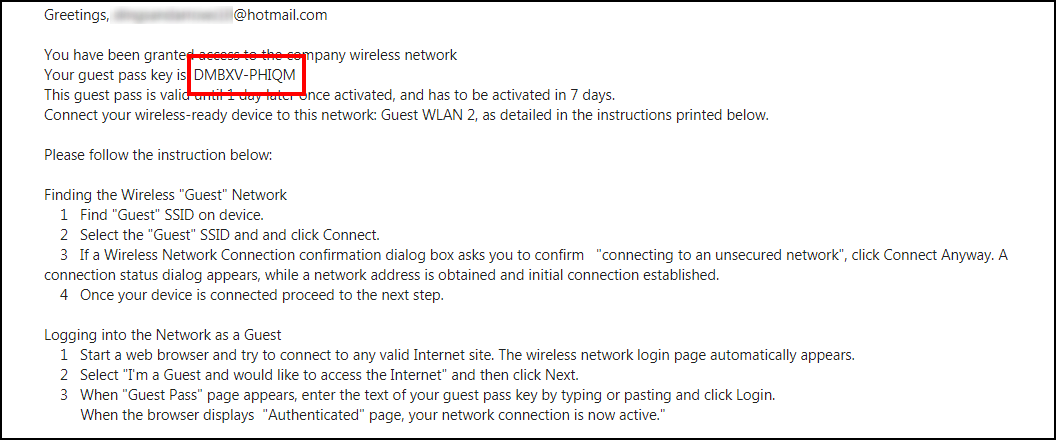
- As a guest user, open the guest pass activation email message email and copy the Guest Pass code to the clipboard.
- Launch a web browser and browse to any URL. You will be redirected to the Welcome login page.
- Enter the Guest Pass code received in the activation email (or SMS), and click Connect.