Configuring Global WLAN Settings
Complete the following steps to configure
global settings for all WLANs.
Difference in UI label for Unleashed and RUCKUS
Blue
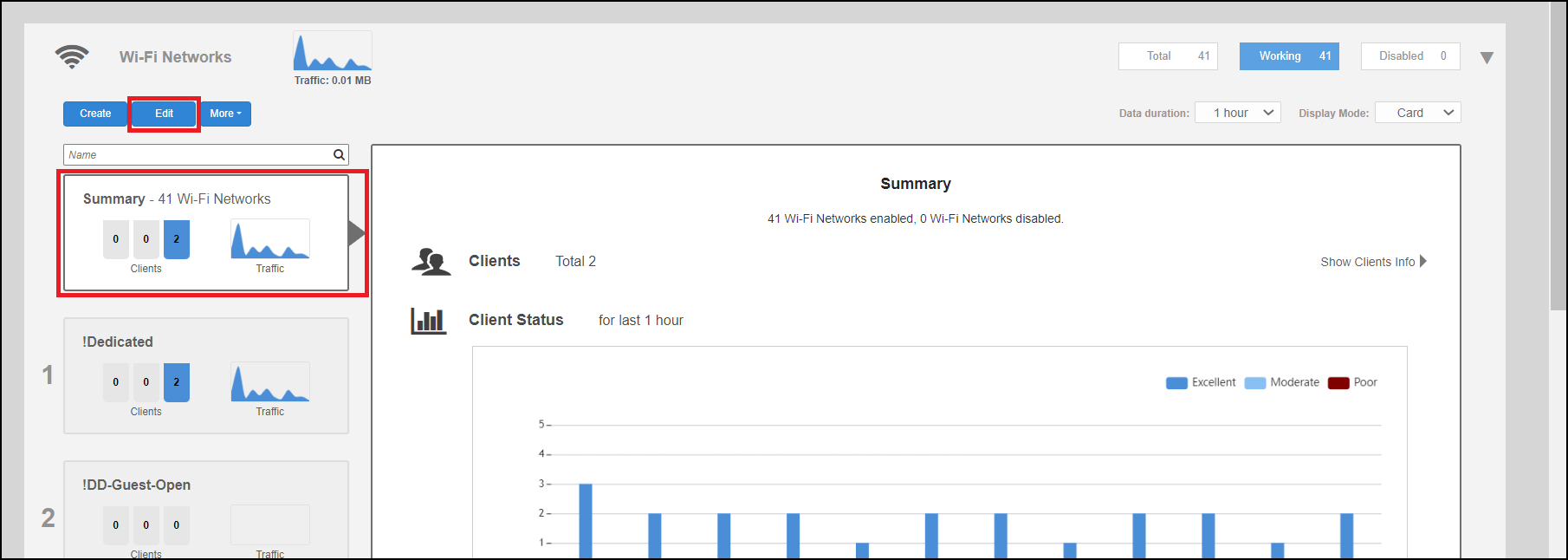
- In the Wi-Fi Networks section, select the Summary WLAN box, and click Edit.
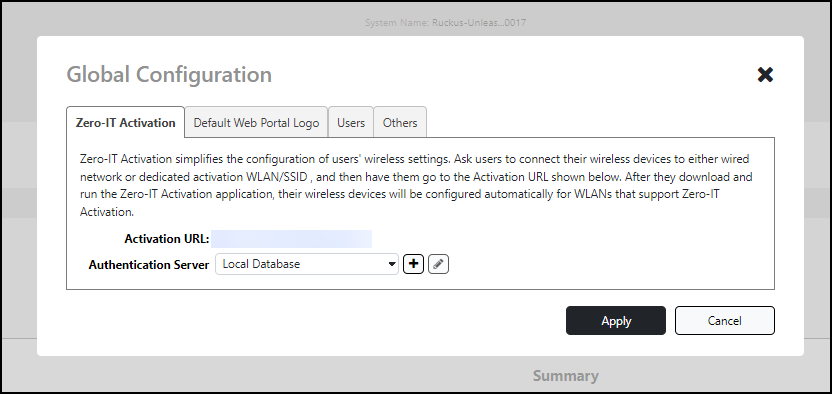
- From the Global Configuration dialog box, select one of the following
tabs to configure settings for all WLANs:
- Zero-IT Activation: Select an Authentication Server from the list, or click Create Service to create a new one. Refer to AAA Servers for more information.
- Default Web Portal
Logo: Replace the RUCKUS logo with your own logo to be
displayed on the login page when clients connect to a Web Auth WLAN.
Note: The recommended image size is 138 x 40 pixels. The maximum file size is 20 KB.
- Users: Create new users on the internal database. Refer to Adding New Users to the Local Database for more information.
-
200.17 featureOthers: By default, SONOS Compatibility is enabled, ensuring seamless integration and optimal performance of Sonos devices within the Unleashed network.
If you disable SONOS Compatibility, then Directed DHCP is enabled and the controller will drop the DHCP proxy packets if the Layer 2 MAC address does not match the
chaddr(Client Hardware Address) field in the DHCP packet.
- Click Apply to save your changes.