Configuring Advanced WLAN Options
Complete the following steps to edit the advanced options for a WLAN.
Difference in UI label for Unleashed and RUCKUS
Blue
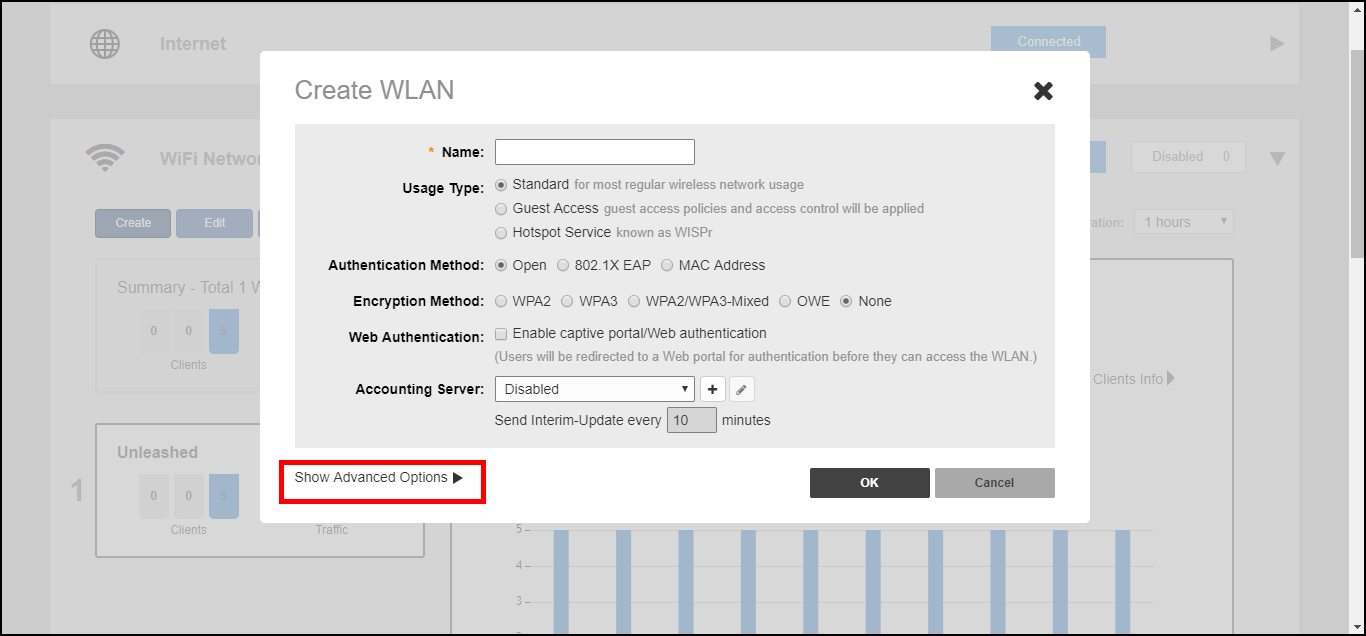
- Select the WLAN you want to configure from the WiFi Networks component and click Edit, or click Create to create a new custom WLAN.
- Click the arrow next to Show Advanced Options to expand the advanced options section.
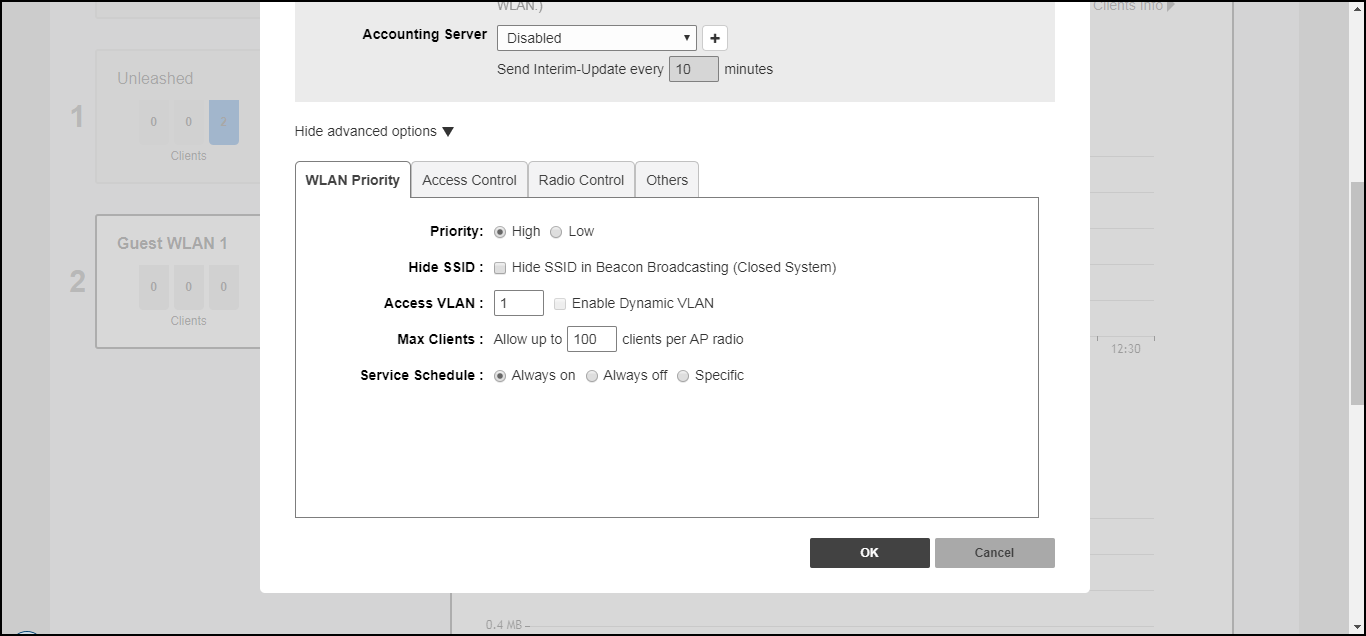
- Use the following tabs to
configure the advanced options according to your preferences:
- Zero-IT & DPSK: Enable and configure Zero-IT and Dynamic PSK settings for the WLAN. See .
- WLAN Priority: Contains options for setting the WLAN's priority level, WLAN visibility, VLAN, maximum number of clients and service schedule. Refer to .
- Access Control: Contains options for configuring Call Admission Control, rate limiting, access controls, application visibility policies, and URL filtering. Refer to Access Control Settings.
- Radio Control: Contains options for configuring radio settings including 802.11k radio resource management, background scanning, load balancing, and band balancing. Refer to .
- Others: Contains options for configuring force DHCP, inactivity timeout, wireless client isolation, and enabling the Bypass Apple CNA. Refer to Other Advanced WLAN Settings.
- Click OK to save your changes.