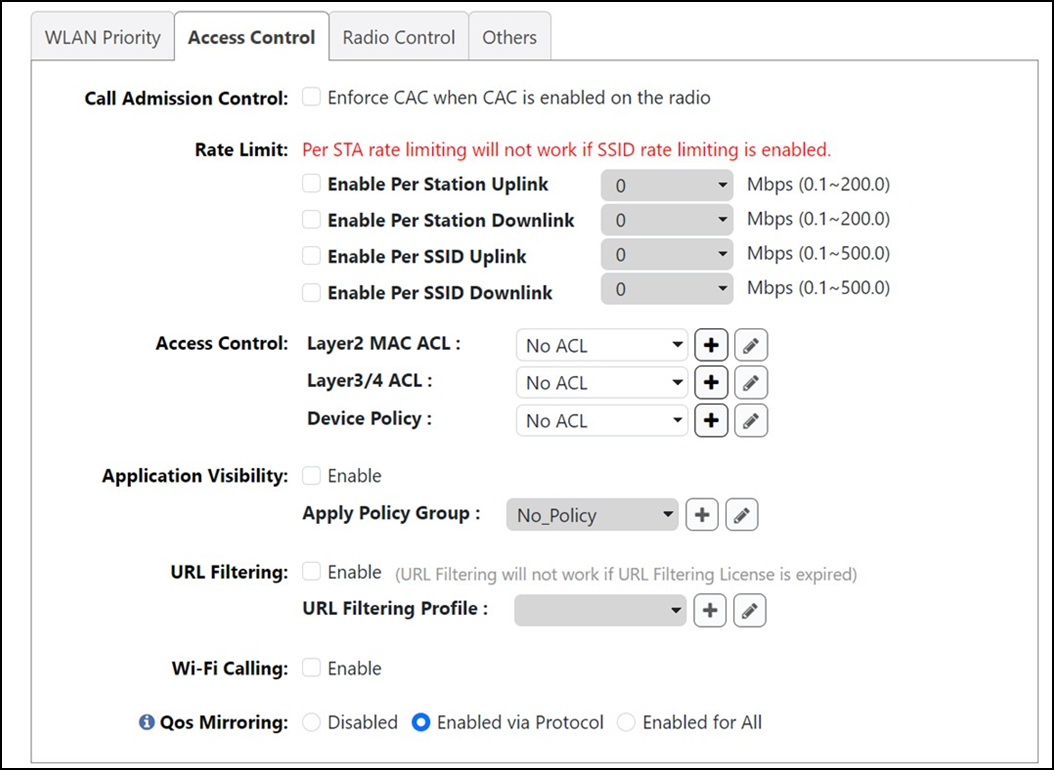
Access Control Settings
The Access Control tab provides the following options:
- Call Admission Control: Disabled by default. Enable Wi-Fi Multimedia Admission Control (WMM-AC) to support Polycom/Spectralink Voice Interoperability for Enterprise Wireless (VIEW) certification. When enabled, the AP announces in beacons if admission control is mandatory for various access categories and admits only the traffic streams it can support based on available network resources. When network resources are not sufficient to provide this level of performance, the new traffic stream is not admitted. Call Admission Control is effective only when both the AP and the client support WMM-AC. RUCKUS APs are capable of handling hundreds of simultaneous clients, but when it comes to VoIP traffic, the number of VoIP calls must be policed to ensure adequate voice and video quality. RUCKUS recommends limiting bandwidth allocation to six calls (four active calls and two reserved for roaming) on the 2.4 GHz radio and ten calls on the 5 GHz radio (seven active calls and three reserved for roaming). Enable this feature if you want this WLAN to serve as a VoIP WLAN to support Spectralink phones.
- Rate Limit: Rate
limiting controls fair access to the network. When enabled, the network traffic
throughput of each network device (that is, a client) is limited to the rate
specified in the traffic policy, and that policy can be applied on either the
uplink
or downlink. Use the Per
Station Uplink and Per Station Downlink
lists to limit the rate at which WLAN clients upload and download data. The
"Disabled" state means rate limiting is disabled; thus, traffic flows without
prescribed limits.
Note: If SSID rate limiting is enabled, per Station rate limiting is not configurable.
- Access Control: Use the Layer 2 MAC ACL, Layer 3/4 ACL, and Device Policy lists to apply to the VLAN. An access control entry or a device policy must be created before being available here. For more information, refer to Access Control.
- Application
Visibility: Enable Application Visibility to allow APs to collect
client application data, which can then be consolidated for use by the application
recognition and control pie charts (refer to Application Recognition and Control), and can be used to deny
access or rate limit application traffic based on administrator-configured
application policies.
- Apply Policy Group: This option allows the administrator to deny application access or rate limit application traffic based on predefined or user-defined applications. Using application policies, administrators can block specific applications if they are seen to be consuming excessive network resources, or enforce network usage policies such as blocking social media sites. For more information, refer to Application Policies.
- URL Filtering: Enable URL Filtering and select a URL Filtering Profile from the list (or create a new one). For more information, see .
- WiFi Calling: Enable Wi-Fi Calling, which is a service for Android and iOS smartphones that allows clients to make and receive voice phone calls over a Wi-Fi connection. For more information, see .
- Qos Mirroring: For
each WLAN, you can choose one of the following settings to manage Quality of Service
(QoS) Mirroring. By default, Enabled via Protocol is enabled.
- Disabled: QoS mirroring is disabled for all clients on this WLAN.
- Enabled via Protocol: QoS mirroring is enabled only for clients that send Mirrored Stream Classification Service (MSCS) requests during the handshake process. Legacy clients are not supported with this QoS preference.
- Enabled for All: Unilateral mode is applied for this option and QoS mirroring is enabled for all clients, including legacy clients and MSCS-supported clients, on this WLAN.
For more information, refer to QoS Mirroring.