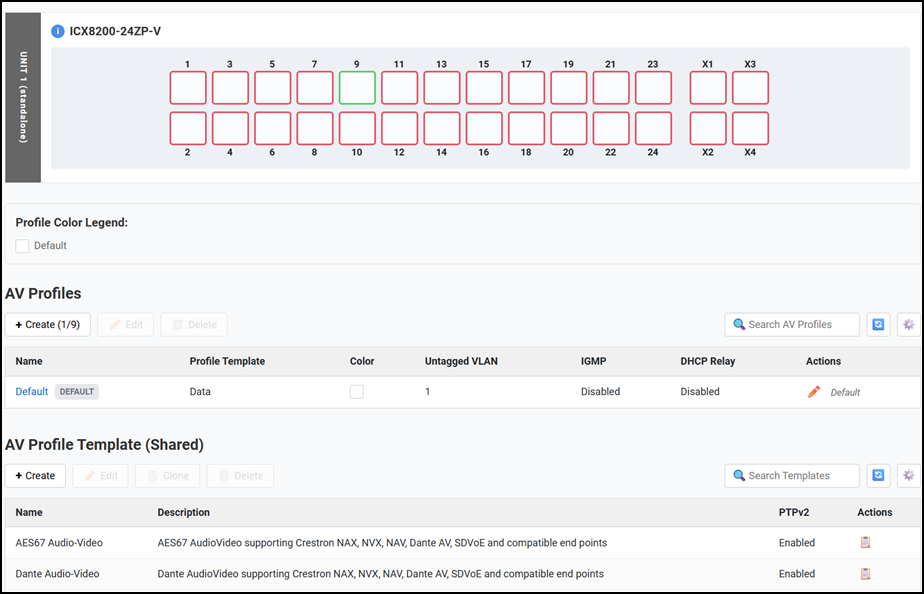
Displaying AV Profiles
- Select AV Profiles on
the main menu of the RUCKUS Main UI.The following details are displayed:
- Switch details:
Hover your cursor over the
 icon to display the switch details
including model, MAC address, serial number, IP address, firmware
version, gateway IP, unit type, and unit ID.
icon to display the switch details
including model, MAC address, serial number, IP address, firmware
version, gateway IP, unit type, and unit ID. - Profile Color Legend: For each AV profile assigned to the ICX device, the legend displays the color assigned to the profile and the number of ports to which the profile is assigned (except for the Default profile), thereby providing a quick visual aid regarding port configurations across the unit.
- AV Profiles: Displays the list of AV profiles on the ICX device. To search the existing AV profiles, enter a keyword into the Search AV Profiles box. To create a new AV profile, refer to Creating an AV Profile. To edit an existing AV profile, refer to Editing an AV Profile. To delete an AV profile, refer to Deleting an AV Profile.
- AV Profile Template (Shared): Displays a list of predefined templates available on the unit. To search the predefined AV profile templates, enter a keyword into the Search Templates box. To create a new AV profile template, refer to Creating a New AV Profile Template.
- Switch details:
Hover your cursor over the