Using the Timed Access Workflow Template
The main concept of the Timed Access workflow template is to give users free access to a network connection for a limited time period, and, when that time period expires, they can re-enroll their device to one of the a pre-configured "premium" lists. You can use other workflow plug-ins to add steps to this workflow, and in fact that is how the Timed Access template is intended to be used. An example of a useful plug-in that works well with this template is described later in this section.
- Go to .
- On the right hand side of the Workflow page, click Add Workflow, then, with the "Create a new Workflow" button selected, click Next.
- On the Create Workflow screen, enter a Display Name and Description.
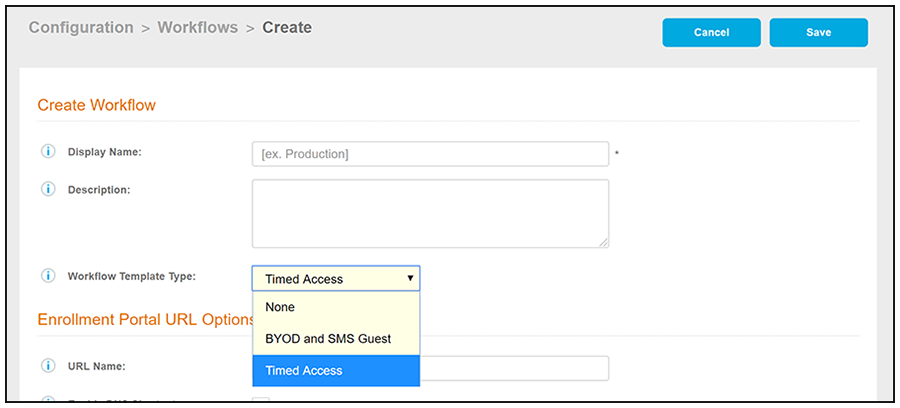
- From the Workflow Template Type drop-down list, select "Timed Access."
- Fill out the URL Name field.
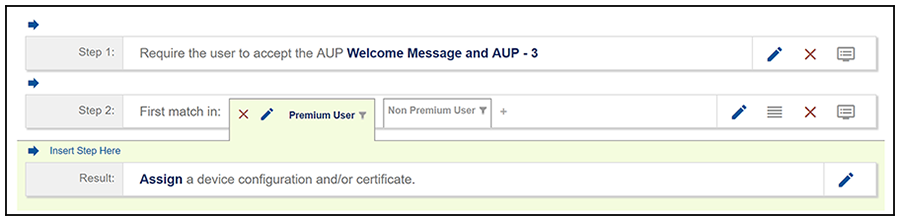
- Click Save, and you are returned to the workflow page that is shown in the following figure.
- Expand the workflow to show its complete logic by clicking Non Premium User, then clicking Free/Premium User, then clicking Premium Registration. The workflow appears as shown in the following figure:
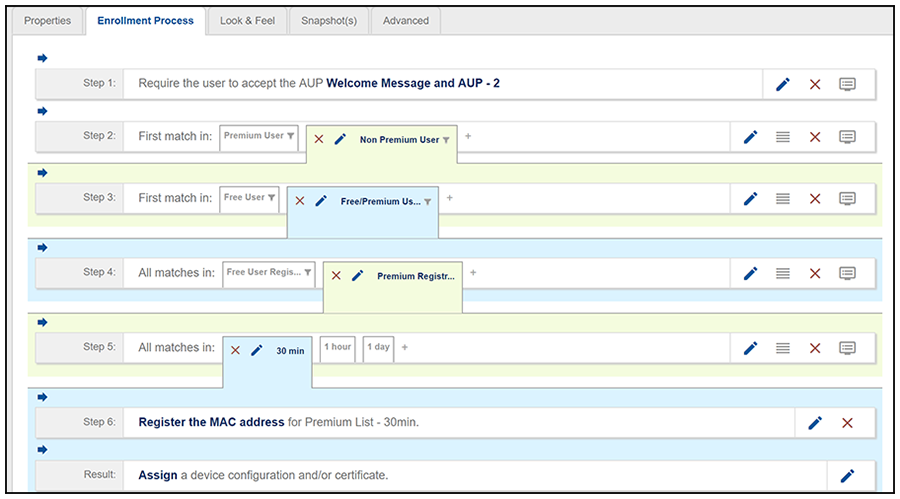
The Free User Registration branch is exposed to users only when they enroll for the first time within a 24-hour period. The Free List is pre-configured to have a 30-minute expiration; this list is automatically cleaned up every 24 hours so that users can again use the Free User Registration branch again in the next 24-hour period.
To understand workflow logic and how the user gets presented with various steps, it is essential to know how "First match in" and "All matches in" work during user enrollment:
- "First match in:" The first branch (going from left to right in the workflow) where the criteria being evaluated matches that of the user is used automatically.
- "All matches in:" All branches are evaluated to determine if the criteria being evaluated matches that of the user. After this determination has been calculated, all options that are a match are offered to the user, and the user can select an option from the choices presented. If only one match occurs, the matching branch is used automatically.
Description of Steps in Timed Access Workflow Template
You can determine what other steps you want to include in your workflow. For example, a "Charge user for service" step would fit well within a workflow where timed access is involved. You could insert such a step before the MAC Registration step. (Refer to the "Charge User for Service" topic in the Cloudpath Enrollment System Deployment Administration Guide.)