Modifying a Workflow Template
To create a workflow from a template using sample data:
- Go to .
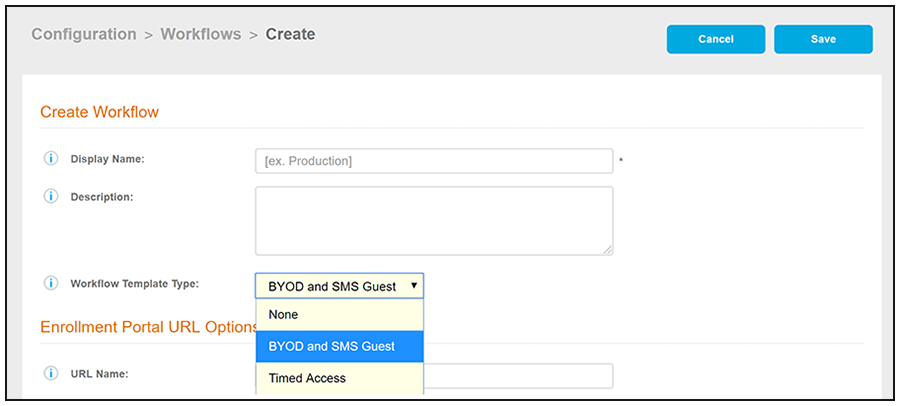
- On the right hand side of the Workflow page, click Add Workflow, then, with the "Create a new Workflow" button selected, click Next.
- On the Create Workflow screen, enter a Display Name and Description.
- From the Workflow Template Type drop-down list, select "BYOD and SMS Guest."
- Fill out the URL Name field.
- Click Save.
- Modify the existing workflow template as needed using the icons on the right side of each step. You can add or remove steps, change the labeling, create filters on the splits, or modify the authentication server.
-
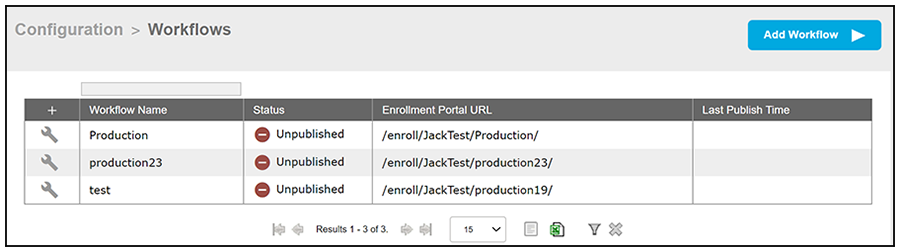
new for 5.9When you are done creating a workflow, you can click View All Workflows to view a grid-like screen that shows all configured workflows. An example of such as screen, after three workflows have been configured, is shown below:
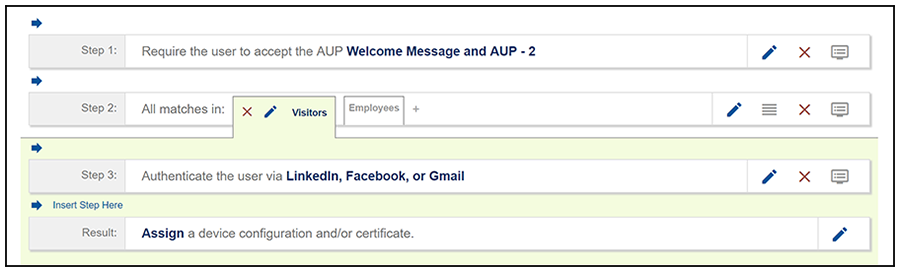
The workflow template contains basic workflow steps with sample data that can be modified to fit your network plan. These basic steps are described in the following table.
Example Workflow Template Steps
| Step 1 | Acceptable Use Policy. |
| Step 2 | Split in the workflow to provide a different sequence of enrollment steps for Visitors and Employees. Splits can be modified for other industries (for example, Students, Faculty, and Guests). |
| Step 3 | An authentication step for users. |
| Result | The final step, which migrates the user to the secure network and assigns a client certificate, is not pre-populated as this information is specific to your network. |