Migrating a ZoneDirector AP to Unleashed
- Log in to the ZoneDirector web interface and enter the administrator name and password. Click Login.
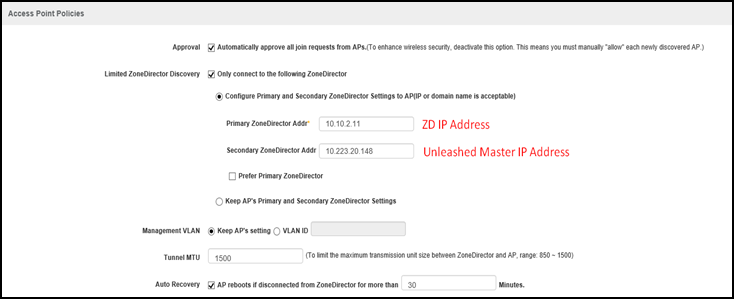
- Under Access Point Policies, for Limited ZoneDirector Discovery, in the Primary ZoneDirector Addr field, enter the IP address of ZoneDirector, and in the Secondary ZoneDirector Addr field, enter the IP address of Unleashed Master.
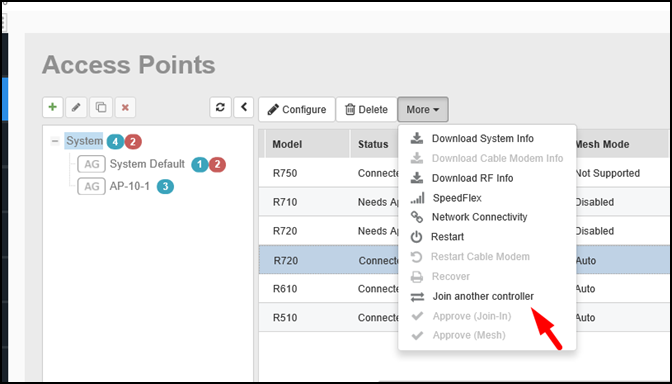
- In the Access Points list, select the AP that you want to migrate. Click More and select Join another controller from the menu.
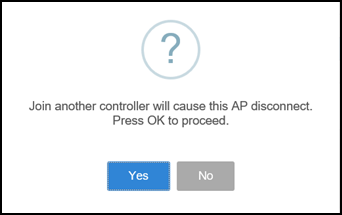
- Click Yes
to confirm.The AP is disconnected and rebooted automatically, and the status is updated to “Blocked”.Attention: To avoid a Mesh AP from disconnecting during the firmware upgrade, first migrate the Root AP. As mentioned in Checklist Prior to Migrating from ZoneDirector to Unleashed for Mesh configuration, ensure that you configure the same Mesh Name (ESSID) and Passphrase in Unleashed.
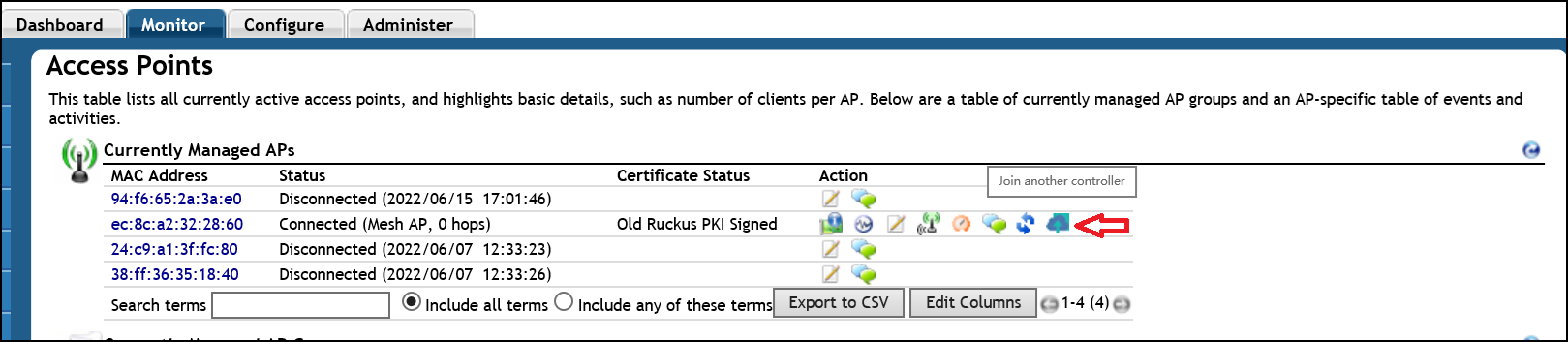
After the Root AP migrates to Unleashed and joins successfully, the Mesh AP will set up the connection with the Root AP from Unleashed again. Click Join another controller to start the Mesh AP migration from the ZoneDirector web interface.