Changing the Default Administrative Password
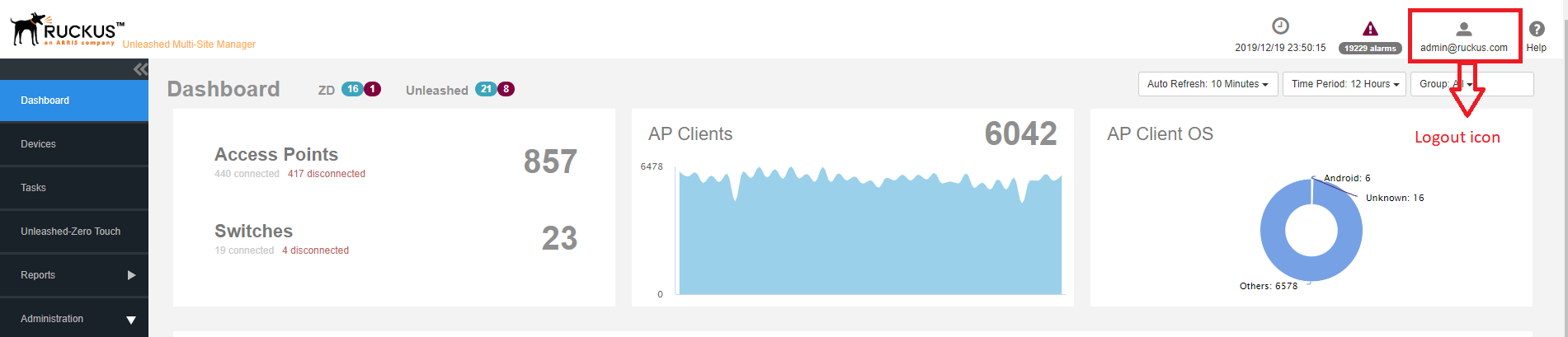
- After logging in to the web interface, click the Logout icon and then select Change Password.
- In the Update Password dialog box, enter the current password in the Current Password field
- Enter a new password in the
Password field.
- Passwords must be from 6 through 32 characters long, and must be comprised of letters and numbers only.
- Passwords are case-sensitive.
- Spaces cannot be used in passwords.
Note: Make sure you remember your new password. You will use this new password the next time you want to log in to the web interface. - Enter the new password in the Confirm Password field.
- Click OK.