Adding Users
Administrators can create and add new users and provide the users access to manage and monitor their sites. There are three user levels that can be created:
An administrator can create any level of user, but it is advisable to limit the number of administrators that are created within a site because these administrators can then create yet more administrators.
- From the main menu, go to .
- Username: In the User Name field, enter the name of the user.
- E-Mail Address: In the E-Mail Address field, enter the email address of the user..
- User Role: From the User Role list, select the role of the user.
- Password: In the Password field, enter a password for the user. Ensure the password strength is strong.
- Site: From the
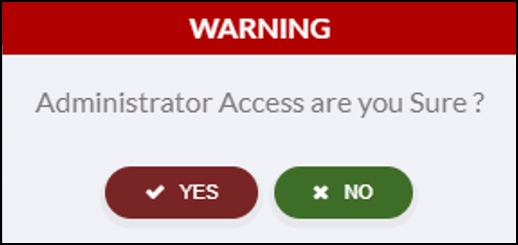
Site list, select the site of the user. If the administrator tries to create a
new site, a warning message is displayed. Click Yes to confirm that this
level has been requested. Note: When selecting the site, the system administrator is the only user that has access to all sites, can assign gateway locations, and has access to the Insights Marketplace. Any other user that is assigned administrator privileges can fully manage their own site, but does not have access to the Insight Marketplace or the ability to change user site allocations or change access to a third-party site.
- Click Save to store the user details.
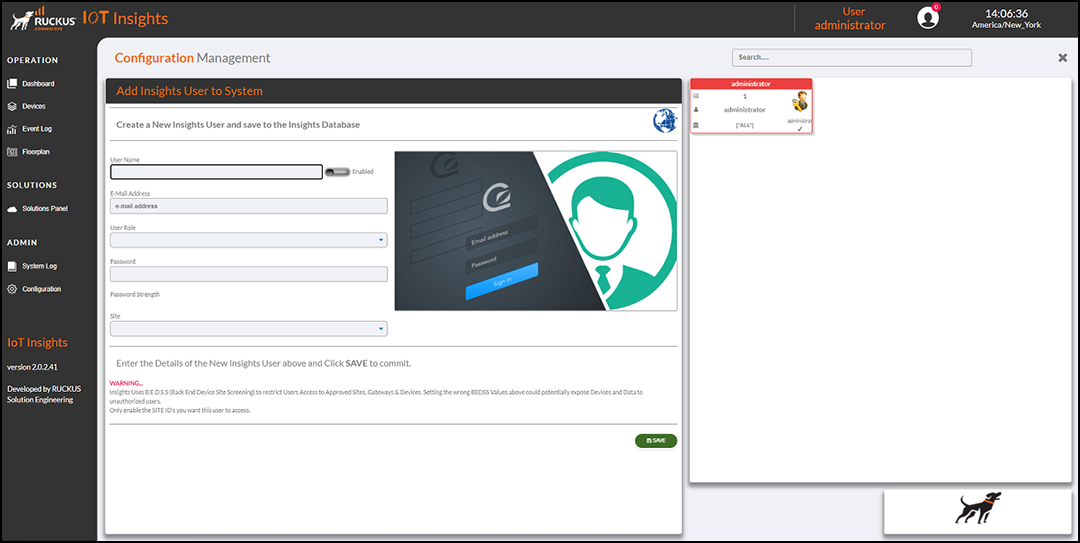
The Current Users table lists the user details, including the ID, role, name, sites, and whether the user is enabled.
You can enter search criteria in the Search field to search the Current Users table for information.