Installing IoT Insights on a VMware ESXi
Creating a New Virtual Machine
- Download the distribution package in the .OVA file format from the RUCKUS Support website at https://support.ruckuswireless.com.
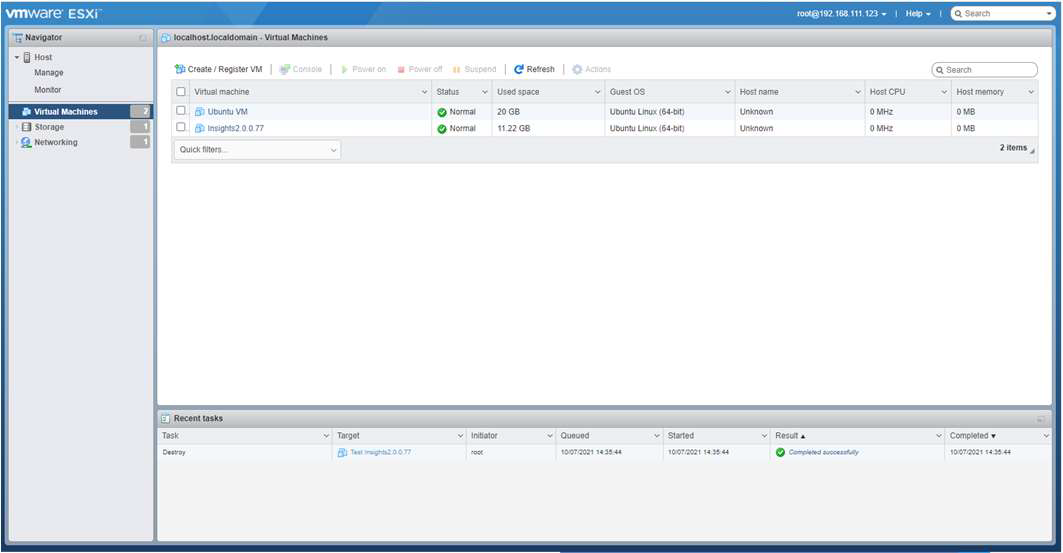
- Open VMware ESXi and select Virtual Machines from the Navigator pane.
- Click Create/Register VM.
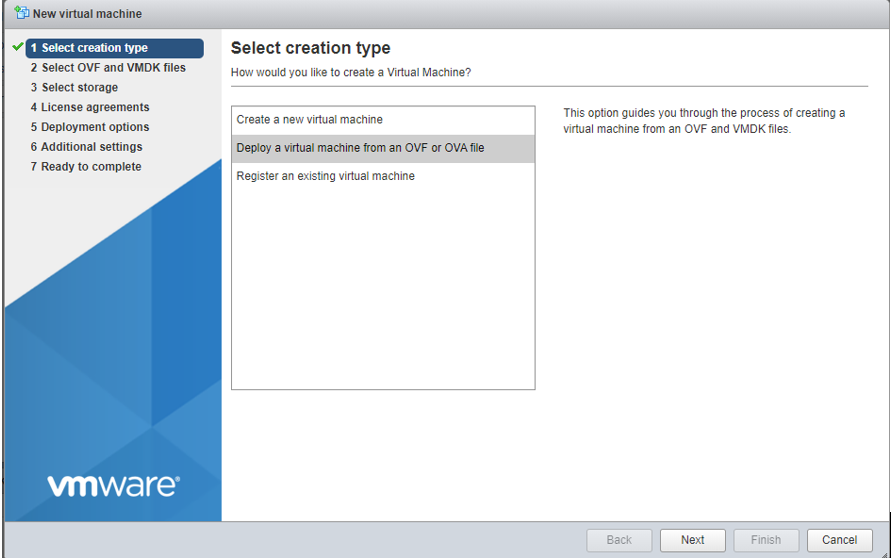
- On the New virtual machine page, click Select creation type, and select Deploy a virtual machine from an OVF or OVA file. Click Next.
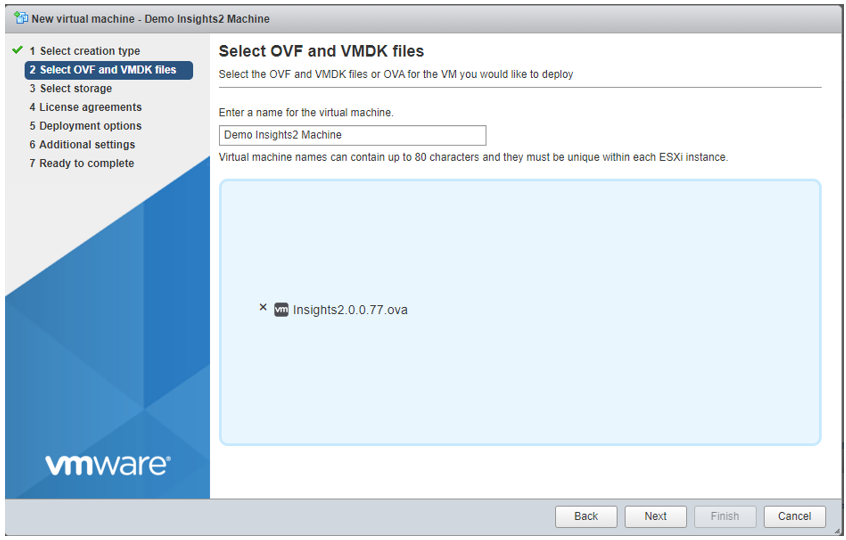
- Click Select OVF and VMDK files, enter a name for the virtual machine, and select the OVA file. Click Next.
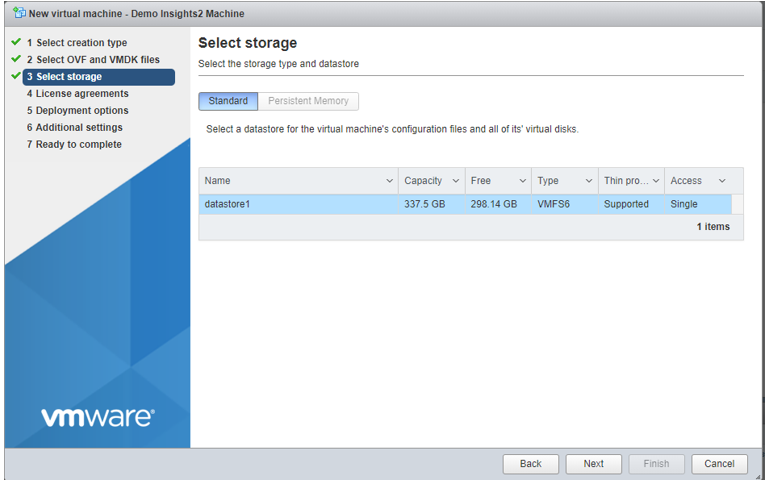
- Click Select storage, and select the datastore in which you want to save the configuration and disk files. Click Next.
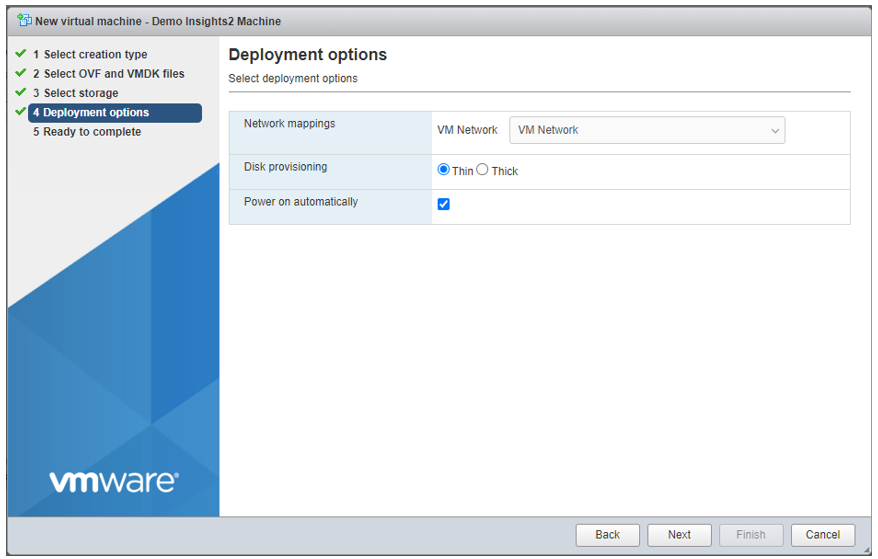
- Click Deployment options, and select the Network mappings and Disk provisioning. Click Next.
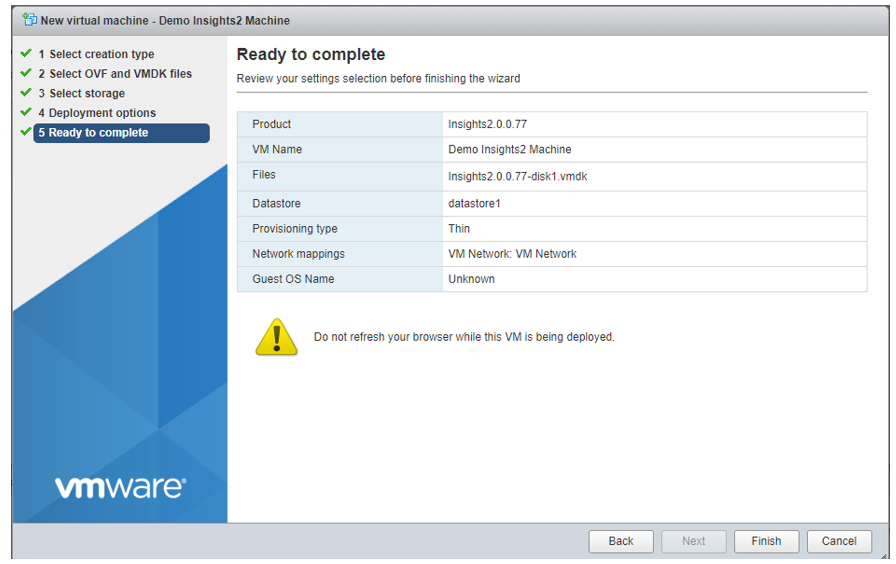
- Click Ready to
complete and review the settings. Click Finish.Note: The OVA file upload can take some time, so it is important not to refresh or navigate away from the VMware dashboard during this VM creation phase.
Monitoring the Virtual Machine Status
- You can monitor the virtual machine (VM) status and the system status in the Recent Tasks page.
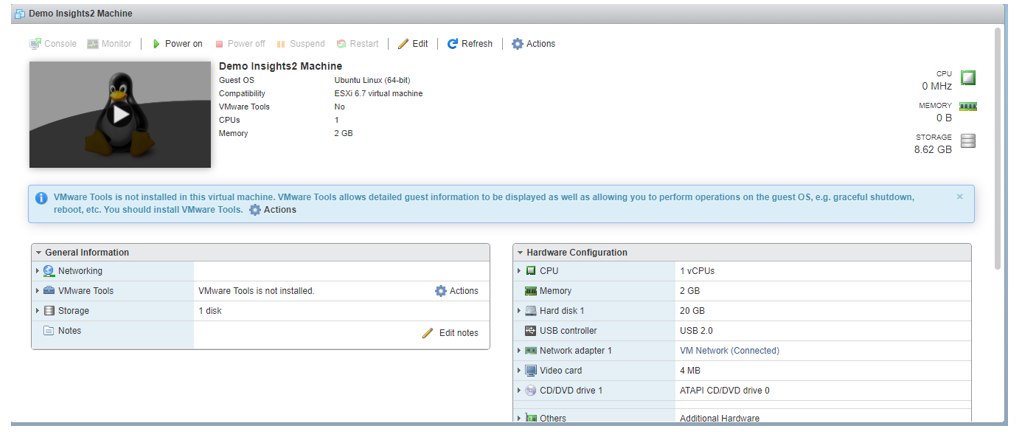
- Click the name of the VM you want to use Demo Insights2 Machine in the example.
- From the main menu, click Power on to start the VM.
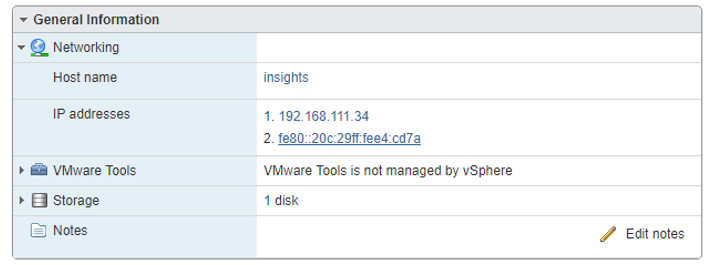
- Under the General Information tab, you can view the name of the host the IP address of the VM, the storage capacity, and so on.
- After creating a new virtul machine, refer to the topic Installing RUCKUS IoT Insights to complete the installation process.