Activating and Editing the Controller Data Stream Plugin
The
RUCKUS IoT Controller provides support for the Controller Data Stream plugin. The Controller Data Stream
is a Message Queue Telemetry Transport (MQTT) data stream. When it is enabled, it
sends IoT device-related details to the third-party MQTT endpoint (MQTT Broker). The
device data stream is sent to third-party every 300 seconds.
To establish a connection to a vendor infrastructure, the administrator must perform the following steps.
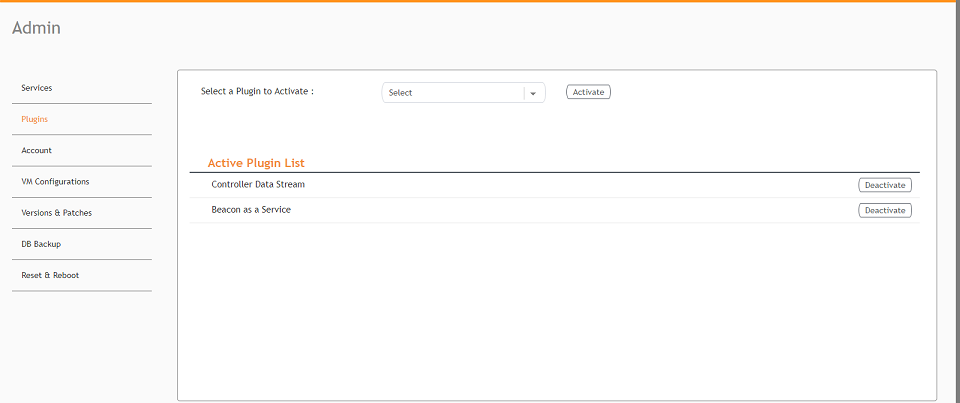
- From the main menu, click Admin.
- In the left navigation pane, click Plugins.
- In the Select a Plugin to Activate list, select the Controller Data Stream plugin and click Activate.
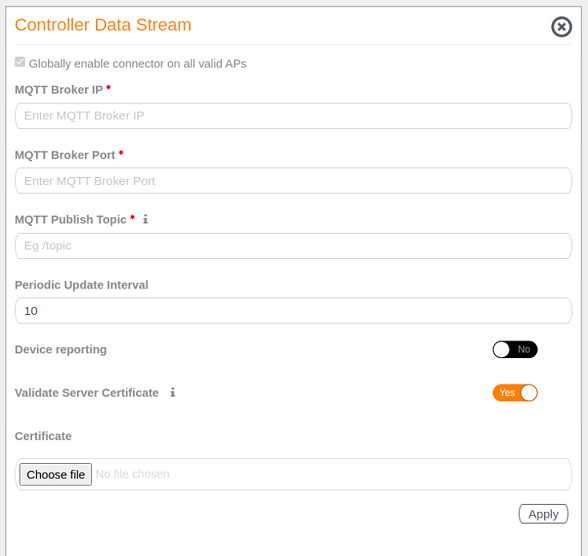
- After the Controller Data Stream plugin is activated, enter the following configuration
parameters.
- Select
Globally enable connector on all valid APs to add all respective IoT APs automatically. Connectors are mapped to IoT AP by adding
the connector name tag to the IoT AP.
Note: If Globally enable connector on all valid APs is not selected then you can activate the plugin for each AP by adding tag. Refer Adding Tags to an AP for more information.
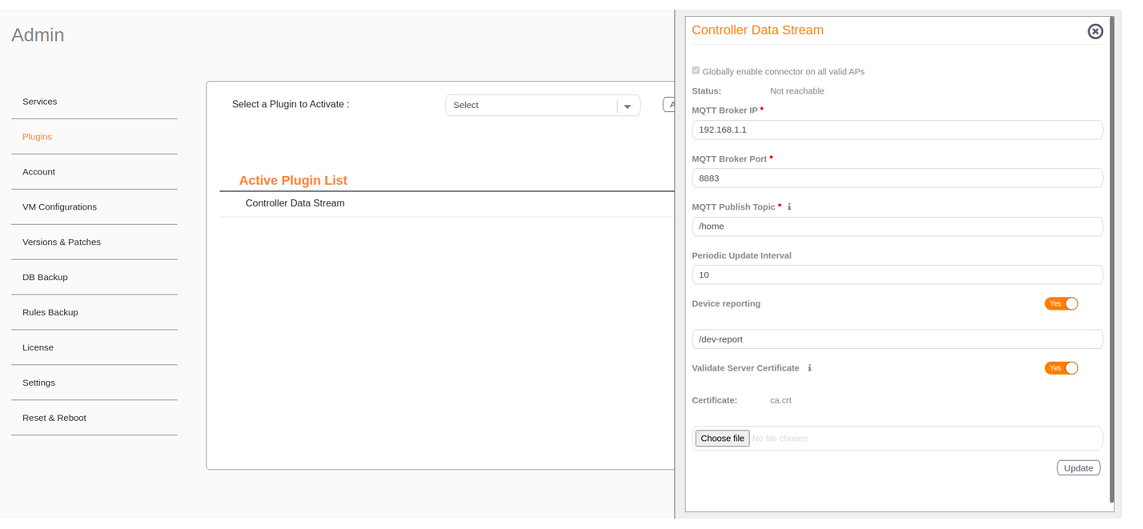
- In MQTT Broker IP, enter the IP address of your MQTT broker.
- In MQTT Broker Port, enter the network port to which you want to connect.
- In MQTT Publish Topic, enter the topic name as a simple string that is hierarchically structured with forward slashes (/) as delimiters. An MQTT client can publish messages as soon as it connects to a broker.
- In Periodic Update Interval enter the interval to receive MQTT Publish.
- Enable Device Reporting and enter the topic endpoint which will publish message whenever a device change event is received.
- Enable Validate Server Certificate to secure the connection with SSL.
- Select
Globally enable connector on all valid APs to add all respective IoT APs automatically. Connectors are mapped to IoT AP by adding
the connector name tag to the IoT AP.
- Click Apply.
- To deactivate the Controller Data Stream plugin, select it and click Deactivate.
- To edit the configuration of the Controller Data Stream, select it and click Update.