Configuring SAN Attributes
Note: Azure Active Directory is now called
Entra ID.
- From the Cloudpath Enrollment
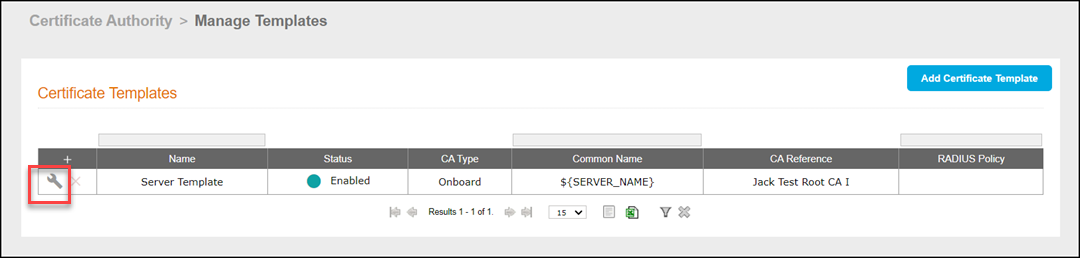
System navigation bar, go to .The Certificate Templates page is displayed.
- Click the manage icon next to the certificate name.
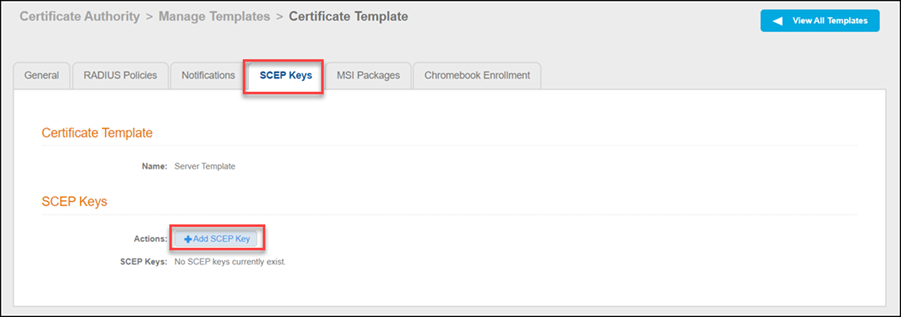
- Click SCEP Keys tab.
- In the SCEP Keys section, click Add SCEP Key.
- In the SCEP Key
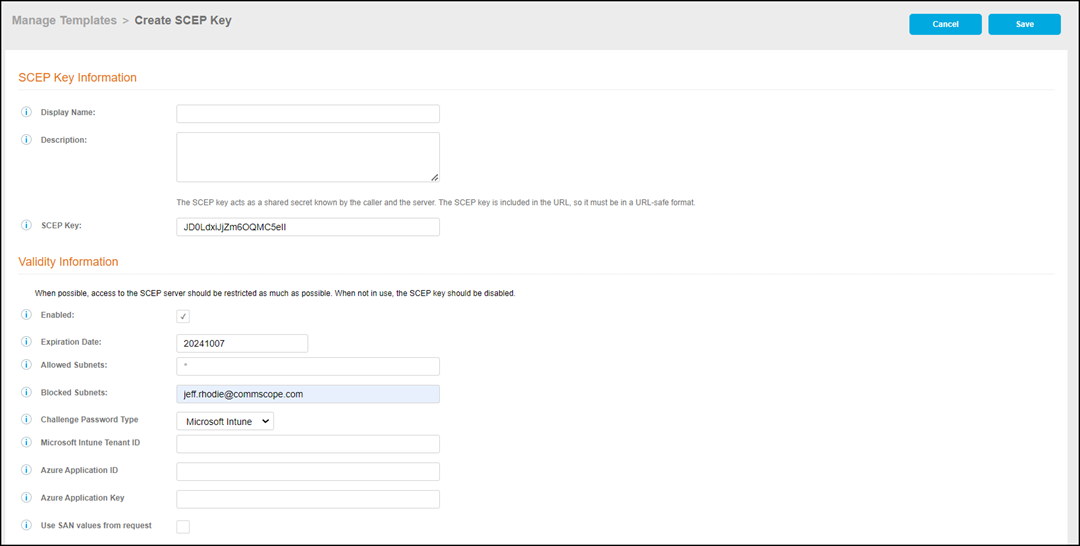
Information page, complete the following:
In the Validity Information section, complete the following information.
- Select Enabled: If enabled, the item is available for use. If disabled, the item is not available for use.
- Expiration Date: Set an expiration date (in YYYYMMDD format).
- Allowed Subnets: If configured, only the IPs or subnets specified will be allowed to utilize the SCEP server using this key. Specify in the semi-colon separated format similar to 1.1.1.1;192.168.4.1/24.
- Blocked Subnets: If configured, the IPs or subnets specified will be blocked from utilizing the SCEP server using this key. Specify in the semi-colon separated format similar to 1.1.1.1;192.168.4.1/24. Blocked subnets override the allowed subnets.
- (Optional) Challenge Password Type: Specify a challenge password which must be provided by the client during the SCEP exchange.
- Microsoft Intune Tenant ID: The Azure Tenant ID, this can be found in the Azure configuration portal.
- Azure Application ID: The Azure Application (client) ID from the Azure configuration portal.
- Azure Application Key: The Azure Application Key/Client Secret configured in the Azure Configuration portal.
- Use SAN
values from request: If selected, and the SCEP
request contains URI, DNS, RFC822 (email), or User Principal Name
Subject Alternative Names, then the first occurrence of those names
will be used in the issued certificate. This will replace the SANs
specified in the Certificate Template.
Note: The Use SAN values from request option is only available if a Microsoft Intune Challenge password type is selected.
- Days Of Access: Set the days of access. If greater than 0, this overrides the expiration date in the certificate template for certificates generated using this key
- Common Name
#1 Mapping: The CSR created as part of the SCEP
interaction will contain one or more common name (CN) values. The
system will treat the first CN as the type of value specified.
Ignore. MAC address, usable as ${MAC_ADDRESS} in the certificate
template.
- If selected, the CN in the CSR at the index specified will be treated as the MAC address. Username, usable as ${USERNAME} in the certificate template.
- If selected, the CN in the CSR at the index specified will be treated as the username. Device identifier, usable as ${ROLLUP_DEVICE_NAME} in the template.
- If selected, the CN in the CSR at the index specified will be treated as the device name. Email, usable as ${EMAIL} in the certificate template.
- If selected, the CN in the CSR at the index specified will be treated as the email address. Location, usable as ${LOCATION} in the certificate template.
- If selected, the CN in the CSR at the index specified will be treated as the location.
- Common Name
#2 Mapping: The CSR created as part of the SCEP
interaction will contain one or more common name (CN) values. The
system will treat the second CN as the type of value specified.
Ignore. MAC address, usable as ${MAC_ADDRESS} in the certificate
template.
- If selected, the CN in the CSR at the index specified will be treated as the MAC address. Username, usable as ${USERNAME} in the certificate template.
- If selected, the CN in the CSR at the index specified will be treated as the username. Device identifier, usable as ${ROLLUP_DEVICE_NAME} in the template.
- If selected, the CN in the CSR at the index specified will be treated as the device name. Email, usable as ${EMAIL} in the certificate template.
- If selected, the CN in the CSR at the index specified will be treated as the email address. Location, usable as ${LOCATION} in the certificate template.
- If selected, the CN in the CSR at the index specified will be treated as the location.
- Common Name
#3 Mapping: The CSR created as part of the SCEP
interaction will contain one or more common name (CN) values. The
system will treat the third CN as the type of value specified.
Ignore. MAC address, usable as ${MAC_ADDRESS} in the certificate
template.
- If selected, the CN in the CSR at the index specified will be treated as the MAC address. Username, usable as ${USERNAME} in the certificate template.
- If selected, the CN in the CSR at the index specified will be treated as the username. Device identifier, usable as ${ROLLUP_DEVICE_NAME} in the template.
- If selected, the CN in the CSR at the index specified will be treated as the device name. Email, usable as ${EMAIL} in the certificate template.
- If selected, the CN in the CSR at the index specified will be treated as the email address. Location, usable as ${LOCATION} in the certificate template.
- If selected, the CN in the CSR at the index specified will be treated as the location.
- Click Save.