Configuring Microsoft Intune in Cloudpath
The Simple Certificate Enrollment Protocol
(SCEP) provisions new or renewed certificates to a device.
- Configure Microsoft® Azure based on the instructions provided in: https://learn.microsoft.com/en-us/mem/intune/protect/certificate-authority-add-scep-overview#set-up-third-party-ca-integration
- From the Cloudpath web interface, navigate to .
- Click the
 icon.The Certificate Template page is displayed.
 - Navigate to the SCEP Keys tab.
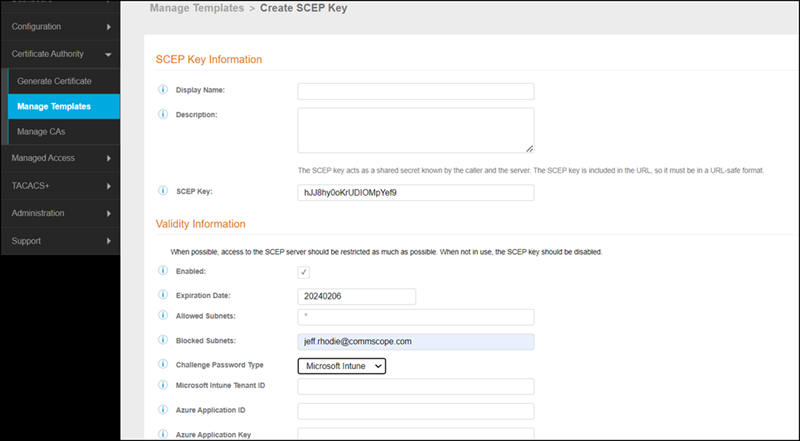
- Under SCEP Keys, click Add SCEP Key.The Create SCEP Key page is displayed.
- Under the Validity Information section, set Challenge Password Type to Microsoft Intune.
- Create a Trusted CA profile in Intune by following the instructions in: https://learn.microsoft.com/en-us/mem/intune/protect/certificates-trusted-root#create-trusted-certificate-profiles.
- Configure Intune SCEP
Configuration by following the instructions in: https://learn.microsoft.com/en-us/mem/intune/protect/certificates-profile-scep.Configuring the Root CA may differ for different operating systems. For most operating systems, it is recommended to set Root CA to the Intermediate CA of the Certificate Template. For Android™, it is recommended to set Root CA of the Certificate Template's chain.Note: If you get an error during SCEP enrollment (for example, if the hash value is not correct), then it is recommended to set Root CA to the Root CA of the Certificate Template's chain.