Schedule Reports
The scheduled report feature allows you to schedule a task to export enrollment record data, by date, or schedule a recurring export. For example, you might schedule an enrollment data report to occur on a weekly, or daily basis. This report can be emailed to one or multiple email addresses.
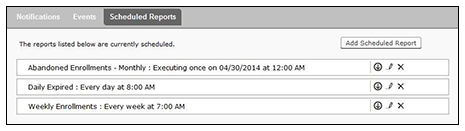
You can schedule multiple reports. For example, you can create a report that emails an enrollment record report based on enrollments with revoked certificates, and another based on issued certificates.
To schedule a task:
- Go to .
- On the Scheduled Reports page, click Add Scheduled Report.
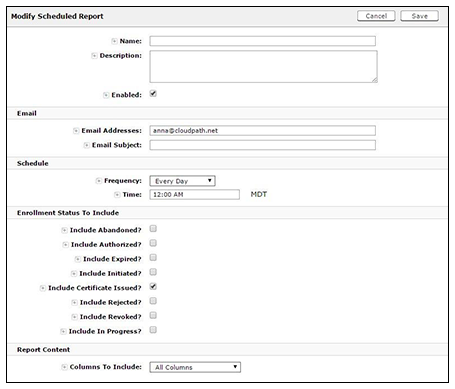
- On the Modify Scheduled Report page, enter the Name, Description, Email Address and Subject for the recipient of the enrollment records report. You can enter multiple email addresses, separated by commas.
- Specify when task is to be run. The execution period can be a specific date or you can set up a recurring report to be emailed daily, weekly, or monthly.
- In the Enrollment Status To Include section, check the information to be included in the report. For example, select Certificate Issued and Enrollment Complete to create a report that shows the number of devices that have successfully onboard to the network.
- Specify the Report Content, which determines the data columns that will be included in the report.
- Save the scheduled task.
The enrollment record data is emailed, as a CSV file, to the specified address, at the scheduled frequency. You can also download an interim report from this page.