Adding a Voucher Prompt to the Enrollment Workflow
- From the ES Admin UI, go to and create an enrollment workflow for guest users.
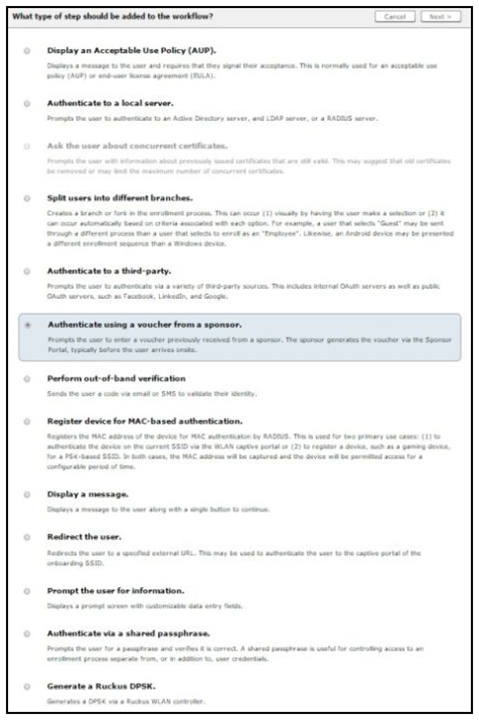
- Add an enrollment step that prompts guest users to Authenticate via a voucher.
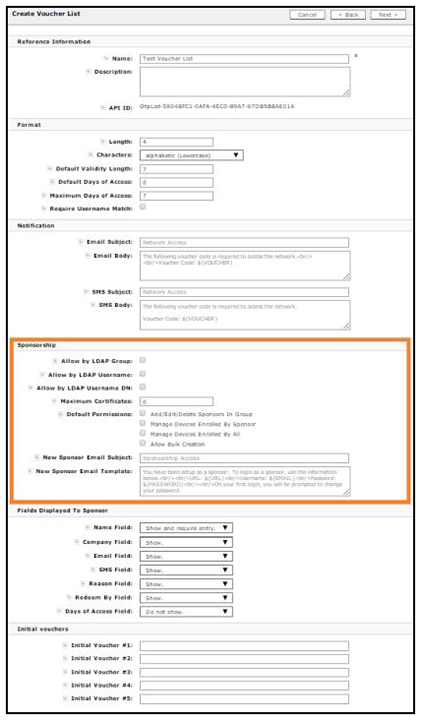
- Create a new voucher list for guest users.
- In the
Sponsorship section, enter the appropriate information in the following fields:
- Format - In addition to defining the voucher format, determine if you want to enable Require Username Match.
- LDAP Group Regex - Defines with groups within LDAP are allowed to be sponsors. For example, if you enter Wireless Sponsors, this means that anyone in the Wireless Sponsors AD group can sponsor a guest user. LDAP Username defines which usernames within LDAP are allowed to be sponsors; LDAP Username DN defines with username DNs are allowed to be sponsors.
- Maximum Certificates - Maximum number of vouchers that a sponsor is allowed to create and allocate for a particular voucher list.
- Default Permissions - The permissions to be used for sponsors authenticated using the
Sponsorship AD Group Regex.
- Add/Edit/Delete Sponsors In Group - If checked, the sponsor can add, edit, and delete other sponsors within the group.
- Manage Devices Enrolled By Sponsor - If checked, the sponsor can review and revoke devices enrolled via vouchers issued by that sponsor.
- Manage Devices Enrolled By All - If checked, the sponsor can review and revoke devices enrolled via vouchers issued by any sponsor (within the Voucher List).
- New Sponsor Email Subject - When a new sponsor is added, an email is sent to the sponsor with this subject.
- New Sponsor Email Template - When a new sponsor is added, an email is sent to the sponsor with this message.
- In the Fields Displayed to Sponsor section, select Do not show, Show, or Show and require entry to specify the information to be shown when a sponsor creates a voucher list for guest access.
- If needed, create one or more Initial vouchers.
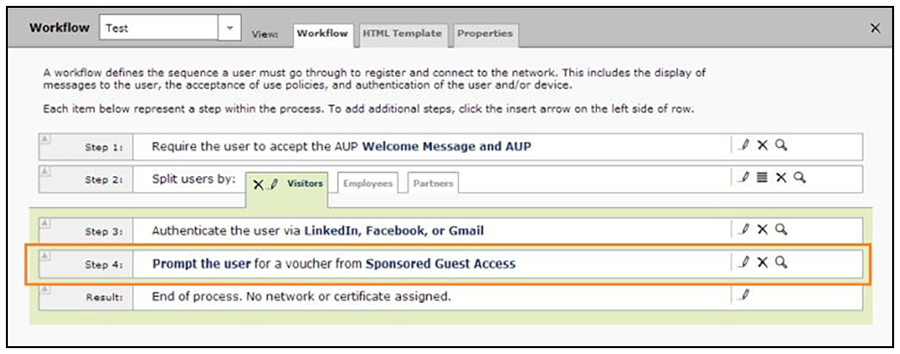
- Create a webpage that will prompt the user to enter their voucher and
Save. The voucher prompt is saved in the workflow.
Note: Sponsored access can be combined with additional options, such as authentication via Facebook, LinkedIn, or Google. When combined, the social media provides the authentication while the voucher provides the authorization. This method provides additional identity information and reduces the risk of the voucher being intercepted or misused.