How to Upload a List of Vouchers from a CSV file
If you are using a comma-separated value (CSV) file to upload multiple vouchers, the information must be formatted according to the instructions on the Create Vouchers page. A template file is available for download.
- On the Create Vouchers page, select Upload a CSV file containing a list of vouchers.
- Click Choose File to navigate to the CSV file to upload, and click Next.
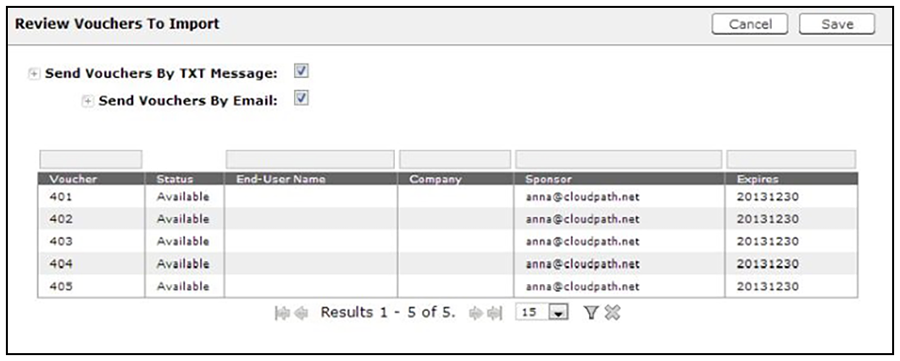
- Verify the vouchers to import and specify if voucher should be sent to user by email or SMS, and Save.
- The
Voucher Lists page shows which vouchers have been used, the expiration dates, and any guest user
details that were entered when the sponsor created the voucher, or contained in the
CSV file.
Note: The voucher field must be listed as Show in the voucher list to see it on the voucher table. For example, if Days of Access is set to Do Not Show on the voucher list, and your spreadsheet includes Days of Access, they do not appear in the voucher table. You must change the setting to Show in the voucher list. See Adding a Voucher Prompt to the Enrollment Workflow for more information.