Approving a New Switch to Join Unleashed
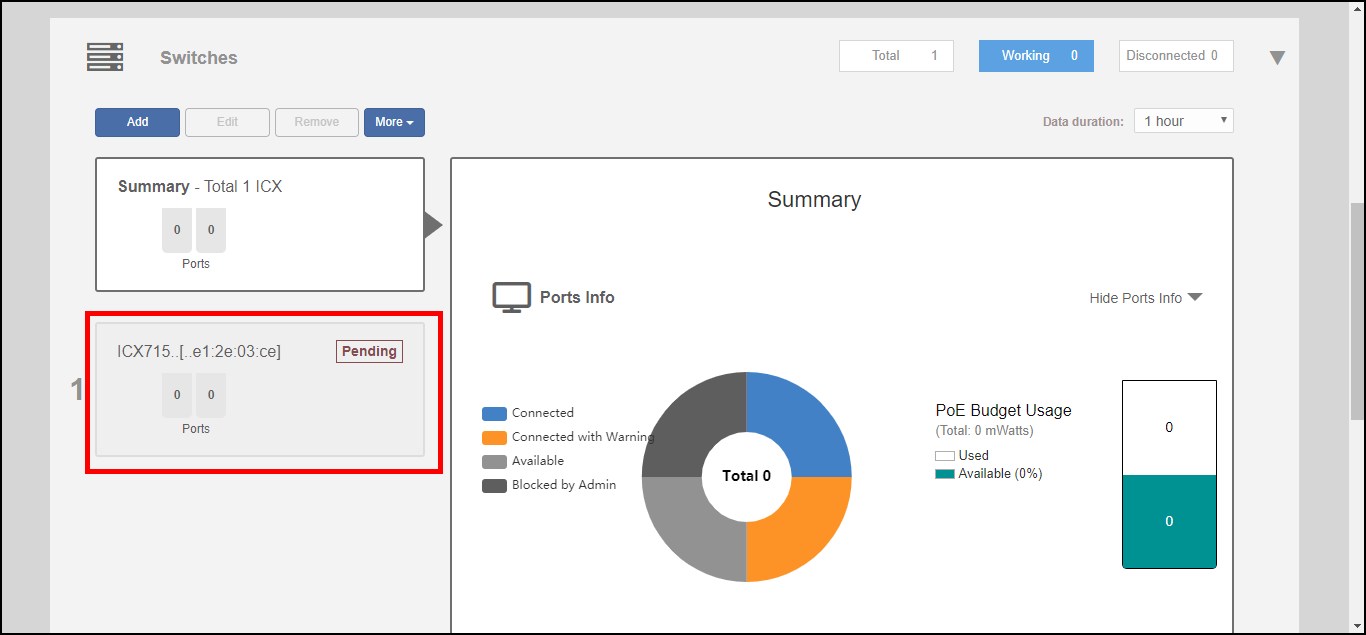
Once an ICX switch has been discovered, it is listed in the web interface as "pending"
until the administrator approves the join request by entering the switch admin user
name and password (if auto-approval is disabled).
- Expand the Switches component, and select a switch that is marked as "Pending" in the list on the left side of the page.
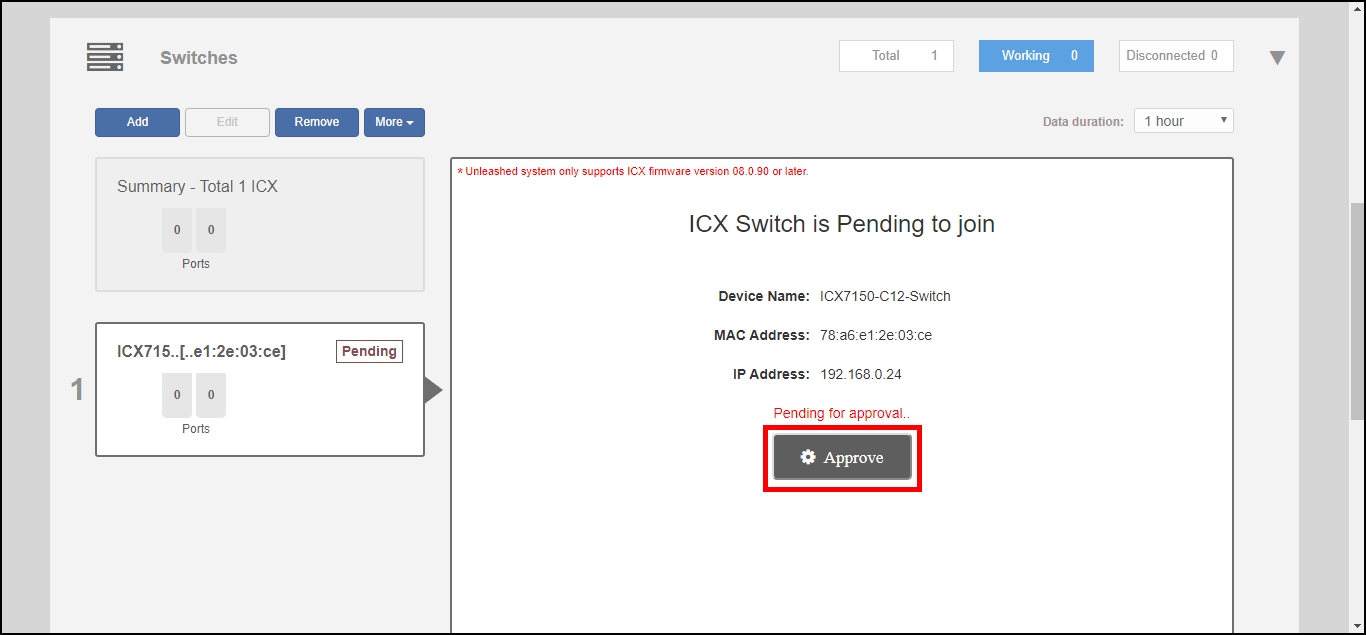
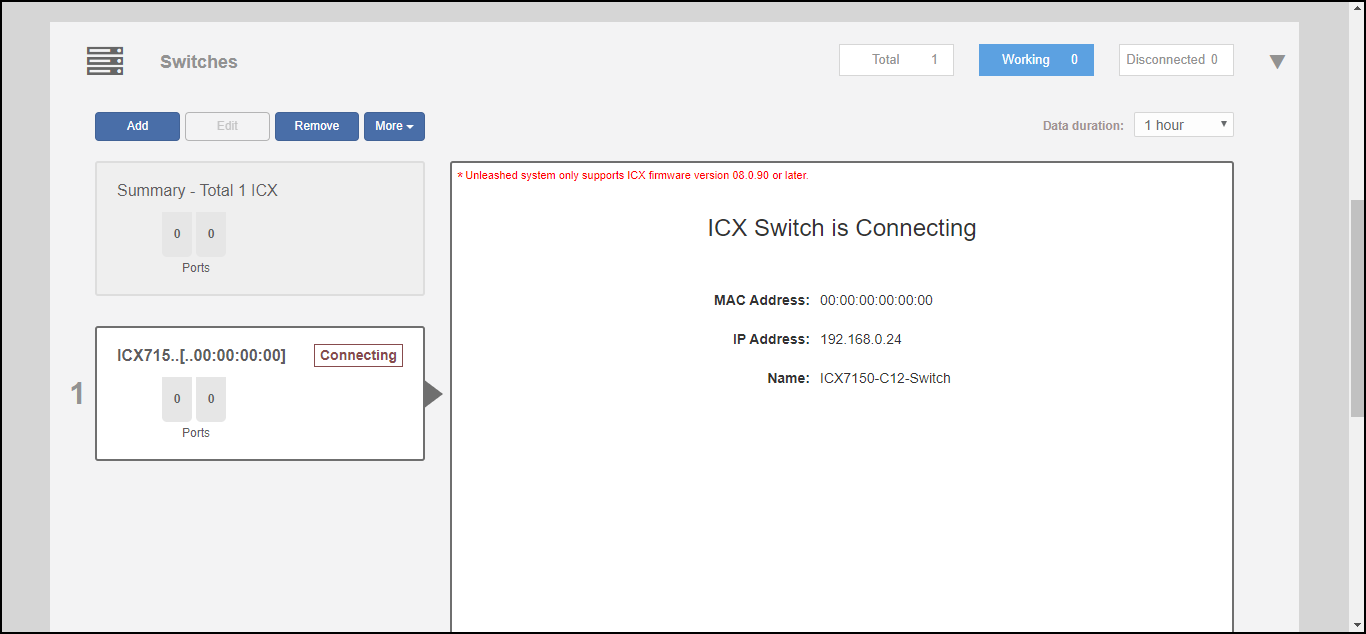
- Click Approve. If the switch is in factory default state, it will automatically connect and be listed among the connected switch devices once the connection is established and the page is refreshed.
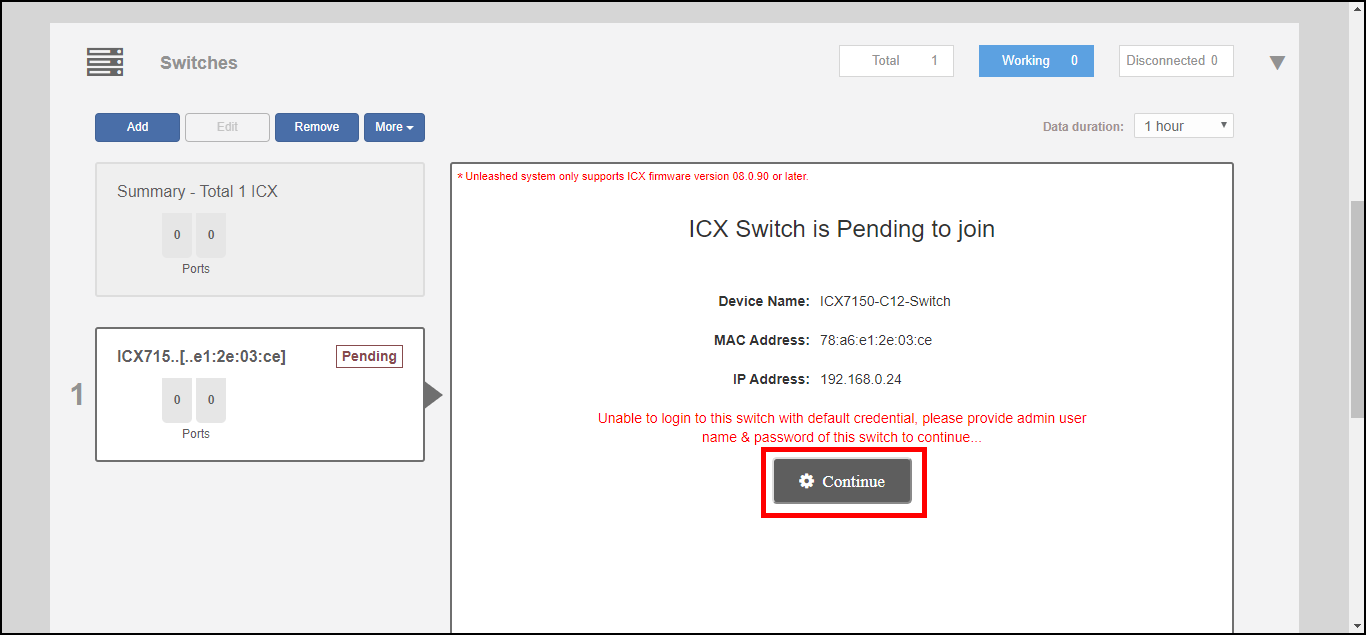
- If the switch is not in factory default state, the Unleashed Master is unable to login using the default user name and password, and the following message appears. Click Continue to manually enter the login credentials.
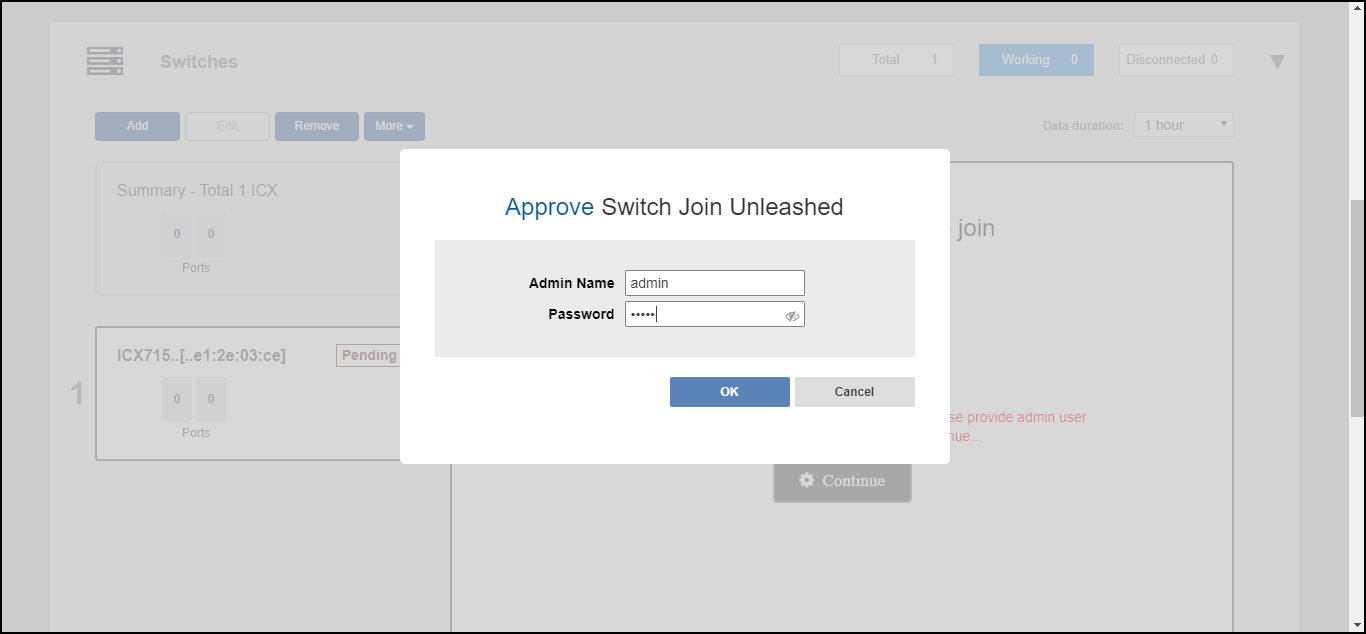
- In the Approve Switch to Join Unleashed dialog that appears, enter the Admin Name and Password to authenticate to the switch.
- Click OK. Unleashed immediately attempts to verify and approve the switch. If successful, the switch status will change to Connecting before joining Unleashed.