Viewing and Deleting Alarms
Complete the following steps to view or delete the alarms.
- On the menu, go to
Admin >
Alarms.
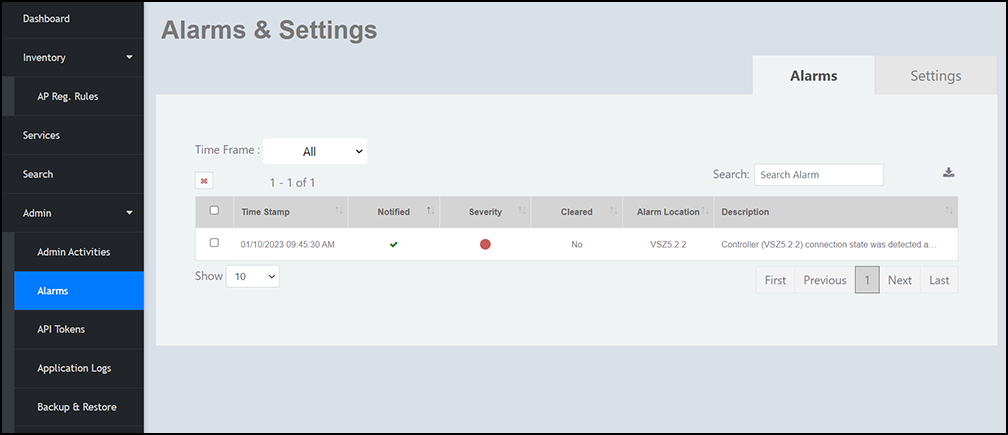
The Alarms & Settings window is displayed. In the Alarms tab, alarms that are triggered upon occurrence of various events can be viewed.
Alarm Details
Note: The columns in the Alarm & settings window can be resized to meet your requirements. - Select the Alarms and click
 (Delete Alarm) to delete the
selected alarms from the RUCKUS Network Director
database.
(Delete Alarm) to delete the
selected alarms from the RUCKUS Network Director
database. - Select the Alarms and click
 to download the selected
alarms details from the database.
to download the selected
alarms details from the database.