Logging In to the RUCKUS Network Director Admin Portal
The web-based RUCKUS Network Director Admin portal is your primary interface to the centralized
inventory of all APs and SmartZone controllers. To manage your APs and service settings,
you
must first log in to the RUCKUS Network Director Admin portal.
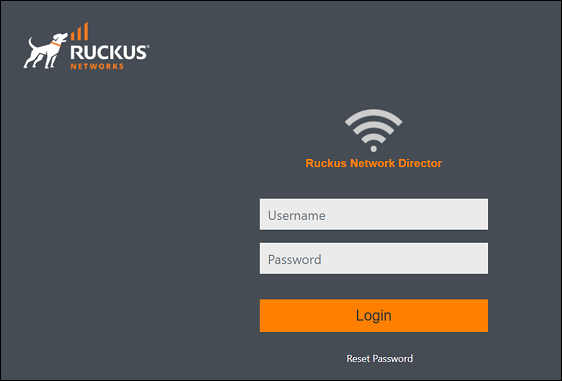
- Launch the web browser and browse to the RUCKUS Network Director Admin portal (https://[RUCKUS Network Director IP]:8443).
- In the login fields, enter the default login credentials and click Login.
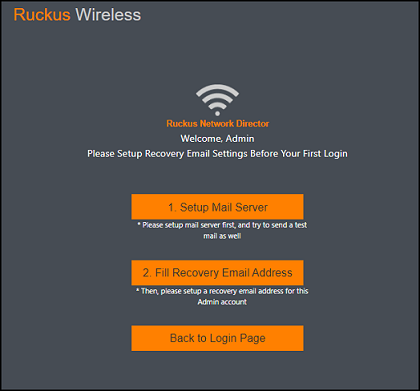
- Click Setup Mail Server.
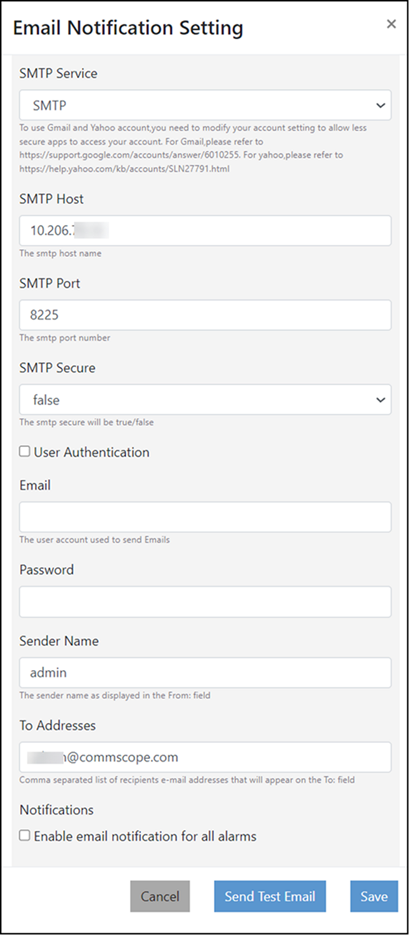
- Configure the Email Notification Setting and click Save. Refer to the Create Email Notification Setting in the Managing Alarm Events and Notifications.
- Click Fill Recovery Email Address.
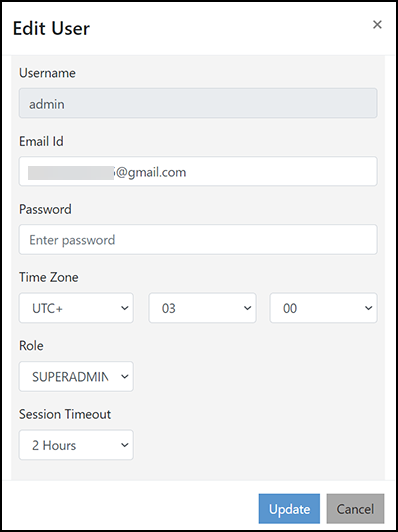
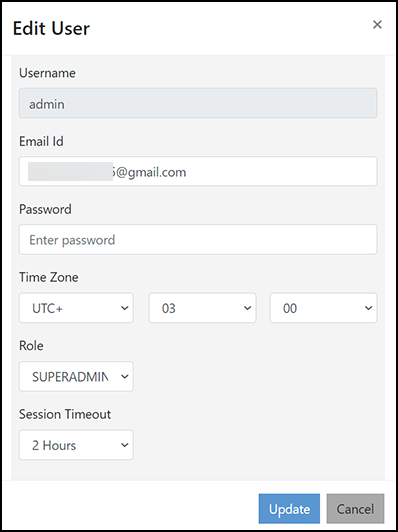
- Complete the following fields and click Update:
- Username: By default, the username is admin.
- Email Id: Enter the email ID from which you want to send the notification. This is a modify required field. You must update the email ID instead of using the default value.
- Password:
Enter a password. The password must be a valid and strong password.
Remember this password because it will be used on the login page going forward.
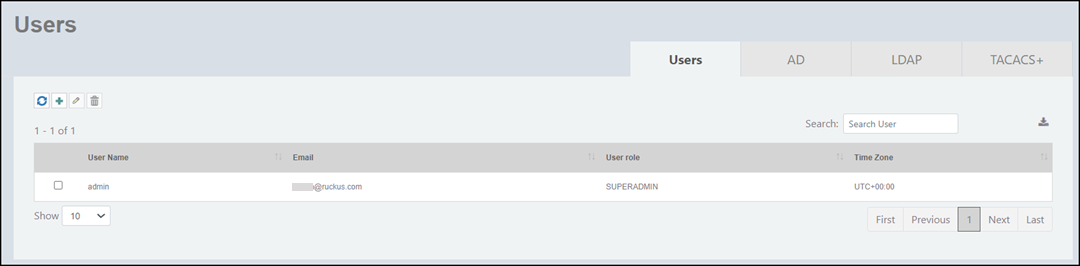
Note: Once logged in, you can change the password or add or edit a user in the Edit User dialog box.
Once logged in, you can change the password by completing the following steps:
- Time Zone: Select a time zone from the set of lists.
- Role: Select the role from the list.
- Session Timeout: Select the session timeout from the list.
- Click Back to Login Page.
- In the login fields, enter the login credentials.
- Click Login. The web interface refreshes and then displays the Dashboard, which indicates that you have logged in successfully.
 icon. The