Adding Locations
- From the main menu, go to .
- Location Name: In the Location Name field, enter the location name of the site.
- Max Occupancy: In the Max Occupancy field, enter the total number of people allowed in the location. The default value is 0.
- Location Floor: In the Location Floor field, enter the floor number.
- Realm: In the Realm field, the realm name is displayed.
- Site Name: From the Site Name list, select the name of the site.
- Building: From the Building list, select the number of the building. After the site name and building number have been selected, the name of the country displays in the Site Country field.
- Click Save to save the details.
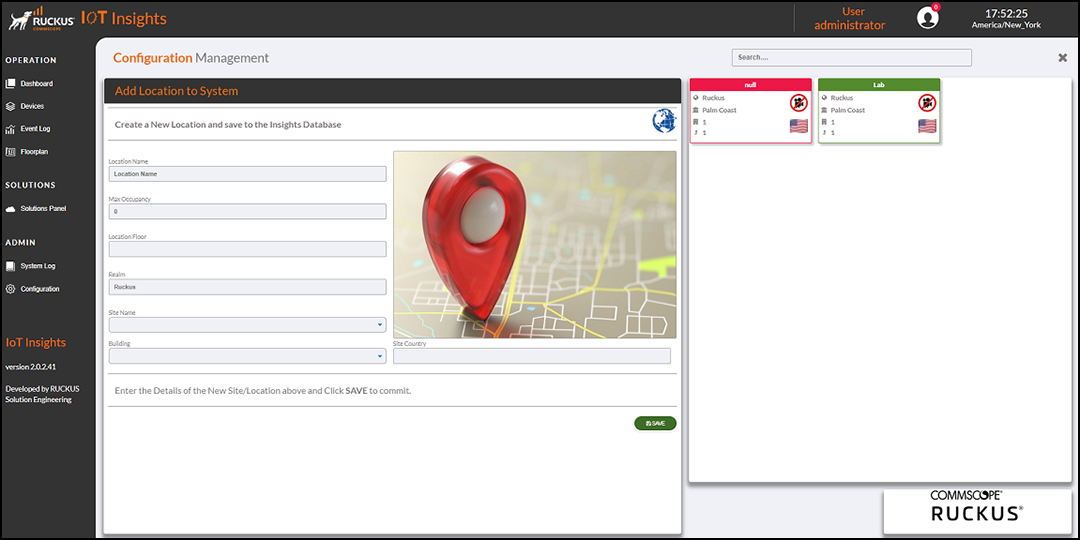
The Current Locations table lists the location details, including the realm, site name, country, building number, floor number, and location name.
You can enter search criteria in the Search field to search the Current Locations table for information.