Prompting Users to Name Their Device and Remove Old Devices
new for
5.9r3
You can use the workflow plugin called "Ask the user to name their
device" to let users manage their own devices.The "Ask the user to name their device" workflow plug-in can be used however you see fit in a given workflow if you want to allow users to delete previous devices they have used to enroll with Cloudpath, and add new devices. This is demonstrated with the following example procedure, where this workflow step is used in conjunction with a "MAC Registration List" workflow plugin.
- From the Cloudpath UI, begin building your workflow.
- Be sure to include the "Authenticate to a
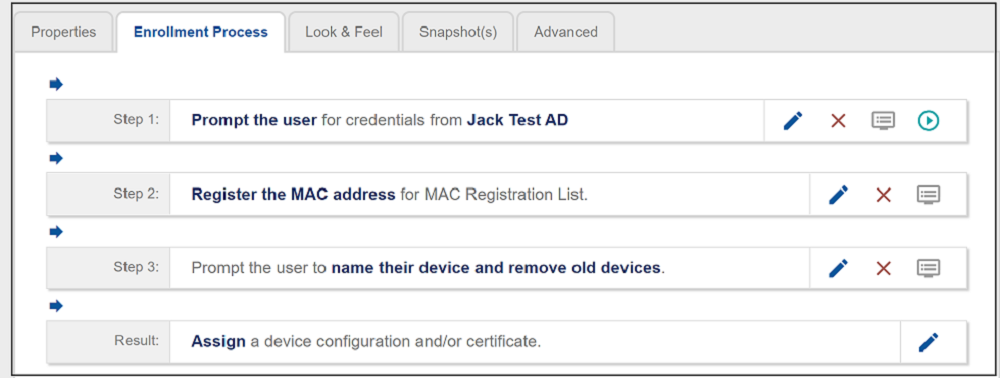
traditional server" step early in the workflow (step 1 in Completed Workflow Example That Includes Users Naming Their Device and Removing Old
Devices).
Note: You need an authentication step before Cloudpath will let you add the "Ask the user to name their device" step to the workflow.
- You could choose to have a MAC Registration step next. Within that step, you have the option to prompt the user to enter the MAC address of their enrolling device.
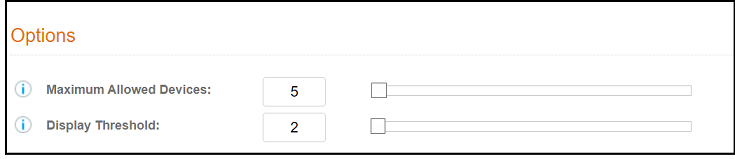
- Add the "Ask the user to name their device" step next. When you add this step, you have different options you can configure. The options that allow you to determine how you want to let users manage their devices is provided in the "Options" portion of the configuration screen:
- Set the options as desired.
- The "Maximum Allowed Devices" field can be set as high as 999. If you do not want to restrict the number of devices, set the value of this field to 0. In the example above, the administrator has chosen 5 as the maximum number of devices that the enrolling user can have in Cloudpath.
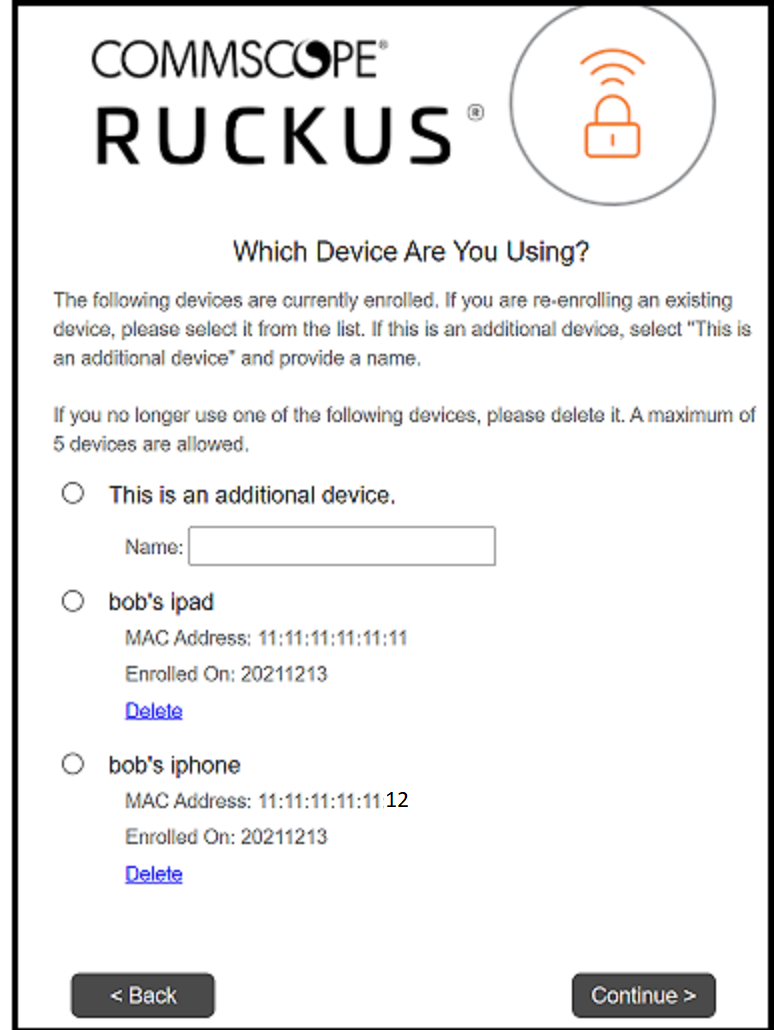
- The "Display Threshold" field is where you determine how enrolling users can manage their own devices. You can set this value to be equal to or less than the value set in the "Maximum Allowed Devices" field. As soon as the user has enrolled the number of devices that matches the value configured in this field (2 in the example in the screen above), the user receives a prompt that allows them to delete old devices or add a new device (Prompt the End User Will Get Once the Configured "Display Threshold" Number Has Been Met).
- Save the above configuration. The configuration example would be displayed as:
- Publish the workflow.
- Test out the workflow (by clicking on the
Enrollment URL at the top of the workflow) by continuing to add devices. After you
hit the
display threshold of two devices, you should receive the prompt shown in the following
screen:
You can take any action here that you want. Once you have enrolled the configured limit of five devices, the button to add an additional device is greyed out until you delete an old device.