Enabling Syslog Message Delivery
- From the main menu, select page.
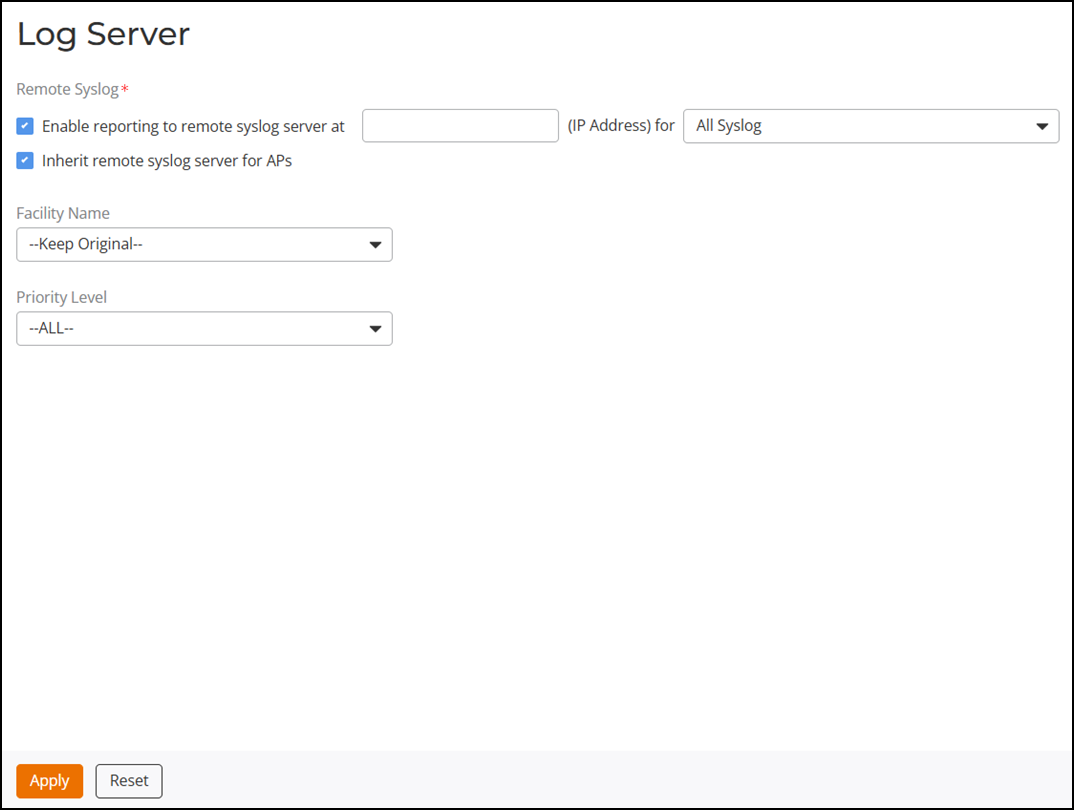
- Select the Enable reporting to remote syslog server at option, enter the IP address of the destination server in the field provided, and select the event log level that you would like to receive from the drop-down list (All Syslog, Client Connection Logs Only, and Client Flow Data Only).
- (Optional) Deselect or select the Inherit remote syslog server for APs option.
- For Facility Name, select a facility name from the drop-down list.
- Select Priority, choose a syslog event priority from the drop-down list.
- Click Apply to save changes or click Reset to reconfigure syslog server setting.