Creating Account Security
Complete the following steps to configure Global Security and create an Account Security profile.
- In the controller web UI, select .
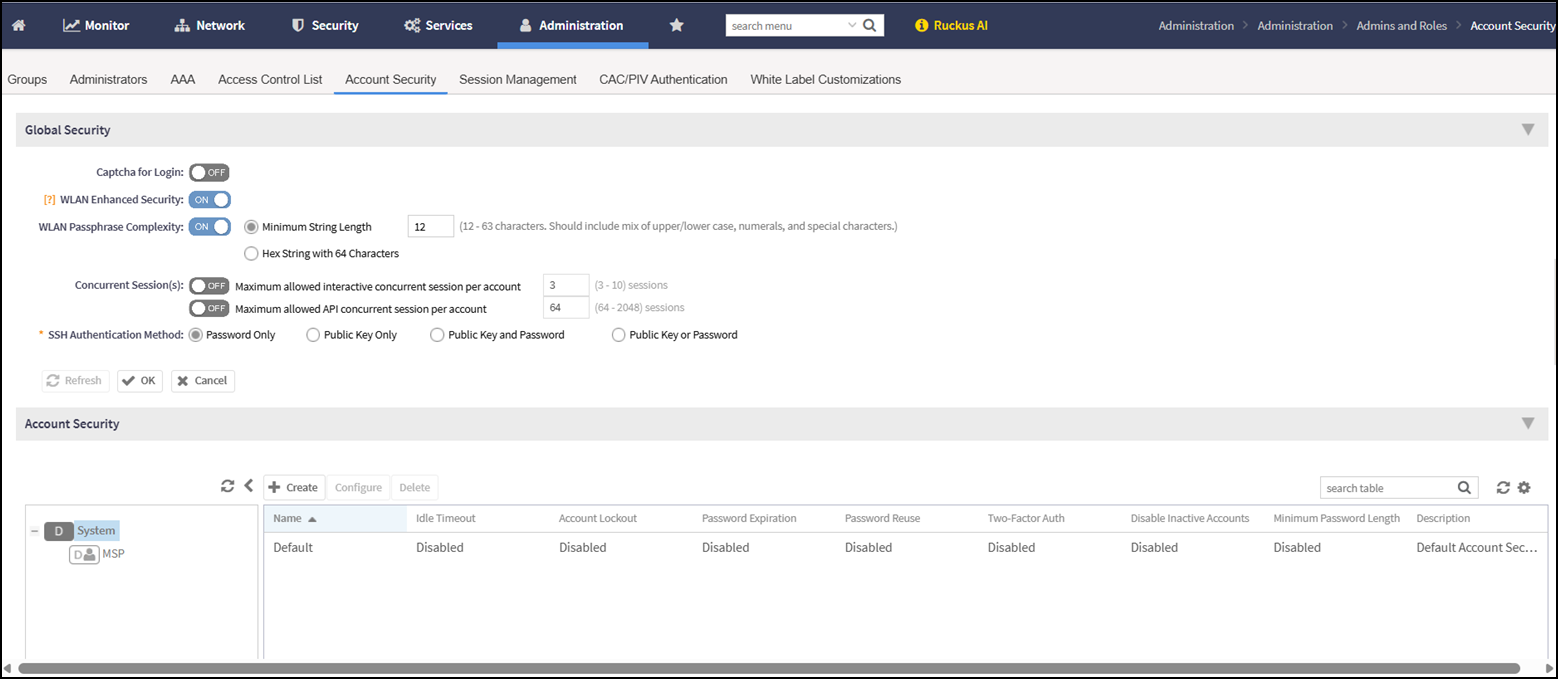
- In the Global Security
section, configure the following fields:
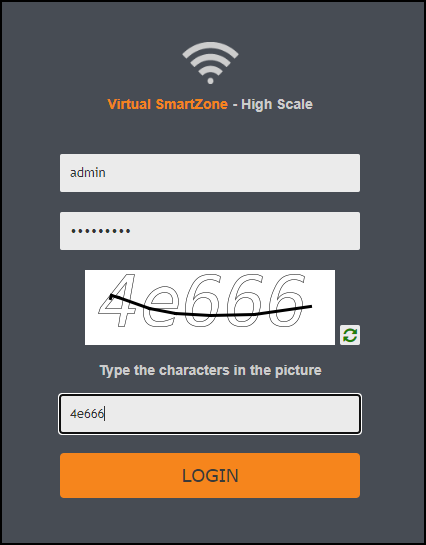
- Captcha for Login: Toggle ON to require a CAPTCHA challenge before signing in. This requirement prevents automated login attempts by verifying that a human initiates the request. When enabled, the login page displays a case‑sensitive CAPTCHA image that you can refresh if it is unclear. Type the characters exactly as shown to proceed.
- WLAN Enhanced
Security: Toggle ON to
prevent WLANs from using insecure encryption methods, including
WPA‑mixed, Opportunistic Wireless Encryption (OWE) transition, or None.
For more information on encryption options, refer to the RUCKUS SmartZone
(LT-GA) Network Management Guide, 7.2.0.
- Note:
- With WLAN Enhanced Security enabled, existing WLANs using insecure methods are retained in the configuration, but you cannot create, clone, import, or edit WLANs to apply those methods.
- Assigning WLANs to Mobile Virtual Network Operators (MVNOs) is blocked when WLAN Enhanced Security is enabled.
- WLAN Passphrase
Complexity:
Toggle ON to enforce strong passphrase requirements by requiring either a mixed‑character ASCII string or a 64‑character hexadecimal string for WLANs.
By default, the WLAN Passphrase Complexity toggle is OFF, and the controller uses standard passphrase validation (8 to 63 ASCII characters or a 64‑character hexadecimal string).
Note: The complexity check applies only to new WLANs or when existing passphrases are modified; previously saved passphrases are not validated again until modified.Do one of the following:
-
Select Minimum String Length to require a mixed‑character ASCII passphrase, and enter a minimum length from 12 through 63 characters. The passphrase must include uppercase and lowercase letters, numerals, and special characters.
-
Select Hex String with 64 Characters to require a fixed‑length hexadecimal passphrase. The passphrase must contain exactly 64 hexadecimal characters (0–9, A–F, a–f).
Note: This feature is not supported when 802.1X Extensible Authentication Protocol (EAP) or 802.1X EAP & MAC authentication is selected, or when Internal Dynamic Pre‑Shared Key (DPSK) or External DPSK is enabled. -
- Concurrent Session(s): Toggle ON, then configure:
-
SSH Authentication Method: Choose one of the following for CLI access:
- Click OK to apply changes. Click Refresh to load the most recently saved changes, or click Cancel to discard unsaved edits.
The controller enforces the updated system‑wide authentication, passphrase, session, and SSH policies. - To create an Account Security profile, click Create in the Account Security section.
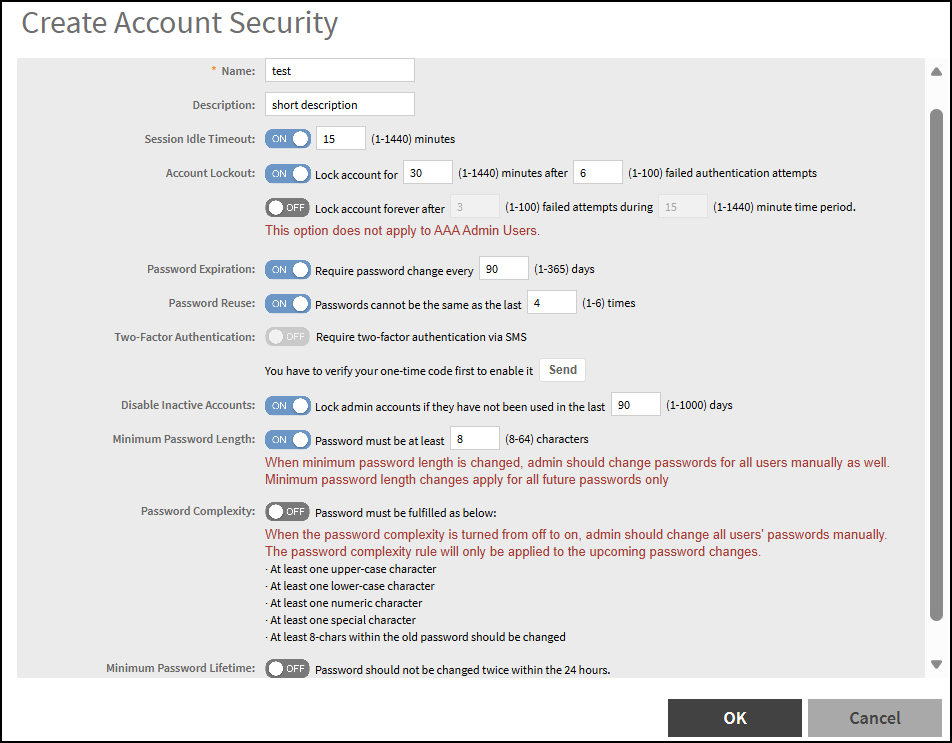
- Configure the following:
- Name: Enter a name for the security profile.
- Description: Provide a short description of the profile.
- Session Idle Timeout: Toggle ON and enter an idle timeout from 1 through 1440 minutes.
- Account Lockout: You can lock the account temporarily or
permanently based on failed login attempts. Configure one of the
following:
- Lock Account: Toggle ON and enter the account lockout duration (1 through 1440 minutes) and the number of failed authentication attempts (1 through 100).
- Lock Account Forever:
Toggle ON
and enter the number of failed attempts (1 through 100) after
which the account is locked permanently, and the time window for
counting failed attempts (1 through 1440 minutes).
Note: This option is not applicable to AAA Admin Users.
- Password Expiration: Toggle ON and enter the
number of days that the password is valid. After the configured period,
the password expires and the account is inaccessible until the password
is updated. The default validity period is 90 days, and the valid range
is from 1 through 365 days.
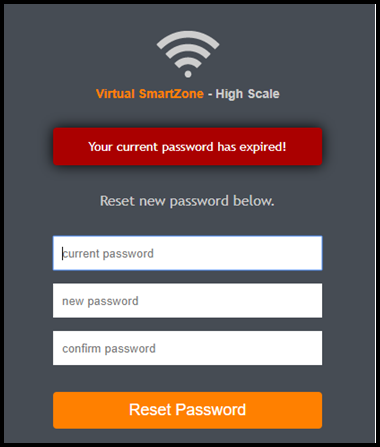
If the password has expired, you are prompted to change or reset the password at login. Reset the password as shown in the figure.
- Password Reuse: Toggle ON to prevent reuse of passwords. By default, the value is 4 (the last four passwords cannot be reused). Enter a value from 1 through 6.
- Disable Inactive Accounts: Toggle ON to lock administrator user IDs that are inactive for the specified period. Enter the number of days from 1 through 100.
- Minimum Password Length: Toggle ON to set the minimum number of characters required for a password. Enter a value from 8 through 64.
- Password Complexity: Toggle ON to ensure that the password applies the following complexity rules:
- Minimum Password Lifetime: Toggle ON to prevent changing the password more than once within 24 hours.
- Click OK to submit the security profile.
With new enhancements to account security, SmartZone has a complete feature set to make PCI compliance straightforward. In addition to local PCI enforcement settings, SmartZone also integrates with SmartCell Insight (SCI) for reporting and analytics. SCI version 5.0 and later supports a PCI compliance report, which is based on relevant PCI‑related configuration settings throughout SmartZone. To facilitate the SCI PCI report, SmartZone can send the following information to SCI:
- Configuration messages as separate Google Protocol Buffers (GPB) messages
- WLAN configuration
- Default configuration changes
- Controller information that identifies the controller model
- Encryption details of communication, for example, CLI, SSH, Telnet, web, and API
- Inactive user IDs and session timeouts
- Authentication mechanisms enforced on user IDs
- Password enforcement
- Supported mechanisms on SmartZone (SZ) that can be provided to SCI
- User IDs that are locked after failed attempts
- Authentication credentials that are unreadable and encrypted during transmission
- Enforcement of password standards
- Whether the disallow duplicate password feature is enabled
- Whether rogue Access Point (AP) detection is enabled on each AP
To learn more about SCI and the PCI compliance report it provides, refer to the product page (https://www.ruckuswireless.com/products/smart-wireless-services/analytics) and the documentation on the RUCKUS Support page (https://support.ruckuswireless.com).