Creating Proxy AAA Servers for a Standby Cluster
A proxy AAA server is used when APs send
authentication or accounting messages to the controller and the controller forwards
these
messages to an external AAA server.
- Go to .
- Select the Proxy (SZ Authenticator) tab, and then select the zone for which you want to create the AAA server.
- Click Create.
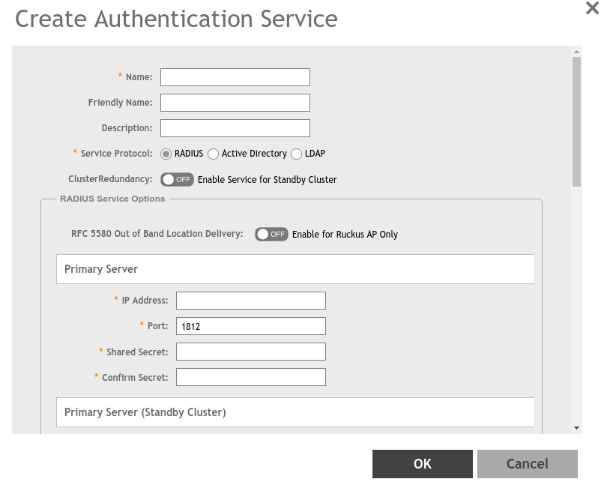
- Configure the following options:
- Name: Enter a name for the authentication service that you are adding.
- Friendly Name: Enter an alternative name that is easy to remember.
- Description: Enter a description for the authentication service.
- Service Protocol: Select
the type of service protocol for the authentication service you are
adding. Options include RADIUS, Active
Directory, and LDAP.
- If you select RADIUS, refer to RADIUS Service Options for more information.
- If you select
Active Directory, configure the
following options:
- Global Catalog: Select the Enable Global Catalog support if you want the Active Directory server to provide a global list of all objects.
- Primary
Server: For Encryption, select the Enable TLS Encryption check box if you
want to use the Transport Layer Security (TLS) protocol
to secure communication with the server.
Note: You must also configure the Trusted CA certificates to support TLS encryption.
- IP Address: Enter the IPv4 address of the Active Directory server.
- Port: Enter the port number of the Active Directory server. The default port number (389) must not be changed unless you have configured the Active Directory server to use a different port.
- Windows Domain Name: Enter the Windows domain name assigned to the Active Directory server (for example, domain.ruckuswireless.com).
- If you select
LDAP, configure the following
options:
- Select
the Enable TLS Encryption check box if you
want to use the Transport Layer Security (TLS) protocol
to secure communication with the server.
Note: You must also configure the Trusted CA certificates to support TLS encryption.
- IP Address: Enter the IPv4 address of the LDAP server.
- Port: Enter the port number of the LDAP server.
- Base DN: Enter the base domain name in LDAP format for all user accounts (for example, dc=ldap,dc=com).
- Admin DN: Enter the administrator domain name in LDAP format (for example, cn=Admin;dc=Your Domain,dc=com).
- Admin Password: Enter the administrator password for the LDAP server.
- Confirm Password: Re-enter the administrator password to confirm.
- Key Attribute: Enter a key attribute to denote users (for example, default: uid).
- Search Filter: Enter a search filter (for example, objectClass=Person).
- Select
the Enable TLS Encryption check box if you
want to use the Transport Layer Security (TLS) protocol
to secure communication with the server.
- Cluster Redundancy: Select the Enable Service for Standby Cluster option to enable cluster redundancy.
- Advanced Options - Domain name: Enter the allowed domain name that you want to add.
- User Role Mapping:
6.0 updateNote: While mapping group attribute value to a user role, avoid special characters, wild-card entries, or duplicate entries regardless of the order. Only the firs-matched entry will be mapped to the user role.
The mapped user profile is listed.
- Click OK.
 to create a new user
role. For more information, refer to