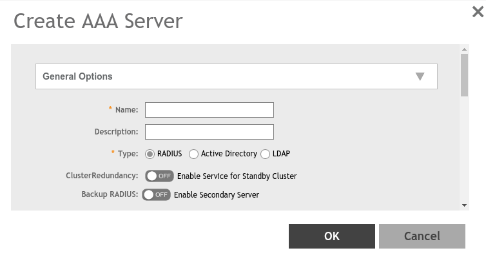
Creating Non-Proxy Authentication AAA Server
A non-proxy AAA server is used when APs
connect to the external AAA server directly.
- Go to .
- Select a Zone from the system tree and click Create.
- Configure the following options:
- General Options
- Name: Enter a name for the AAA server that you are creating.
- Description: Enter a short description of the AAA server.
- Type: Select the type of AAA server that you are creating. Options include RADIUS, Active Directory and LDAP.
- Backup RADIUS : Select the Enable Secondary Serveroption if secondary RADIUS server exists on the network. This option is displayed only if RADIUS type I selected.
- Primary Server
- If you select RADIUS, configure the following options:
- IP Address: Enter the IP address of the AAA server. Both IPv4 and IPv6 addressing formats are supported.
- Port: Enter the port number of the AAA server. The default RADIUS server port number is 1812.
- Shared Secret: Enter the AAA shared secret.
- Confirm Secret: Re-enter the shared secret to confirm.
If you have enabled the secondary server for Backup RADIUS, you must provide similar information as in the primary server.
- If you selected
Active Directory, configure the
following options:
- IP Address: Enter the IPv4 address of the Active Directory server.
- Port: Enter the port number of the Active Directory server. The default port number (389) must not be changed unless you have configured the Active Directory server to use a different port.
- Windows Domain Name: Enter the Windows domain name assigned to the Active Directory server (for example, domain.ruckuswireless.com).
- If you selected
LDAP, configure the following
options:
- IP Address: Enter the IPv4 address of the LDAP server.
- Port: Enter the port number of the LDAP server. The default port number is 389.
- Base Domain Name: Enter the base domain name in LDAP format for all user accounts (for example, dc=ldap,dc=com).
- Admin Domain Name: Enter the administrator domain name in LDAP format (for example, cn=Admin;dc=Your Domain,dc=com).
- Admin Password: Enter the administrator password for the LDAP server.
- Confirm Password: Re-enter the administrator password to confirm.
- Key Attribute: Enter a key attribute to denote users (for example, default: uid)
- Search Filter: Enter a search filter (for example, objectClass=Person).
- If you select RADIUS, configure the following options:
- General Options
- Under
User Role Mapping, click
Create to create a user traffic profile mapping.
6.0 updateNote: While mapping group attribute value to a user role, avoid special characters, wild-card entries, or duplicate entries regardless of the order. Only the firs-matched entry will be mapped to the user role.
- In the Group Attribute Value field, enter the value to be sent from AAA as part of an Access-Accept.
- Select a user role from the User Role list or click + to create a user role. For more information, refer to User Roles in RUCKUS SmartZone Access and Security Services Guide.
- Select a firewall from the Firewall Profile list, select a firewall or click + to create a new firewall profile. For more information, refer to Managing a Firewall Profile in RUCKUS SmartZone Network Administration Guide.
- Click OK.