Configuring the SD-LAN Service
- On the RUCKUS One navigation bar, hover over Network Control and click My Services or Service Catalog.
- Access the Add SD-LAN Service page using one of the following methods:
- In the Add SD-LAN
Service page, configure the following:
- Settings: In this section, enter the following
details:
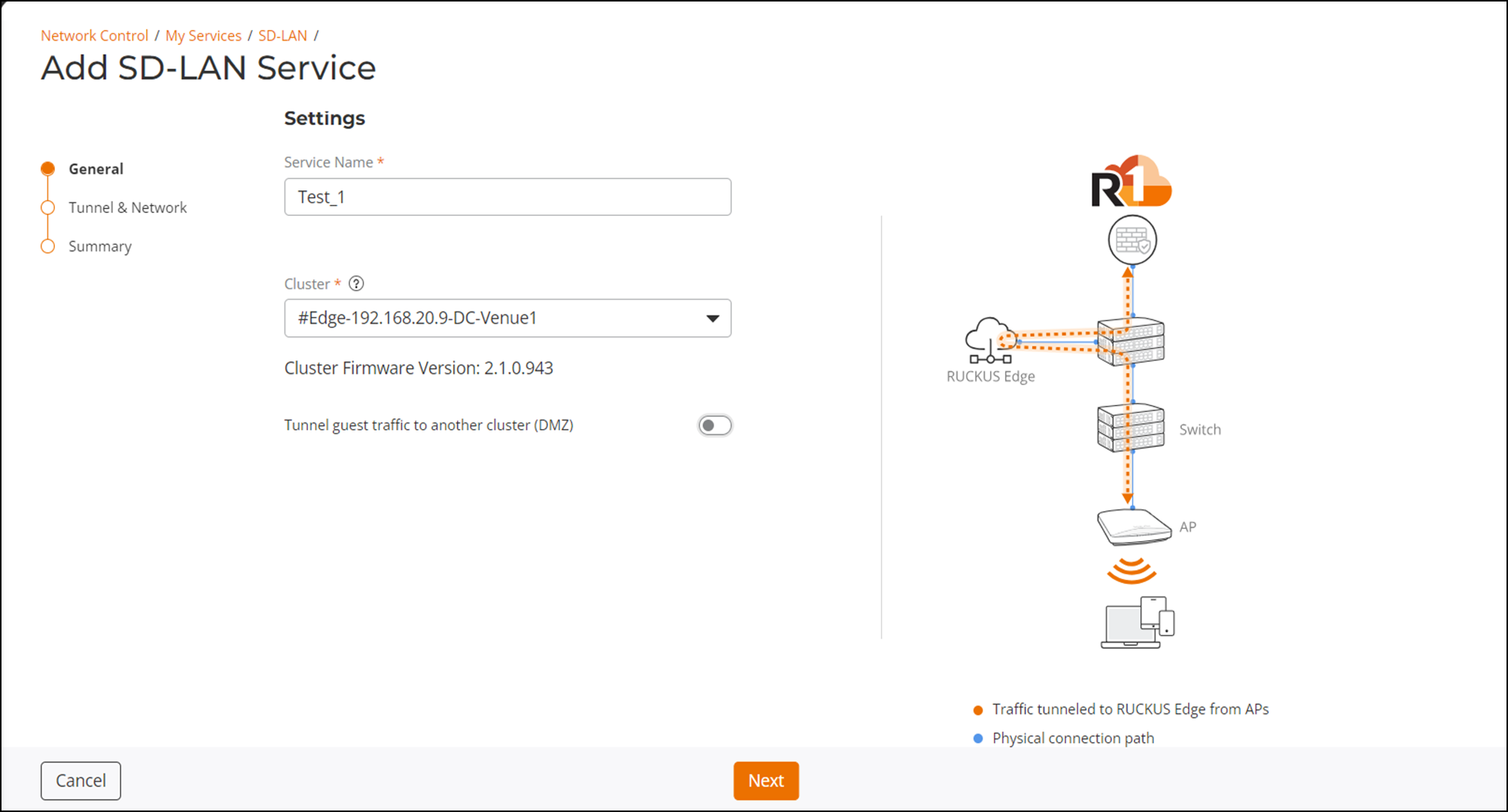
- Service Name: Enter a meaningful name for the SD-LAN service.
- Cluster: Select the cluster to which all traffic is tunneled in the specified venue. Ensure the Data Center (DC) Edge device to which this service is associated already has a LAN port configured as a core port.
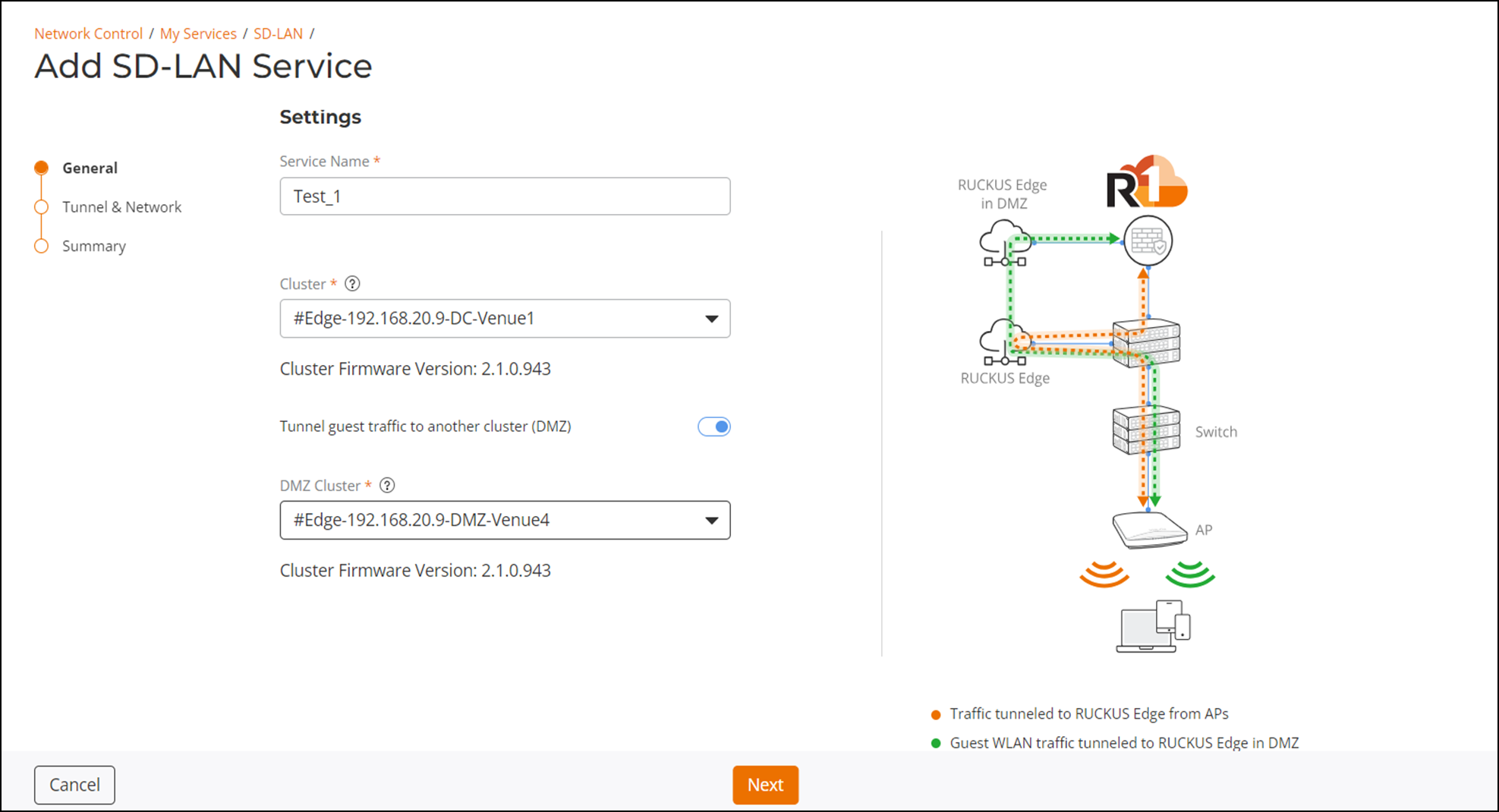
- Tunnel guest
traffic to another cluster (DMZ): In a Wi-Fi network
architecture, the demilitarized zone (DMZ) is a subnetwork that
adds an extra layer of security by separating the LAN from
untrusted networks (such as public networks). A toggle switch
allows you to enable and disable this option.
Disable: This is the default setting. Guest traffic is not sent to the DMZ RUCKUS Edge. The SD-LAN service is configured between the AP and the Data Center RUCKUS Edge device, with traffic tunneled only to the Data Center RUCKUS Edge device.
Enable: Guest traffic is sent to the DMZ RUCKUS Edge. The SD-LAN service is configured between the Data Center and the DMZ RUCKUS Edge devices.
- DMZ Cluster: Select the cluster from the drop-down list to which the guest traffic is directed in the DMZ. This field appears only when Tunnel Guest Traffic to another Cluster (DMZ) is enabled.
After entering all the details, click Next. The Tunnel & Network Settings configuration is displayed.
- Tunnel &
Network Settings: In this section, enter the following
details:
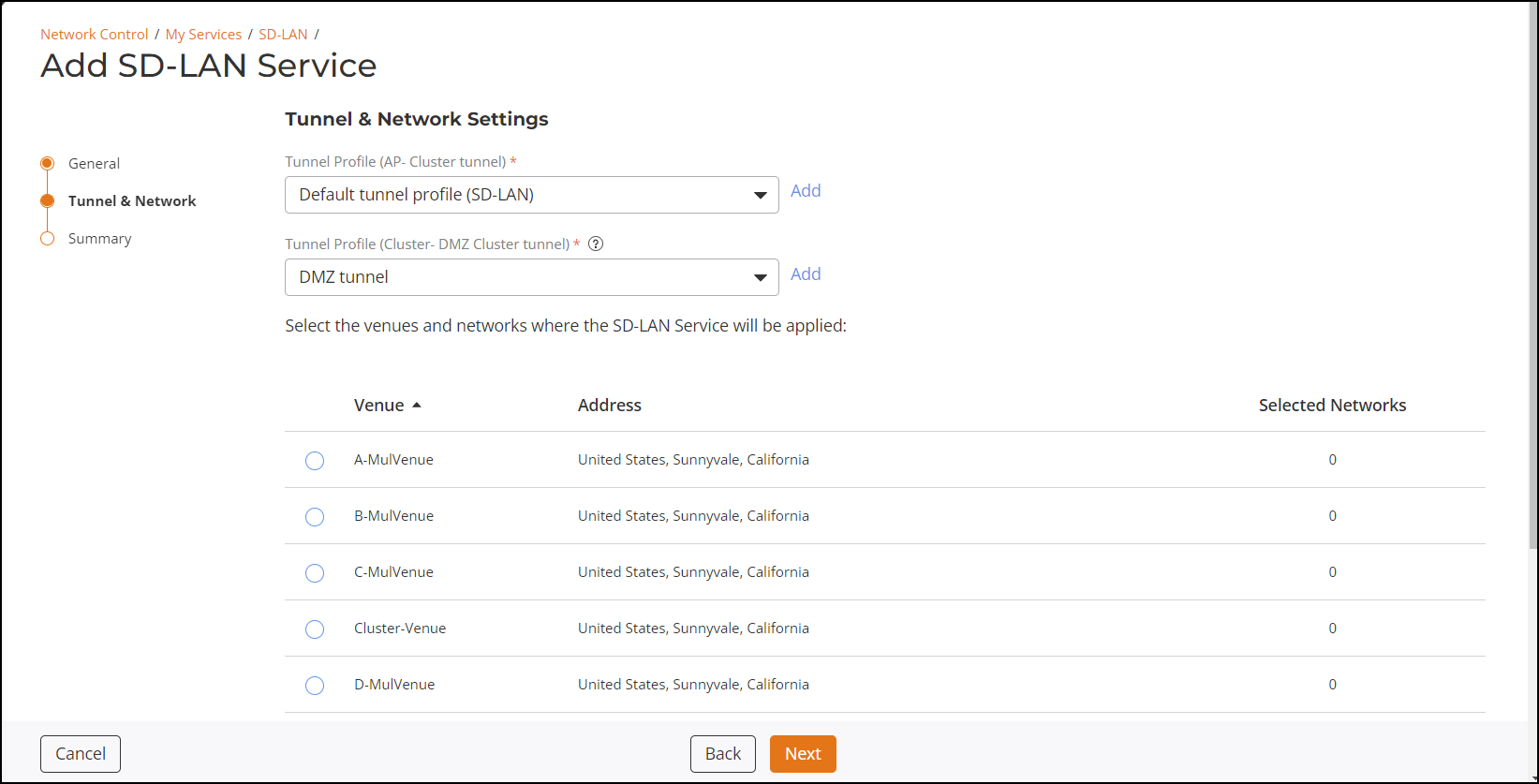
- Tunnel Profile (AP-Cluster tunnel): Select the tunnel profile from the drop-down list that is to be used between the AP and the Data Center RUCKUS Edge. Click Add if you want to create a new tunnel profile. Refer to Creating a Tunnel Profile for more information.
- Tunnel Profile (Cluster - DMZ Cluster tunnel): Select the tunnel profile from the drop-down list that is that is to be used between the Data Center and the DMZ RUCKUS Edge devices. Click Add if you want to create a new tunnel profile. Refer to Creating a Tunnel Profile for more information.
- Select the venues
and networks where the SD-LAN Service will be applied. Click the
radio button alongside a venue that you want to include, then
click the Select
Networks option.
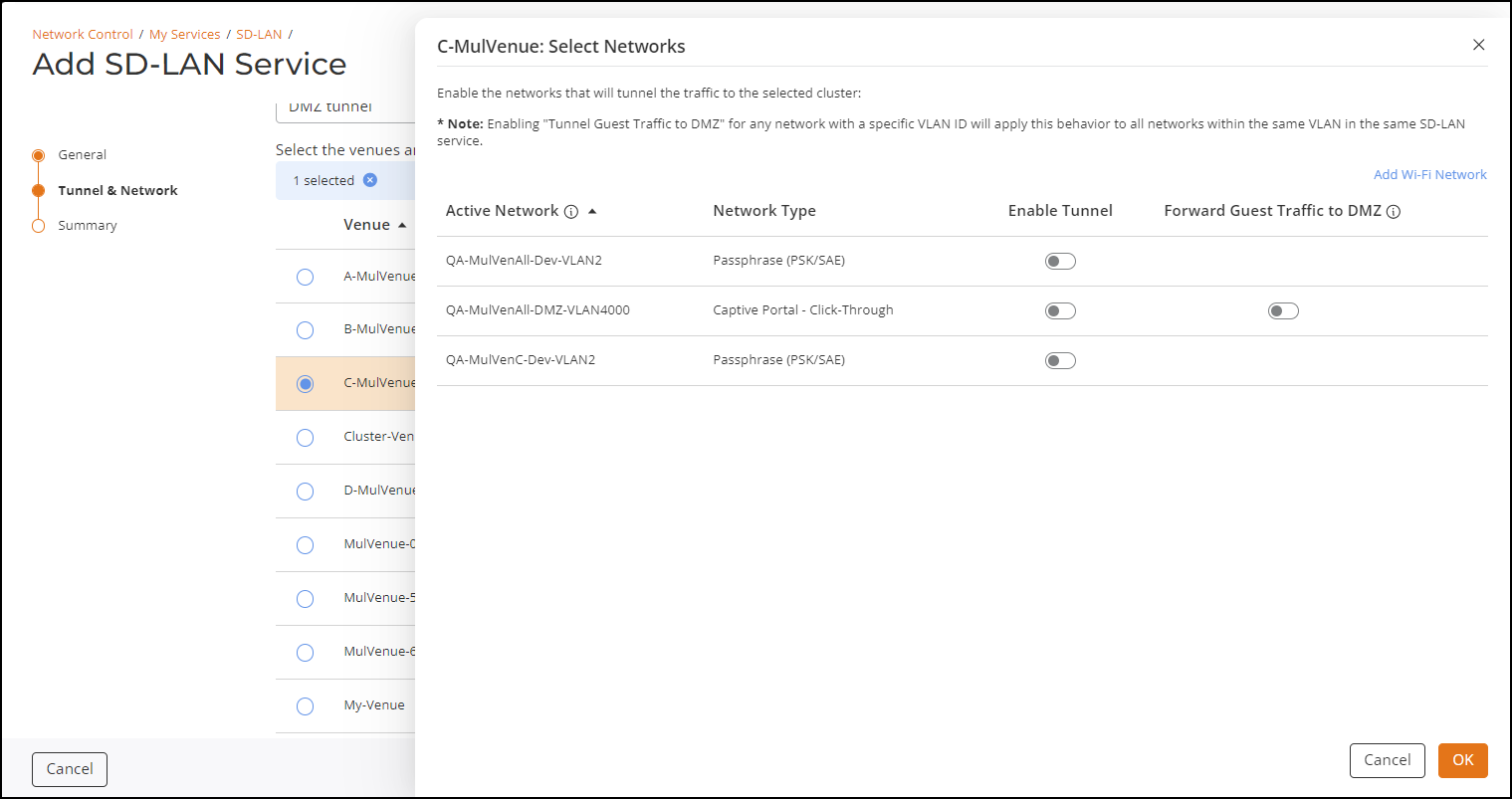
The Venue Select Networks sidebar is displayed.
- In the resulting sidebar, you can click the Enable Tunnel toggle switch and the Forward Guest Traffic to DMZ toggle switch (applicable for captive portal networks) for each Wi-Fi network, as desired, then click OK to close the sidebar. Repeat this for each venue to which you want this SD-LAN service applied.
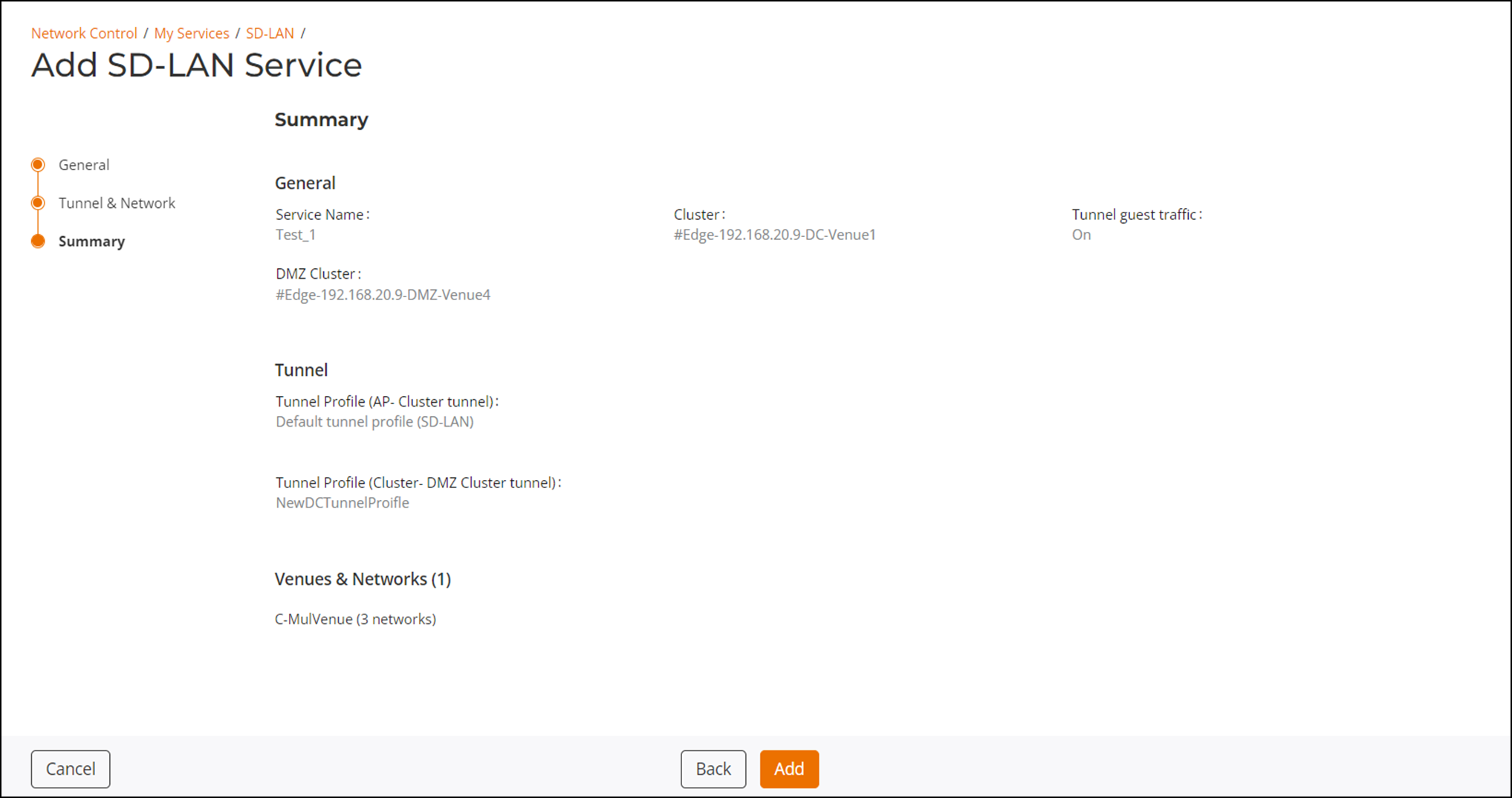
- Summary: View and verify the configuration details of the SD-LAN service. To modify any of the configuration settings, click Back. To apply the new SD-LAN service configuration, click Add.
- Settings: In this section, enter the following
details: