Managing Alarm Events and Notifications
Complete the following steps to manage alarm events and notifications settings.
- On the menu, go to
Admin >
Alarms.
The Alarms & Settings window is displayed.
- In the Alarms & Settings window, select the Settings tab.
- Click
Edit Alarm Setting. The
Edit Alarm Setting window is displayed.
The following alarm setting parameters are available:
- Alarm Description: Displays the list of events for which alarm is triggered.
- Enable: If selected, Alarm will be enabled for the respective event. By default, all the listed events are enabled.
- Threshold(%): This parameter is available only for AP license usage and disk space. The default threshold value is 90%. The threshold percentage can be set between a value from 1 through 100.
- Click Update to apply the changes.
- Click Create Email Notification
Setting. The Email Notification
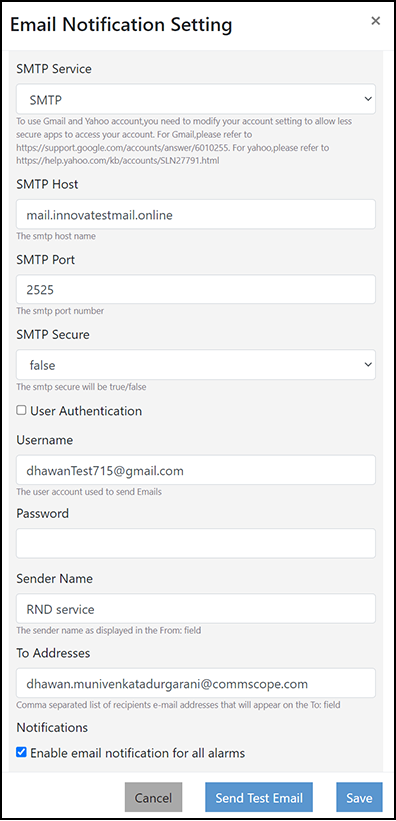
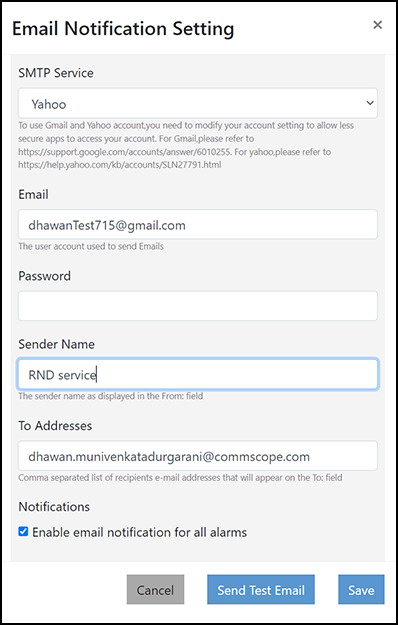
Setting dialog box is displayed.
- Complete the following fields to
set the alarm email notification:
- SMTP Service: Select the email service from the list. Gmail, Yahoo, and SMTP email services are supported.
- Email: Enter the email ID from which you want to send the alarm notification.
- Password:
Enter the password associated with the email account. For Gmail or Yahoo
SMPT service, enter the generated App
Password.
For Gmail or Yahoo SMPT service, enable 2-Step Verification, and generate an App Password as follows:
- Gmail:
- Log in to the Gmail web UI.
- Click to display the Security window.
- Enable 2-Step Verification.
- In the Security window, complete the following steps to generate an App Password:
- Gmail:
- Sender Name: Enter a name for the sender.
- To Addresses: Enter the email address of the recipients. You can add multiple recipient addresses separated with commas.
- Enable email notification for all alarms: If selected, an email notification is sent to the recipients whenever an alarm is triggered.
If SMTP is selected, the following additional fields are displayed:- SMTP Host: Enter the full name of the server provided by your ISP or mail administrator. Typically, the SMTP host name is in the format smtp.company.com.
- SMTP Port: Enter the SMTP port number provided by your ISP or mail administrator. Often, the SMTP port number is 25 or 587. The default SMTP port value is 25.
- SMTP Secure: Select SMTP secure as true or false from the list.
- User Authentication: Enable this to send the e-mail from the authenticated user.
- Username: Enter the e-mail ID from which you want to send the notification. This e-mail ID is used as an authenticated e-mail ID to send SMTP email notifications to all of the recipients listed in the To Addresses field.
- Click Send Test Email to test email delivery.
- Click Save to apply the changes.