Importing the VRIOT Image
- Open the command line prompt,
and execute the below commands.
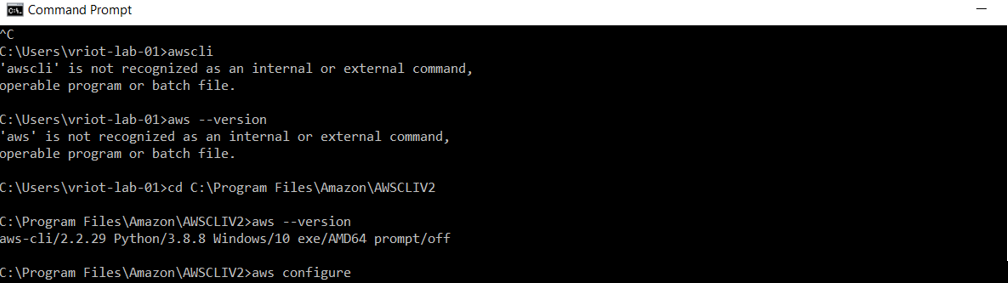
Visit the “AWSCLI2” folder
Type “aws  --version” at the command prompt
Now type “aws configure”
C:\Program Files\Amazon\AWSCLIV2>aws configure
AWS Access Key ID [None]: <enter AWS Access Key ID>
AWS Secret Access Key [None]: <enter AWS Secret Access Key>
Default region name [None]: us-west-2  (all lower case)
Default output format [None]:
- Create a JSON file called import.json using the following commands. Replace the bucket name with the storage bucket name that you created.
- After creating the
“import.json” file, execute the following command.The system displays the below response.
{ "Description": "Import vriot", "ImportTaskId": "import-ami-0d32a196c9257d5a7", "Progress": "1", "SnapshotDetails": [ { "Description": "vriot-2.0.0.0.5036", "DiskImageSize": 0.0, "Format": "OVA", "UserBucket": { "S3Bucket": "vriot", "S3Key": "dev-2.0.0.0/6aa8.dev-2.0.0.0.5036/vriot-6aa8.dev-2.0.0.0.5036.ova" } } ], "Status": "active", "StatusMessage": "pending" } - Enter the following command to verify the status of the imported VRIOT image. Be sure to use the correct import task identifier.
- Observe the following conversion
status response and continue to check the status until conversion is complete.
The estimated time for conversion is 30 minutes.
{
    "ImportImageTasks": [
        {
            "Architecture": "x86_64",
            "Description": "Import vriot",
            "ImportTaskId": "import-ami-0d32a196c9257d5a7",
            "LicenseType": "BYOL",
            "Platform": "Linux",
            "Progress": "39",
            "SnapshotDetails": [
                {
                    "DeviceName": "/dev/sda1",
                    "DiskImageSize": 2866090496.0,
                    "Format": "VMDK",
                    "Status": "completed",
                    "UserBucket": {
                        "S3Bucket": "vriot",
                        "S3Key": "dev-2.0.0.0/6aa8.dev-2.0.0.0.5036/vriot-6aa8.dev-2.0.0.0.5036.ova"
                    }
                }
            ],
            "Status": "active",
            "StatusMessage": "booting",
            "Tags": []
        }
    ]
}