Configuring Advanced Scope for Firewall for Palo Alto
For the Firewall for Palo Alto, you can
configure Advanced Scope Matching based on service set identifier (SSID) and network
access
server identifier (NAS-ID) filters.
- From the Cloudpath Enrollment
System navigation bar, navigate to .By default, the Ruckus Systems tab is selected.
- Select the Firewalls & Web
Filters tab.The Firewalls & Web Filters page is displayed.
- Click Add Firewalls & Web Filters.
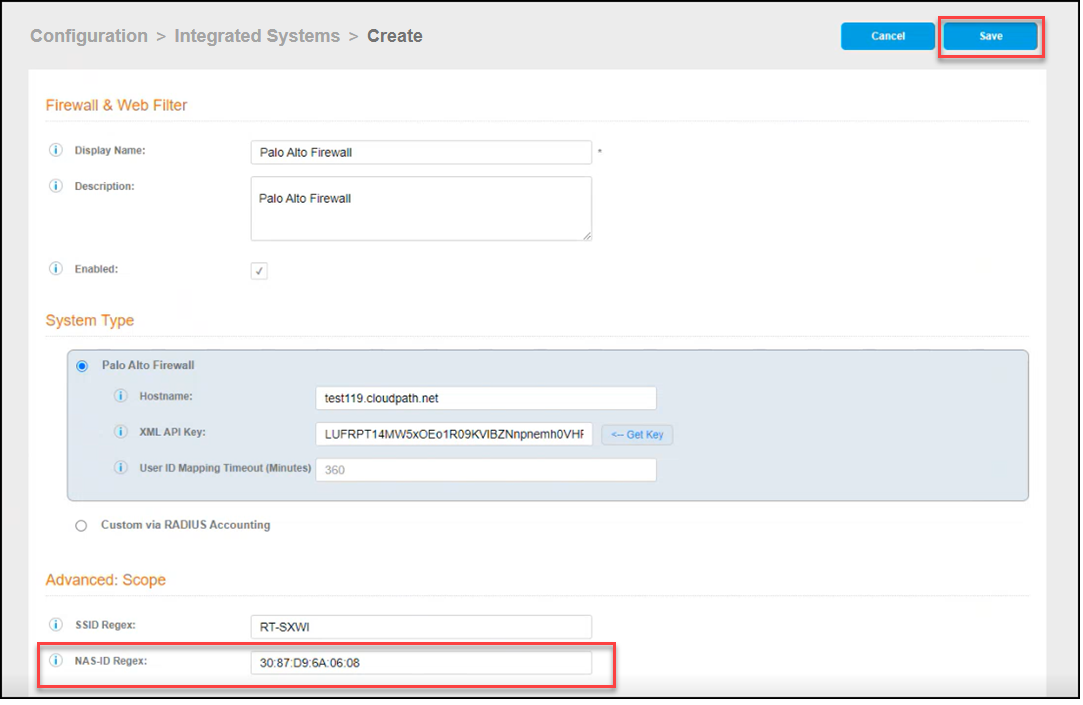
- Enter the management IP address of the Palo Alto Networks® system.Syntax is Hostname or IP Address of the Palo Alto Firewall, followed by a colon as a delimiter, and the Port number, as follows: <hostname>:<port>.
- Click Get Key to get
the XML key.The API Key is obtained from the Palo Alto Firewall for API-based integration. When you enter your Palo Alto username and password credentials to obtain an API key from a specific Palo Alto Firewall , your username and password are not stored.
- In the Advanced:
Scope section, add the following filters:
- SSID Regex: Enter a regular expression to specify the SSID(s) that will trigger RADIUS accounting data forwarding to this external system. Data will only be forwarded if all specified SSIDs match the connected network.
- NAS-ID Regex: Enter a regular expression to specify the NAS Identifier(s) that will trigger RADIUS Accounting data forwarding to this external system. Data will only be forwarded if all specified NAS Identifiers match the connected network..
- Click Save.
- (Optional) In the
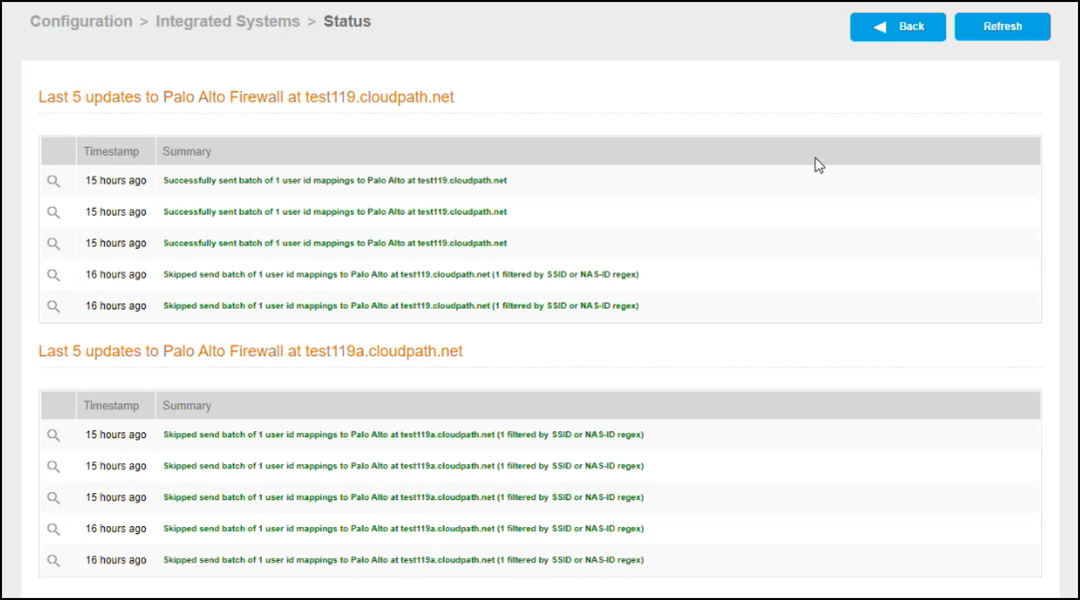
Firewalls & Web Filters page, click Status to view
the status of firewall and web filters. The firewall and web filters status is displayed.
- (Optional) To review the incoming NAS-ID for RADIUS accounting, go to .