Configuring Policies
As of this release, policies can be used for PEAP authentication with the Cloudpath onboard RADIUS server.
The following procedure guides you first through creating RADIUS attribute groups for your policies, then creating the policies themselves. You must create at least one RADIUS attribute group before you can configure a policy because a policy needs to have at least one RADIUS attribute group available for selection.
- In the Cloudpath UI, go to Configuration > Policies.
- Select the RADIUS Attribute Groups tab, then click the Add RADIUS Attribute Group button.
- In the ensuing Create Radius Attribute Group screen,
enter the information to create the group, then click Save.
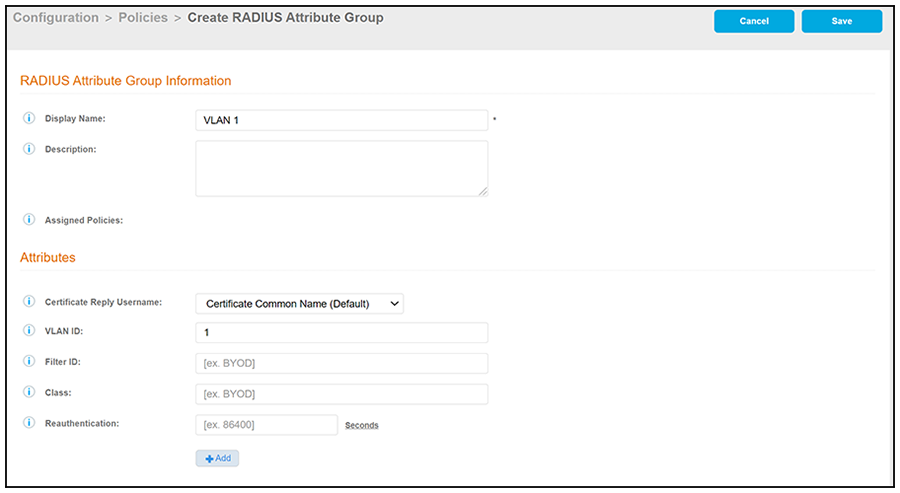
Note: You can configure as many RADIUS Attribute groups as you want. One RADIUS Attribute group will later be assigned to each policy you create.An example screen and field descriptions follow:new screen shot below for the new certificate related field
- Display Name: The name of the RADIUS attribute group. This should be a descriptive name. It is visible only to Cloudpath administrators
- Description: Optionally, enter a description of this RADIUS attribute group. It is visible only to Cloudpath administrators.
- Assigned Policies: This field lists the names of all the policies that are using this RADIUS attribute group. There will be no policies listed here during the initial configuration of the group.
- Certificate Reply Username:
This setting is applied only when the RADIUS attribute group is associated
with certificate-based authentications, and is therefore described in the
Cloudpath documentation of certificate templates.
newly added for 5.8
- VLAN ID: If this field is
populated, the VLAN ID is included in the RADIUS reply to the controller for
successful authentications. Cloudpath sends Tunnel-Type, Tunnel-Medium-Type,
and Tunnel-Private-Group-ID. If your network policy is wireless, the
Tunnel-Type value is VLAN, the Tunnel-Medium-Type value is 802 (this
includes all 802 media plus Ethernet canonical format), and the
Tunnel-Private-Group-ID is the integer that represents the VLAN number to
which group members will be assigned.
If the VLAN ID field is left blank, Cloudpath will not return a VLAN ID in the RADIUS reply; therefore the controller assigns the VLAN ID based on its own configuration.
- Filter ID: If this field is populated, the Filter ID is included in the RADIUS reply for successful authentications. If this field is left blank, Cloudpath will not return a Filter ID in the RADIUS reply.
- Class: If this field is populated, the Class is included in the RADIUS reply for successful authentications. If this field is left blank, Cloudpath will not return a Class in the RADIUS reply.
- Reauthentication: The number of seconds included in the RADIUS reply for successful authentications. If the device stays connected for longer than this period, the WLAN or switch requires that the device be reauthenticated. In wireless devices, this causes the encryption keys to rotate.
- Additional Attributes: You can add other attributes in the "Attributes" section of the screen by clicking the + button, and selecting the desired fields and values. These attributes will be returned to the controller in an access-accept RADIUS server packet.
- Configure your policies:
- In the Configuration > Policies area of the UI, select the Policies tab, then click Add Policies.
- In the ensuing Create Policy screen, enter the
information to create the policy, then click Save.
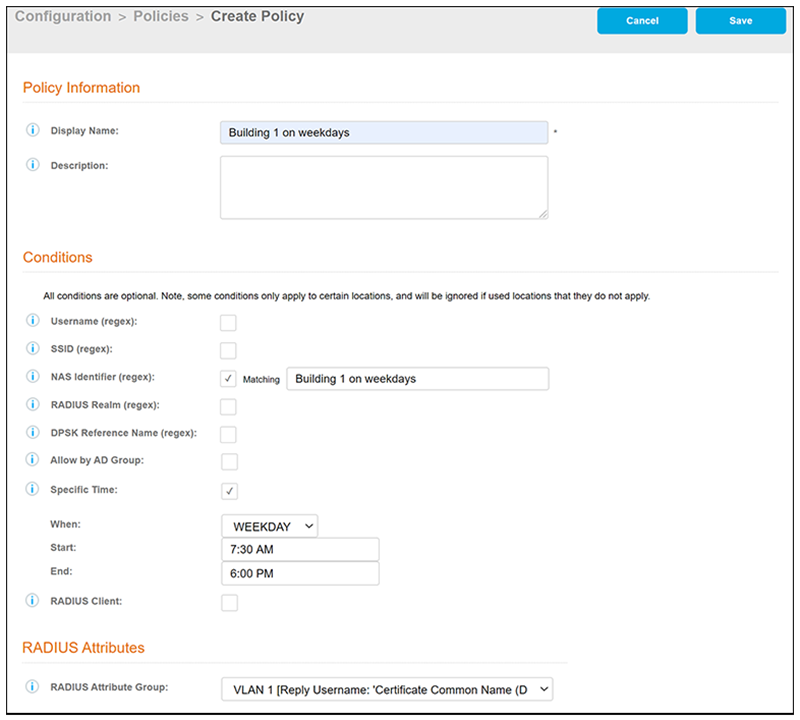
Note: You can configure as many policies as you want.An example screen and field descriptions follow:new screen for 5.8 - new fields described below
- Display Name: The name of the policy. This should be a descriptive name. It is visible only to Cloudpath administrators
- Description: Optionally, enter a description of this policy. It is visible only to Cloudpath administrators.
- "Conditions": In the
Conditions section, use any or all of these fields to create the
matching criteria you desire so that the appropriate policy gets
applied to each user.
Note: You can use the asterisks that appear in some of the Conditions fields, when selected, to denote that any value is acceptable in the place of the asterisk.
- Username Regex:
When the user is prompted for credentials, the username
specified by the user will be verified against this regular
expression for proper format. For example, ^d{8}$ will
ensure that the user enters an 8-digit ID.
Note: Due to the complexity of regular expressions, it is recommended to use this field only if you are experienced with regular expressions. If you need assistance creating a regular expression to match your needs, contact support.
- NAS Identifier: A
regex that defines the network access service (NAS)
identifier to limit this policy..
Note: If you use this field, and no NAS Identifier is provided in the response, the policy will be "false" and will not get applied to a user.
- RADIUS Realm (regex): The RADIUS realm to use in this policy, in the form of @company.com or company.com
- DPSK Reference
Name (regex): A regular expression to test against the DPSK
Reference Name.
Note: This field is applicable only when the policy is applied to a DPSK pool.
- Allow by AD Group:
A regular expression that defines the groups within the
Authentication Server that this policy allows.
Note: Active Directory is the only authentication server supported for PEAP
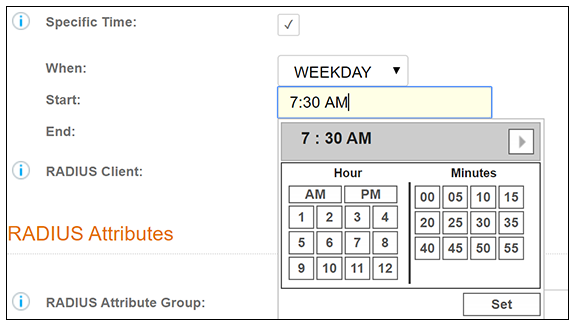
- Specific Time: If checked, drop-downs appear where you can specify the days and times that this policy allows enrollment. Be sure to click the Set button to set the desired time (see the following illustration):
- RADIUS Client: If you check this box, you are presented with a drop-down where you can then select a RADIUS client if you have already configured this client in the Configuration > RADIUS Server > Clients tab. This RADIUS client would then be associated with this policy.
- RADIUS Attribute Group: From this drop-down, select the
attribute group that you want associated with this policy.
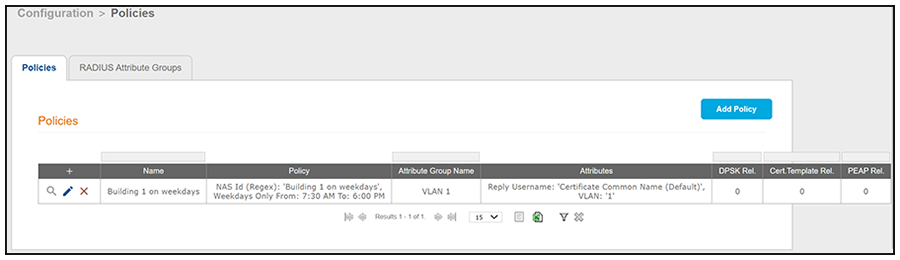
The following illustration shows the Policies tab after one policy has been added. The information shown in the table represents the policy configuration shown in the example in Create Policy Screen. The attribute group name and its attributes come from the attribute group name selected in the Create Policy Screen drop-down list. (The "Certificate Reply Username" applies only to certificate-based authentications, and is therefore described in the Cloudpath documentation of certificate templates.)
added above sentence for 5.8The RADIUS attribute information shown below comes from the example in Create RADIUS Attribute Screen.
- Username Regex:
When the user is prompted for credentials, the username
specified by the user will be verified against this regular
expression for proper format. For example, ^d{8}$ will
ensure that the user enters an 8-digit ID.