Adding an Active Directory Authentication Server
You need to add at least one authentication server to the PEAP realm.
Follow the steps below:
- In the Cloudpath UI, go to Configuration > RADIUS Server.
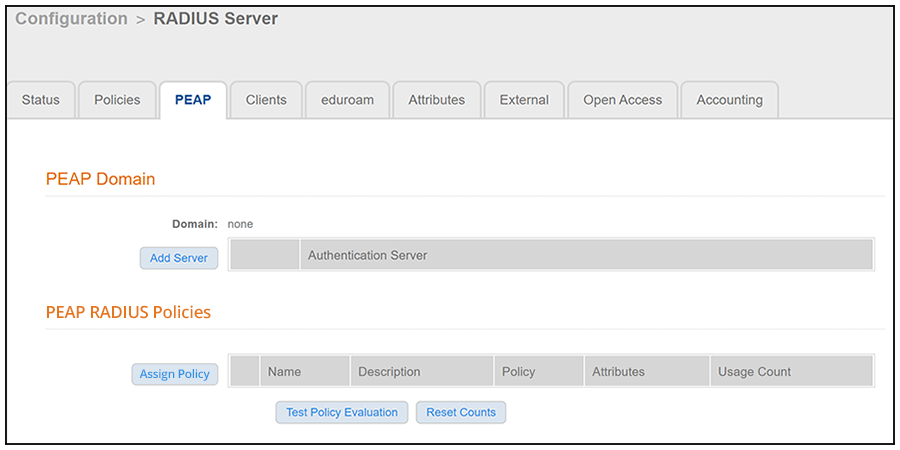
- Click the PEAP tab.
- The first time you go here, you may be presented with
a button called ENABLE PEAP.
Click this button to proceed. You should then arrive at the following screen :
screen updated below for 5.8
- In the PEAP Domain section of the screen, click Add Server.
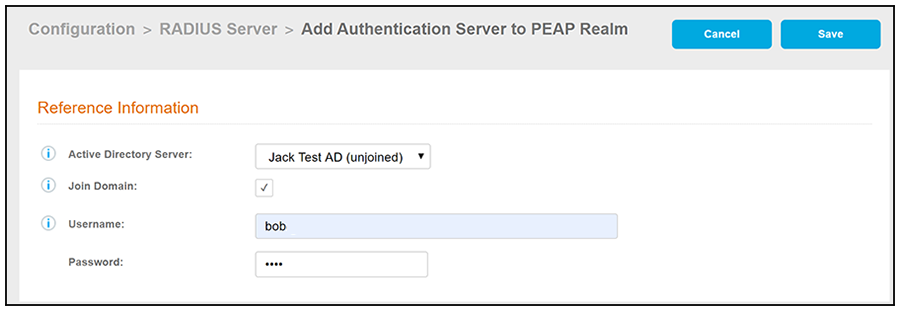
- On the ensuing Add Authentication Server to PEAP Realm screen (see the completed example
figure below), do the following:
Shannon - I had to change AD Host Name back to the FQDN to add the Server here. Should that have to be the case?
- Click Save.
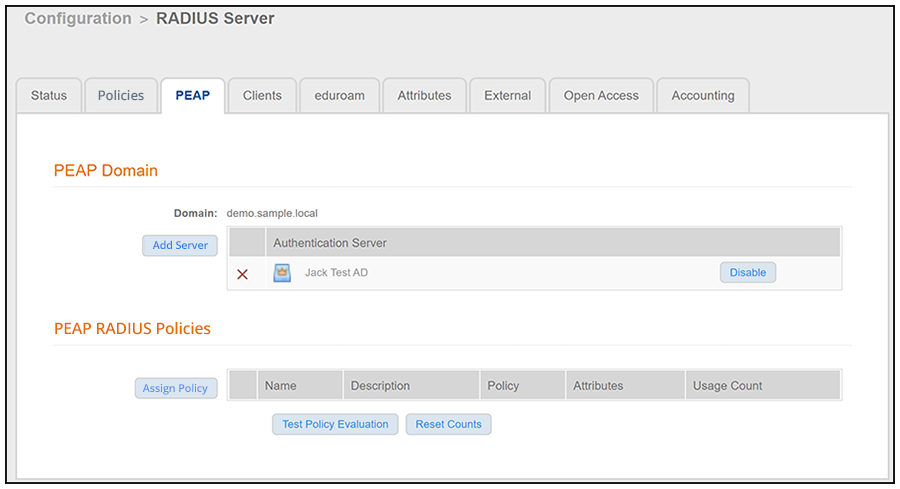
- The PEAP Domain portion of the screen should now
indicate the realm (domain), as shown in the example below:
screen below updated for 5.8
The crown icon to the left of the server name indicates that it is the master server because it is the first one added to the PEAP domain. If you have multiple servers in the domain, and you wish to remove them, the master server needs to be the last one that you remove.
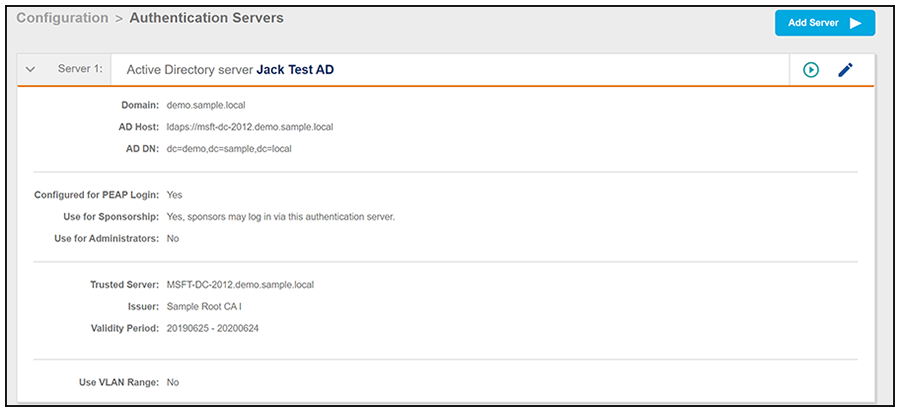
- You can now go back to the Authentication Server configuration (Configuration > Authentication Servers), and the "Configured for PEAP Login" field should now have the "yes" value, as shown below: