Creating an eDPSK Pool for Use With External DPSK
You can create eDPSK pools to associate with specific SSIDs in your environment.
- In the Cloudpath UI, go to Configuration > DPSK Pools.
- Click Add DPSK Pool.
- In the ensuing Create Pool screen, enter the
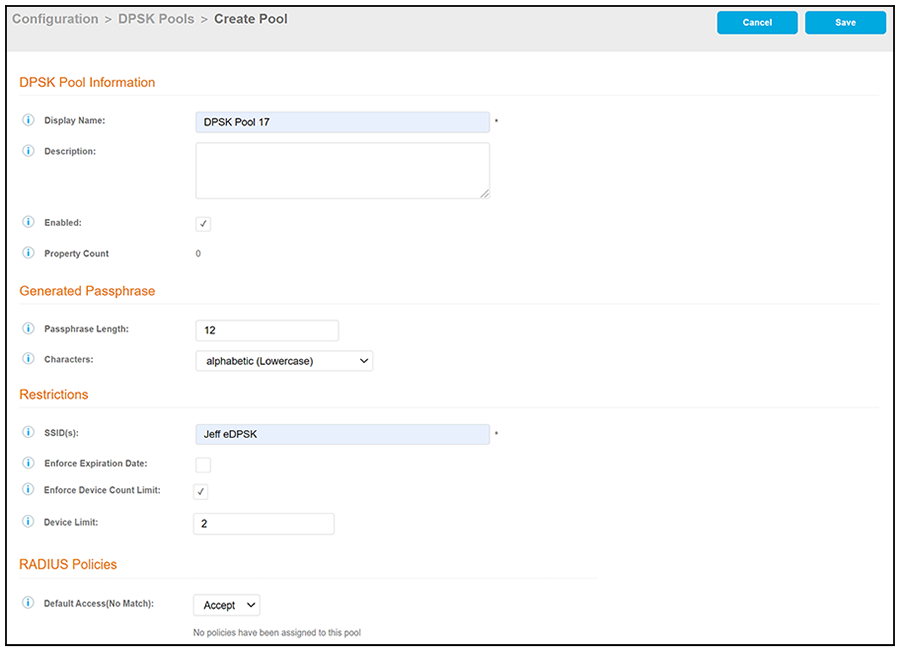
information to create the pool, then click Save. The following
screen shows an example and describes the fields.
New screen below for 5.8 that shows the Property Count field
- Display Name: The name of the eDPSK pool. This should be a descriptive name. It is visible only to Cloudpath administrators.
- Description: Optionally, enter a description of this pool. It is visible only to Cloudpath administrators.
- Enabled: This box is checked by default. It must be checked for this DPSK pool to be used.
- Property Count: This field is used for the property management feature. For more information, refer to the Cloudpath Enrollment System Property Management Configuration Guide.
-
new item above for 5.8
- Passphrase Length: This is the default length (in number of characters) for the pre-shared keys generated for this pool. The maximum length is 63.
- Characters: From the drop-down, select the types of characters that can be used for the pre-shared keys.
- SSID(s): Enter the specific SSID or SSIDs, separated by semi-colons, for which you want this pool to be used. Wildcard characters are not supported.
- Enforce Expiration Date: If checked, newly generated DPSKs will have an expiration date based on the creation date and the offset that you define in the "Default Expiration Date" popup box.
- Enforce Device Count Limit: If checked, each DPSK will be assigned a maximum device count as specified in the "Device Limit" popup box. If the "Enforce Device Count Limit:" box is un-checked, an unlimited number of devices can use the DPSK.
- Default Access (No Match): A drop-down where you can select whether to allow a user onto the network even if there is no matching policy for the user.
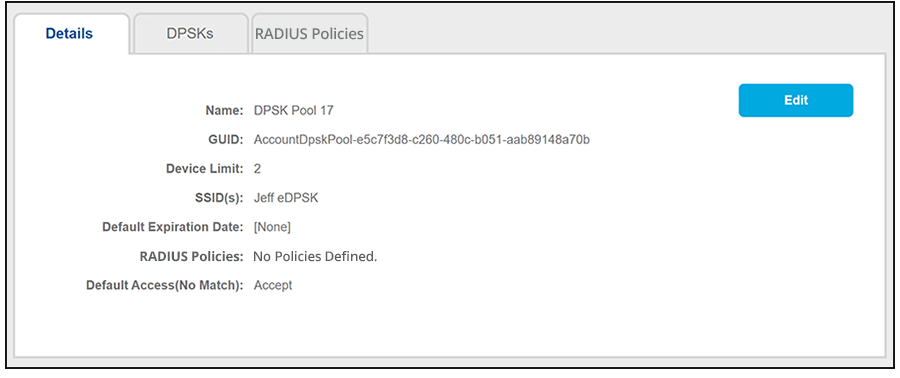
- After you save your configuration, you are returned to the following screen, where you can check the pool you just configured: