Sponsor Experience - Generated Voucher Lists
- When a visitor arrives, the employee sponsor checks the visitor in.
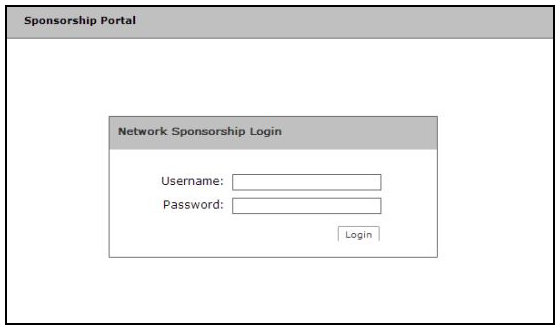
- To provide a guest user with network access, the sponsor must log in to the Sponsorship portal to create a voucher for the guest user.
- After sponsor credentials are checked against the corporate authentication server, the sponsorship portal Welcome page appears.
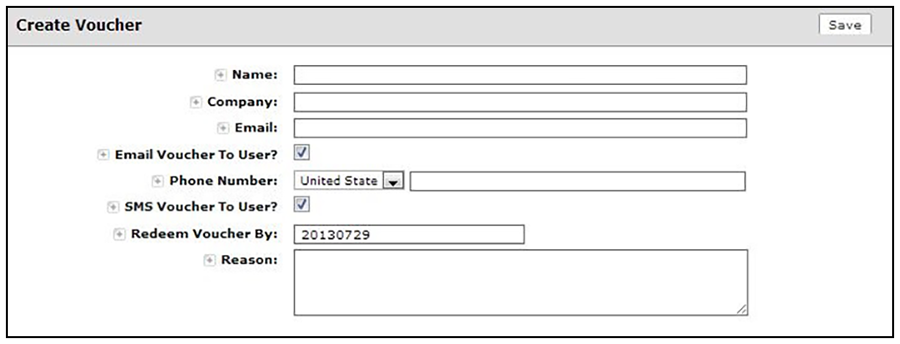
- The sponsor clicks the
Create Voucher button to create a voucher for the guest user.
Note: The entry fields displayed on the Create Voucher page are configured when you create the voucher list. See Adding a Voucher Prompt to the Enrollment Workflow.
The sponsorship portal can be used to create vouchers, view voucher usage, and with the correct permissions, manage vouchers and sponsors. When finished, the sponsor must log out of the sponsorship portal.