Adding a Request for Access Prompt
While the voucher list workflow plug-in requires the sponsor to pre-sponsor the guest, the request for access workflow plug-in allows the guest to enter their information on a webpage and then request access. The guest is held in a pending state until the sponsor accepts or rejects the request. The request may go to a static user (like a receptionist), to a sponsor selected from a list by the guest, or to a sponsor that is entered by the guest upon arrival.
How to Add a Request for Access Prompt to the Workflow
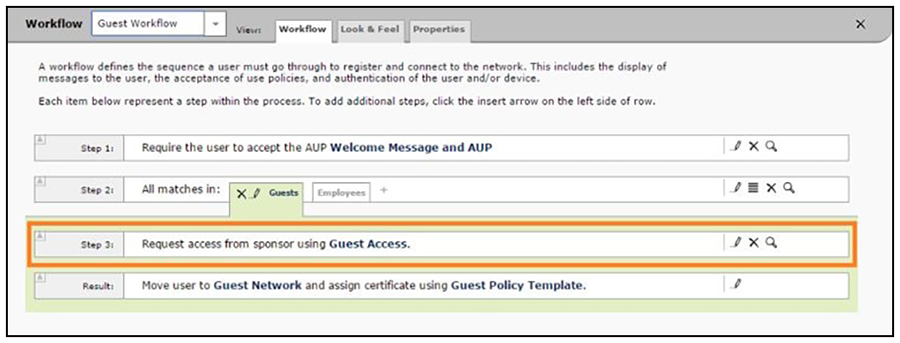
- From the ES Admin UI, go to and create an enrollment workflow for guest users.
- Add an enrollment step that prompts guest users to Request Access From a Sponsor.
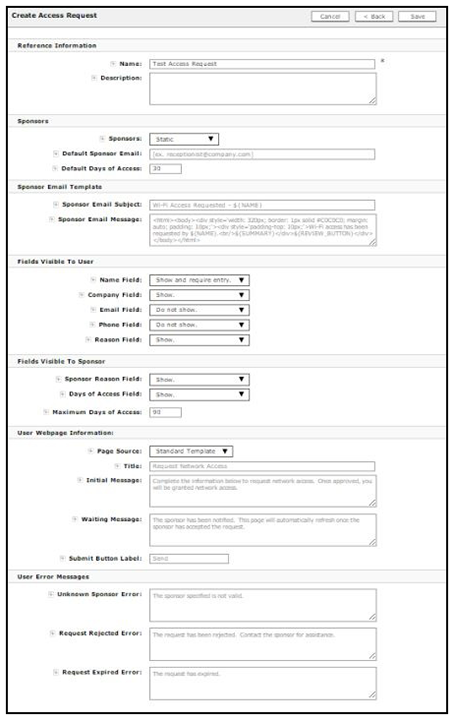
- For Sponsors, enter the email address for a dedicated contact, create a drop-down list of sponsors, or allow the guest to enter the email address of a sponsor.
- The Sponsor Email Template is the information sent to the sponsor when a guest is requesting access. Use the default sponsor email template or create a custom email subject and message.
- Specify the fields to display to the guest user.
- Specify the fields to display to the sponsor receiving the access request.
- The User Webpage Information is the prompt that displays to the guest during the enrollment process. Use the default guest prompt, enter your own messaging, or upload a custom HTML file.
- The User Error Messages display to the guest user if there is an issue with the access request.
- Click Save.