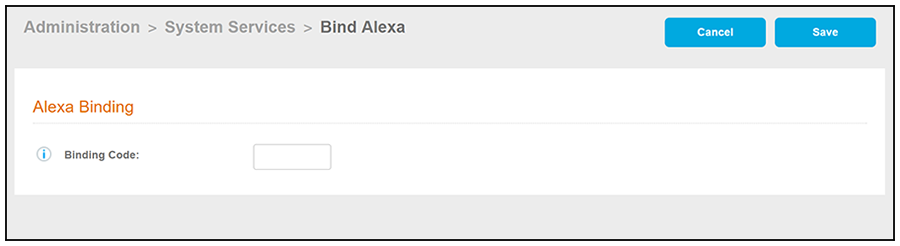
Binding Alexa to the Cloudpath Enrollment System
- Locate the Cloudpath network admin application in the Alexa store and add it to your device. There are instructions on the internet about how to add skills to Alexa.
- Once Alexa has added the Cloudpath network admin skill, speak these exact words into your Alexa device: "Alexa, ask network admin to get me on the network."
- Alexa should then ask you if you would like to have a binding code generated. Answer "yes."
- Alexa then says the binding code out loud. Be sure to take note of this code, as you will need to enter it into the Cloudpath UI.
- In the Cloudpath UI, navigate to Administration > System Services.
- Scroll to the bottom of that page to locate "Alexa," then click on the arrow to expand the entry:
- Click Bind.
- In the ensuing screen, enter the binding code that Alexa gave to you, then click Save.
- If Alexa successfully binds to the Cloudpath system, a message should appear in the
top of the System Services page: " Stored Alexa binding data!"
If binding was not successful, some possible reasons are:
- Entering the code incorrectly. If you receive a message that indicates an invalid code was entered, try typing the code in again.
- Connectivity issues between the Cloupdpath system and the Amazon Cloud. If you receive a message indicating this type of issue, you might want to check how your firewalls are set up.