Support
Documentation
Refer to the page in the Cloudpath Admin UI for documentation and links that cover all aspects of the system, from setup to configuration and system administration.
Support Tunnel
The Support Tunnel component allows you to open a support tunnel to help you in diagnosing issues with your application or configuration. If requested by a Support Team member, you might be required to enable a support tunnel from the page.
Diagnostics
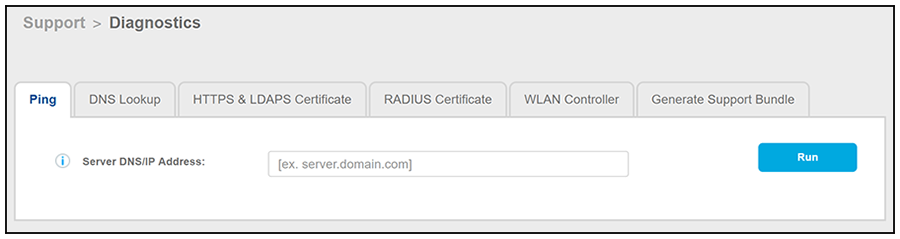
The Diagnostics page (Support > Diagnostics) provides useful tools for system troubleshooting connectivity issues and for verifying certificate information.
=GUID-91A7EFE7-D9F1-4304-A245-C68356F7A93F=1=en-US=Low.png)
The diagnostics include:
- Ping: Ping an IP address or hostname
- DNS Lookup: Provide server information and IP address for a given hostname.
- HTTPS & LDAPS Certificate: Query the server certificate used by a secured server (such as HTTPS or LDAPS) to verify the certificate currently in use by a server.
- RADIUS Certificate: Query the RADIUS server certificate and the chain presented by the RADIUS server. This is useful to verify the certificate currently in use by a RADIUS server. For this test to work, Cloudpath must be able to reach the IP and port, the shared secret must be correct, and Cloudpath must be an approved client for the RADIUS server.
- WLAN Controller: Query the WLAN controller to check if required ports are accessible.
-
New for 5.4Generate Support Bundle: Click Run from this tab to generate a zip file that contains log files and metrics information to provide to your Ruckus support representative.
Support File
If support has provided a support file, you can upload it from the page. This will make changes to the system, so be sure to create a VMware snapshot first.
Password Recovery
If you are locked out of the ES Admin UI, you can log in via SSH and use the
support activate-ui-recovery command from the service account. This activates a temporary password for a short
time period to allow you to log into the ES Admin UI and set up a new Administrator
account, or reset a password for an existing account.
If you are locked out of the service account, you can log in via SSH to a Recovery account. However, you must contact Cloudpath Networks Support to obtain a recovery password.
To receive a recovery password for the service account, you must provide the Cloudpath Support team with the System Identifier and current Version on your system.