Managing eDPSK Pools and DPSKs
Refer to:
Managing DPSK Pools
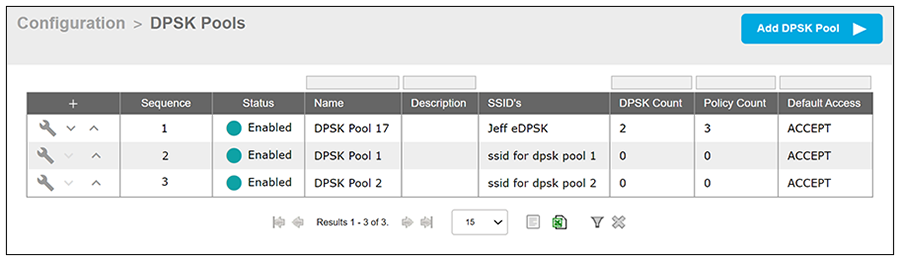
If you go to Configuration > DPSK Pools, you can view the pools that have been created:
Here are some actions you can take:
- Reorder the list: Each time you create a new pool, this pool goes to the top of the list. Pools are searched from top to bottom when a match for an SSID is being looked up. If you wish to reorder the pools, use the arrows to the right of the pool you wish to move up or down.
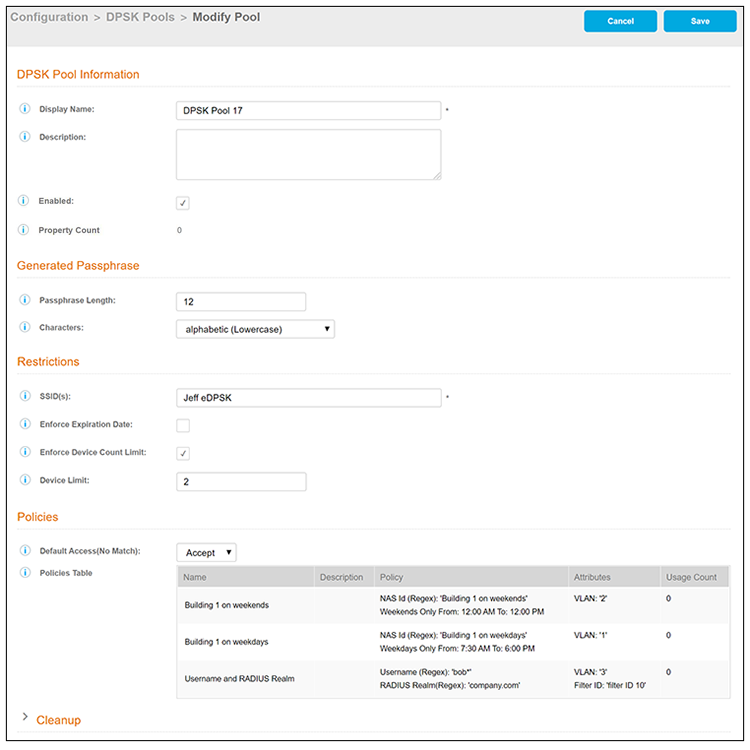
- Editing/viewing the configuration settings: To edit (or view) the settings of a pool, click the Wrench icon to the left of the pool name. In the ensuing screen, with the "Details" tab selected, click Edit. The configuration screen for that pool is invoked, and you can make any changes you want. The following is an example of a screen that gets invoked when you want to edit an existing pool:
- Cleanup options: From within edit mode, scroll to the bottom of the
configuration screen, and expand "Cleanup." You then have the options of
deleting all the DPSKs belonging to the pool but leaving the pool itself in
tact, or deleting the DPSKs and destroying the pool.
Note: If you choose either option, be sure that is what you really want to do before confirming the popup warning that appears if you try to take either action.
- Other actions after using Wrench icon: When you click the Wrench icon for a DPSK pool
(refer to Configured List of eDPSK Pools
- Searched From Top Down), then ensuing screen contains the "DPSKs" and "RADIUS
Policies" tabs in addition to the "Details" tab described previously.
- DPSKs tab: Refer to Managing DPSKs.
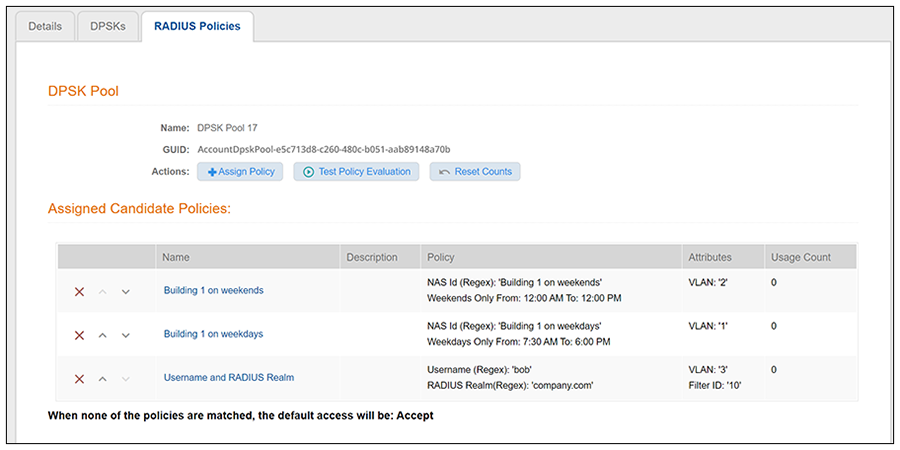
- Policies tab: Shows you the policies associated
with the pool, as in the following example screen:
- To add a policy to the pool, click Assign Policy. For more information, see Adding Policies to an eDPSK Pool.
- To test the policies, click Test Policy Evaluation. For more information, see Testing Policies.
- To remove a policy from the pool, click the X next to the policy name.
- To re-order the policies in the list, use the up and down arrows.
Managing DPSKs
If you go to Configuration > DPSK Pools and click the Wrench icon for a DPSK pool (refer to Configured List of eDPSK Pools - Searched From Top Down), you can then click the "DPSKs" tab on the ensuing screen to view all the DPSKs that have been generated for that pool. The screen below shows the DPSKs for a pool called "DPSK Pool 17."
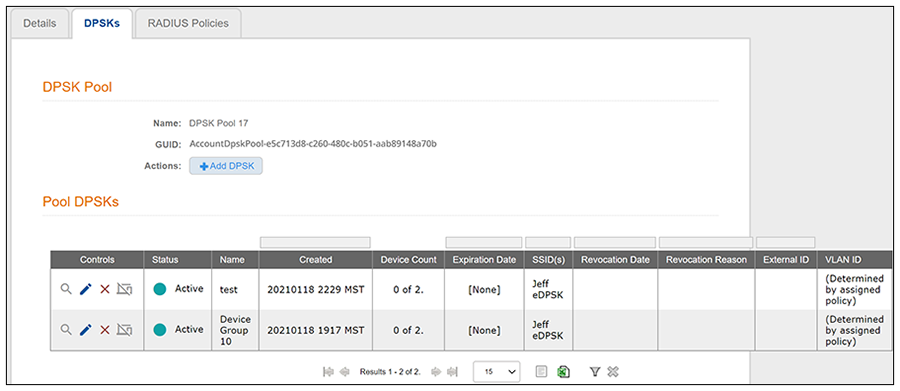
Some of the things you can do include:
- Add a device to an existing DPSK: If this DPSK has not reached a configurable limit of supported devices, you can
add more devices by clicking the magnifying glass icon in the far-left column for
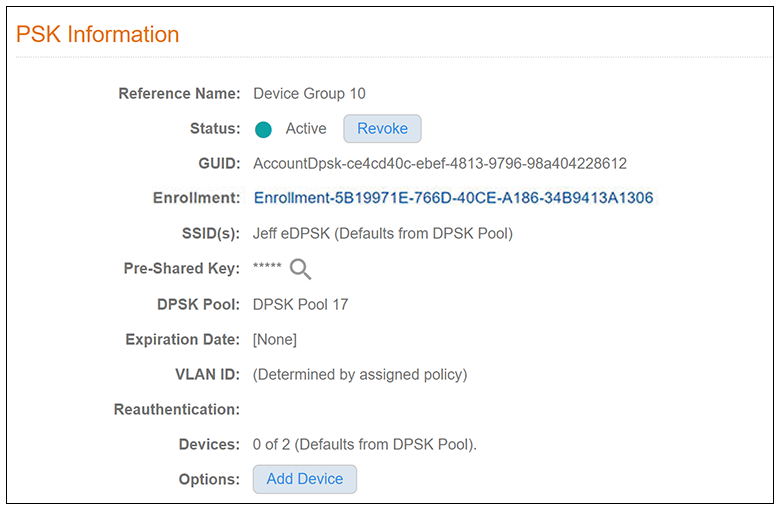
the corresponding DPSK. The PSK Information screen for that DPSK appears, an example
of which is shown below:
Will get new screen shot below if it would also have the Assigned Policy once an enrollment is complete.Click Add Device, then in the popup screen that appears, enter the MAC address of the device, the SSID to which it will be allowed to connect, then click Done.
- View the pre-shared key: Click the magnifying glass in the Pre-Shared Key field on the PSK Information screen.
- Revoke the DPSK: You can click Revoke from the PSK
Information screen (shown above), or you can click the Revoke DPSK icon (to the
right of the X icon) on
the DPSK Pools screen (with expanded list of DPSKs), shown in List of DPSKs Within a
Specific Pool - Actions You Can Take.
Note: Revoking a DPSK leaves its records in the database for auditing purposes, and allows you to unrevoke it if you ever need to.
- Delete DPSK from pool: To delete the DPSK from its pool, click the
X icon to the left of the corresponding DPSK.
Note: Deleting a DPSK removes any record that it existed.
- Editing the DPSK: To make changes to the current settings for this DPSK, click the pencil icon for that DPSK. The configuration screen for the DPSK is invoked, and you can make any changes you want.
- View enrollment data: Once a DPSK has been used to enroll a device, the PSK Information screen for the device will contain an Enrollment link that you click to go to a page that contains many categories of information about the enrollment, including device, workflow, and notification data.
Dashboard Information
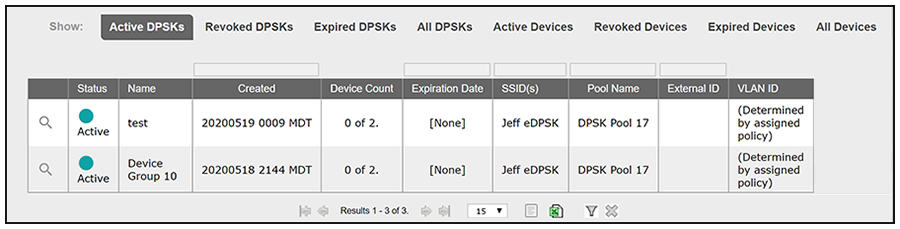
For a listing of all DPSKs, go to Dashboard > DPSKs, as shown in the following example figure: