Running a Speed Performance Test on a Wireless Client
You can test the wireless throughput to a
client using the Speed Test tool.
Difference in UI path for Unleashed and RUCKUS
Blue
- Install (https://iperf.fr/iperf-download.php) and enable the iPerf3 service as server mode. For more information about iPerf3, refer to iPerf3 Integration in Unleashed.
-
UnleashedExpand the Clients component on the dashboard.
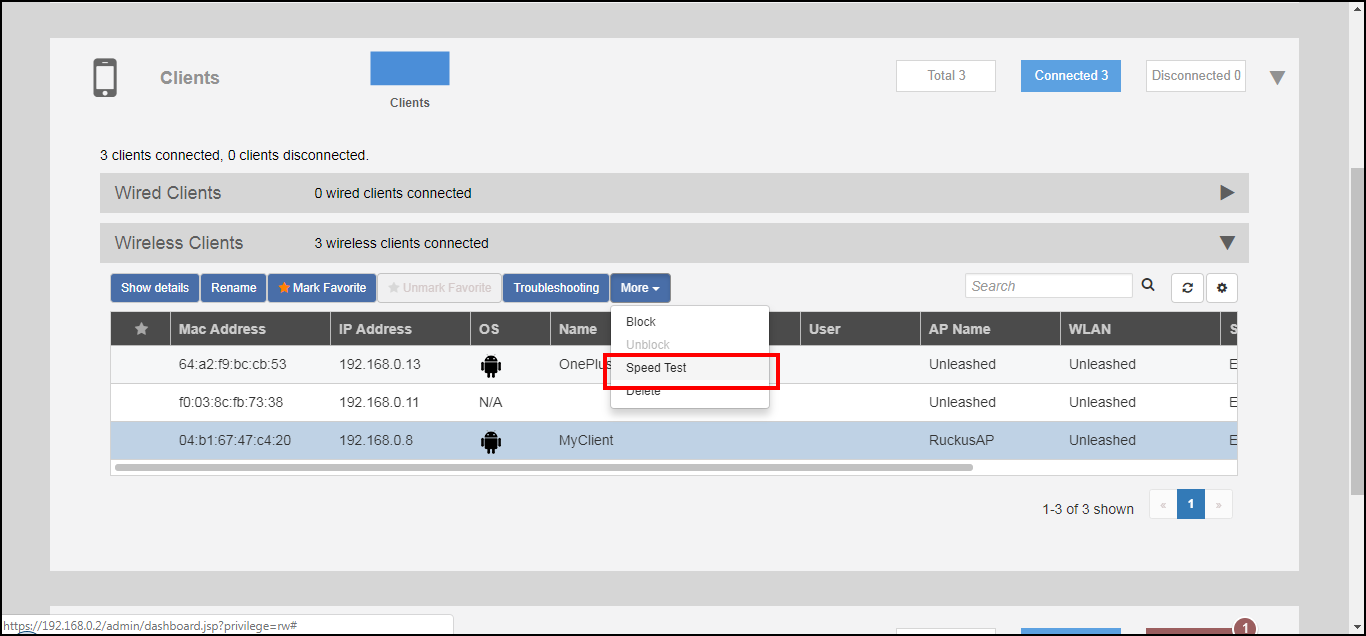
- Select a client from the clients list, click the More option, and select Speed Test.
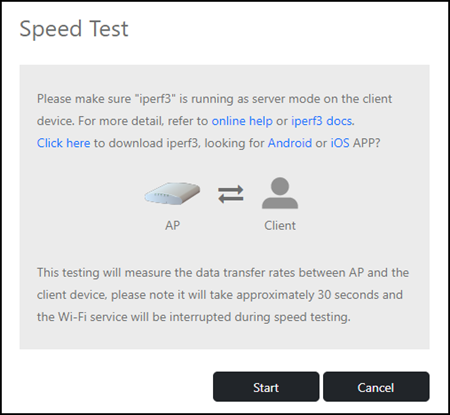
- Click Start to begin the speed test.
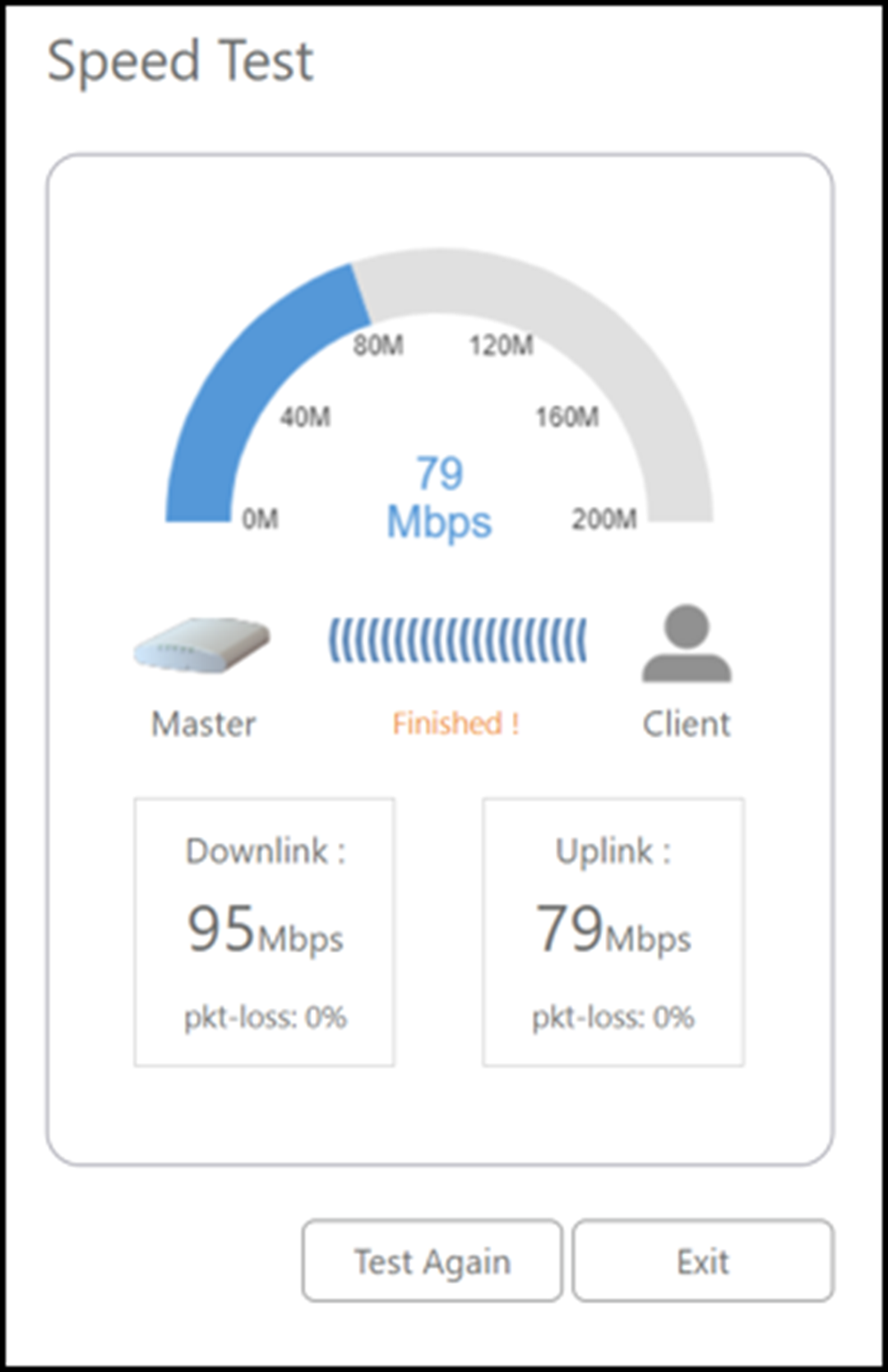
- (Optional) Click Test Again to rerun the test.