Enabling DPSK for a WLAN
Complete the following steps to enable DPSK for a WLAN.
- Expand the Wi-Fi Networks section, and click Create to configure a new WLAN (or Edit for an existing WLAN).
- For Usage Type, select Standard.
- For Authentication Method, select Open.
- For Encryption Method, select WPA2.
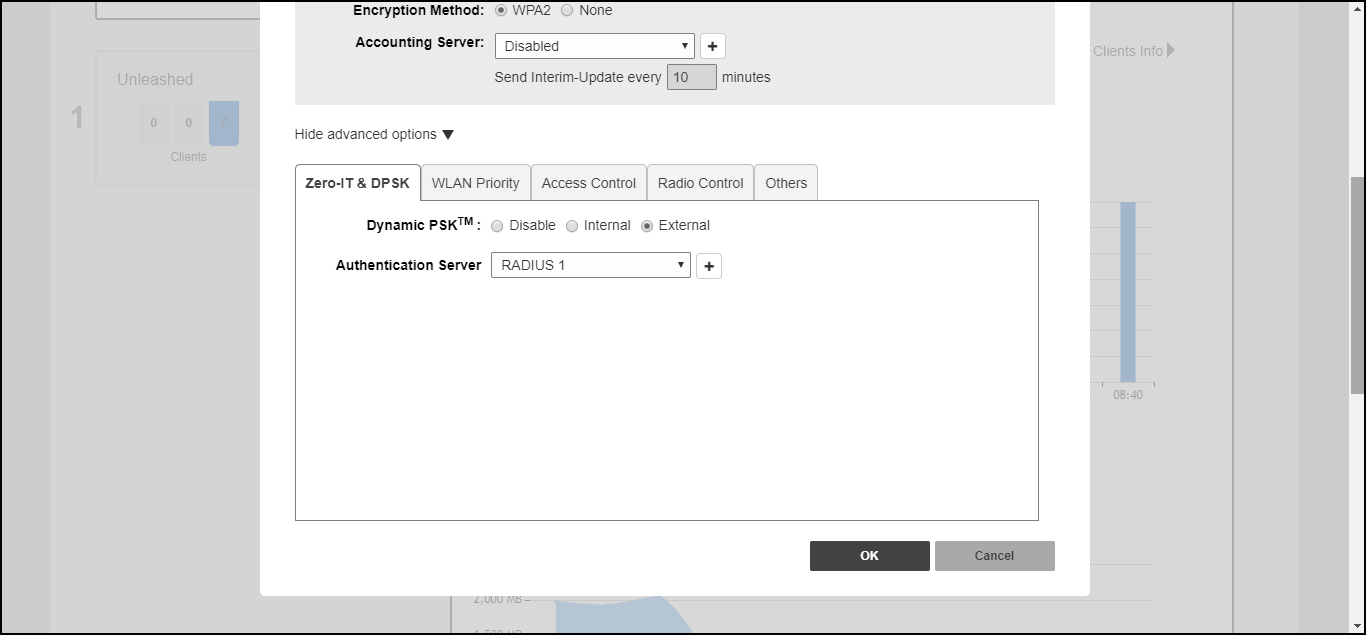
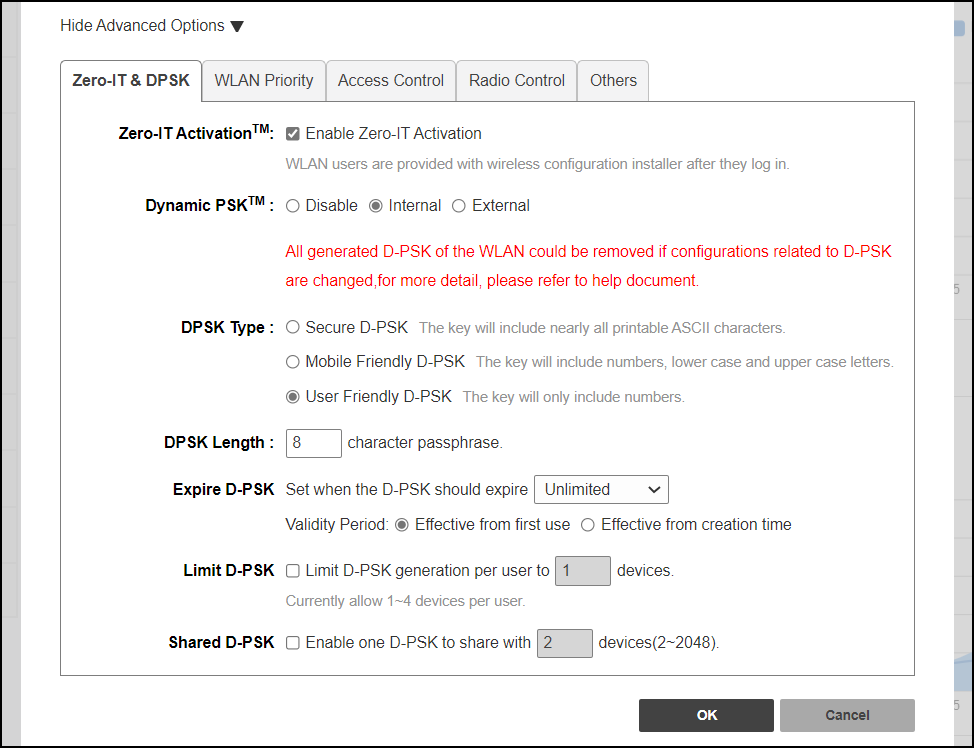
- Click Show advanced options and select the Zero-IT & DPSK tab.
- For Dynamic PSK, choose one of the following options:
- If using an external RADIUS server for authentication, select the authentication server from the list and click OK to save.
- For DPSK Type, select one of
the following options:
- Secure D-PSK: Includes almost all printable ASCII characters, including periods, hyphens, dashes, and so on. This option is more secure; however it may be difficult to use for mobile clients whose keyboards may not contain the entire set of printable ASCII characters.
- Mobile Friendly D-PSK: Select this option if this WLAN is used for mobile clients. This range of characters is limited to lowercase letters, uppercase letters, and numbers that makes it easier for users to input the DPSK when activating a mobile client to a Zero-IT WLAN. (You may also want to limit the DPSK length to 8 characters for the convenience of your mobile client users.)
- User Friendly
D-PSK: This option includes numbers only. By default, the
DPSK length is set to 8 characters automatically and the maximum DPSK length
is 62 characters.
Note: All generated DPSK keys (only numbers) must also be unique within the same WLAN and MAC address (bound or unbound).
- For DPSK Length, enter a PSK passphrase length (from 8 through 62 characters).
- Expire D-PSK: Set the time interval from when the DPSK must expire. For Validity Period, select whether the DPSK expiration period will start from first use or the creation time.
- Limit D-PSK: By default, each authenticated user can generate multiple DPSKs. Select this option to limit the number of DPSKs that each user can generate across multiple devices (1 through 4).
- Shared D-PSK: Enable this option to allow a single user to share a single DPSK across multiple devices. By default, each DPSK is unique and mapped to a single MAC address; the Shared D-PSK option allows the administrator to override this rule and allow a user to share a single DPSK across multiple devices.
- Click OK to save your changes.
Note: For information on DPSK
management and batch generation, refer to Dynamic PSK.