Adding a RUCKUS IoT Controller
To enable integration between the RUCKUS
One platform and the RUCKUS IoT Controller, the controller must first be added and
authenticated within the RUCKUS One GUI. This process ensures that the controller
can
securely communicate with the RUCKUS APs and manage IoT devices effectively.
Prerequisites: Before adding an IoT Controller to your RUCKUS One account, ensure your RUCKUS One account has enough device networking licenses available; each IoT Controller added to RUCKUS One consumes 1 license. You can check your overall subscription utilization on the page. To see a detailed, per-device list of license usage, navigate to the page, then click the My Account tab in the Device Networking Licenses tile.
Complete the following steps to add a RUCKUS IoT Controller to your RUCKUS One account:
- From the navigation bar, select
.The IoT Controllers page is displayed.
- In the upper-right corner of the IoT Controllers page, click Add IoT Controller.
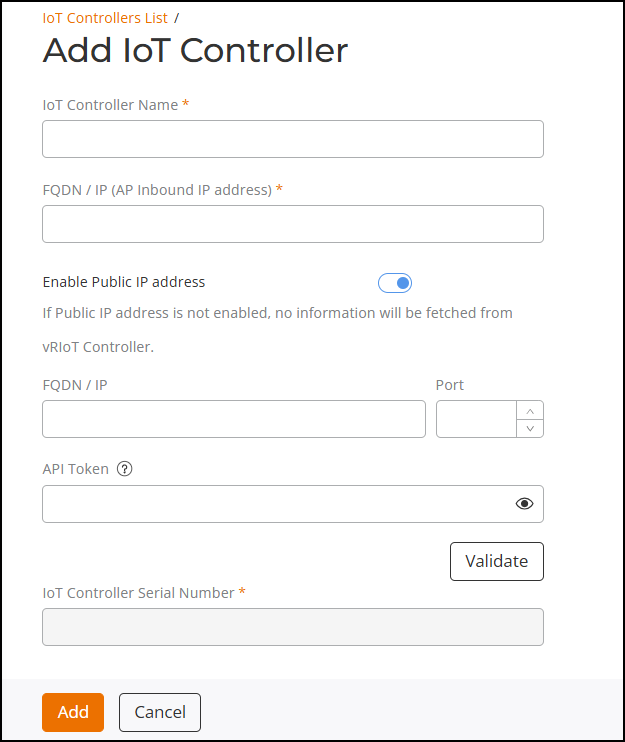
- Configure the following:
- For IoT Controller Name, enter a user-defined name for identifying the IoT Controller within RUCKUS One.
- For FQDN / IP (AP Inbound IP address), enter a fully qualified domain name (FQDN) or the IP address through which APs can reach the IoT Controller.
- For Enable Public IP Address, toggle the switch to configure whether RUCKUS One can communicate with your RUCKUS IoT Controller through a public IP address. This option is disabled by default.
- For FQDN / IP, if the Enable Public IP Address option is enabled, enter the external FQDN or IP address of the IoT Controller for RUCKUS One to communicate directly.
- For Port, provide the port number used by the IoT Controller API for communication.
- For API Token, enter the API Token generated from the IoT Controller to authenticate the RUCKUS One connection.
- Click Validate to verify the connection between RUCKUS One and the IoT Controller using the entered credentials and IP details.
- For IoT Controller Serial
Number:
- If Enable Public IP Address is enabled and the Port and API Token are valid, the IoT Controller Serial Number field is grayed out. In this case, the operation is triggered and completed by clicking the Validate button.
- If Enable Public IP Address is disabled, the IoT Controller Serial Number field becomes editable, allowing you to manually enter the IoT Controller's serial number.
- Click
Add.The newly added RUCKUS IoT Controller is displayed in the IoT Controllers page.