Adding a Cluster
Complete the following steps to add a
cluster.
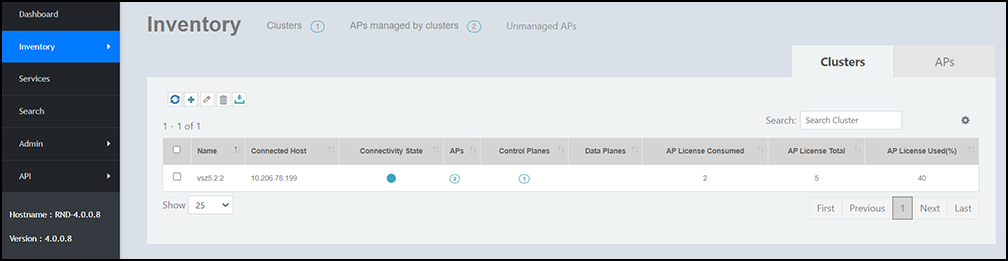
- On the menu, click Inventory.
- In the
Clusters tab, click
 to add a cluster.
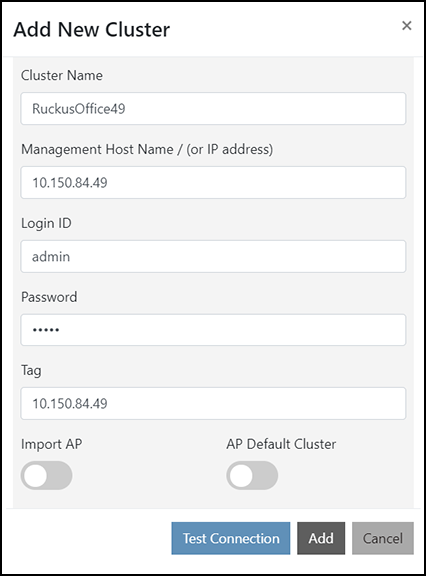
- Complete the following fields to
add a cluster:All communication from RUCKUS Network Director happens through HTTPS and the login credentials provided here are used in the communication with the controller.
- Tag: Enter a name for the tag. You can provide the same tag to multiple clusters and group the clusters by tag.
- Import AP: If enabled, imports all APs on the cluster at the moment. When another AP joins an SZ cluster, it does not trigger a live joining action to RND until the next round of sync happens between RND and SZ via API calls. If this option is not enabled, the APs are not imported and only the statistics of the cluster can be viewed.
- AP Default Cluster: If selected, the cluster is defined as the default cluster.
APs that do not have any configuration details (serial number or cluster details) are routed to the default cluster by RUCKUS Network Director. You can change the default cluster in the System Settings window. For more details, refer to Managing System Settings. - Click Add to add the
cluster to RUCKUS Network Director. An information dialog box is displayed indicating that the cluster is successfully created.
- Click Ok.