Discovering IoT Devices
The RUCKUS IoT Controller requires explicit user approval of devices. Only an approved device can
be allowed into the IoT infrastructure.
The device scan operation must be performed to start the device discovery process on the AP.
Note: It is
important that the IoT devices are scanned and onboarded to the nearest AP for
good
RSSI/LQI values. For more information about RSSI/LQI for reliable connection,
refer
to https://support.ruckuswireless.com/articles/000011687.
Complete the following steps to perform a device scan.
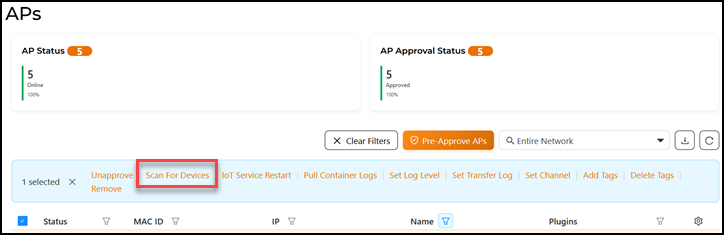
- From the main menu, click
APs.
The APs page is displayed.
- Select one or multiple APs by clicking their checkboxes.
A toolbar is displayed with options.
- Click Scan For Devices.
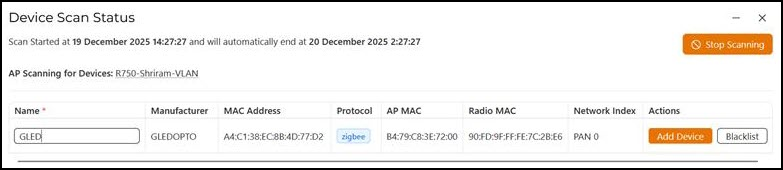
Upon starting device discovery, a dialog box is displayed, as shown in the following figure.
- For each discovered device that is not pre-approved, enter a unique name and
click either Add Device or
Blacklist.
If the device is added, it joins the list of discovered devices. If the device is blacklisted, the device is prevented from accessing the network.
Note: If a device is pre-approved, the discovered device automatically joins the list of discovered devices. Refer to Pre-Approving IoT Devices for instructions on pre-approving IoT devices not yet connected to the network. - (Optional) Click Stop Scanning to manually stop the device scan operation. If the scan is not manually stopped, it will continue to run for 12 hours.