Creating the Chromebook Device Configuration for a Workflow Enrollment
- On the Cloudpath Admin UI, go to .
- Click Add Device Configuration.
- You can use the defaults and continue clicking Next until you get to the OSes page.
- On the OSes page, for the "Automatically Configured OSes," use the drop-down arrows to select "None" for all the OSes except Chrome. For the "Manually Configured OSes," you can un-check all the boxes.
- Continue clicking Next until the device configuration is complete.
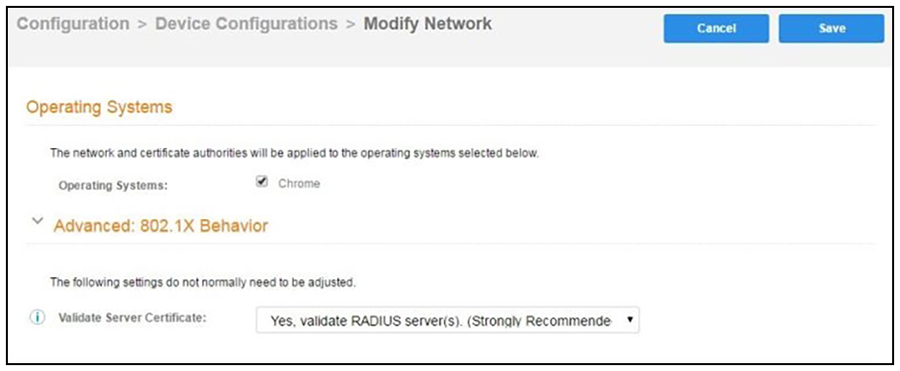
- On the OS Settings tab, edit the Chrome: Configuration from the Network(s) and Trust tabs to enable the Chrome OS: