Configuring Chromebook User Experience Settings
The Chromebook user experience can be configured for managed or unmanaged devices.
- For unmanaged devices, the user downloads the ONC file, which contains the certificate and Wi- Fi settings required to connect to the secure network. This is similar to the mobileconfig file process for Mac OS X and iOS devices.
-
For managed devices, the Cloudpath extension, which is configured in the Google Admin Console, installs the certificate and settings into the trusted platform module as the user or as the device.
Note: The Chrome extension uses the
information provided by the Cloudpath configuration. See Configuring the Chrome Extension on Google
Admin Console to configure
the Cloudpath extension to be dispersed to managed devices.
After the configuration file is installed (manually, or using the extension), the user simply connects the secure network.
- Go to .
- Select the OS Settings tab for the applicable device configuration.
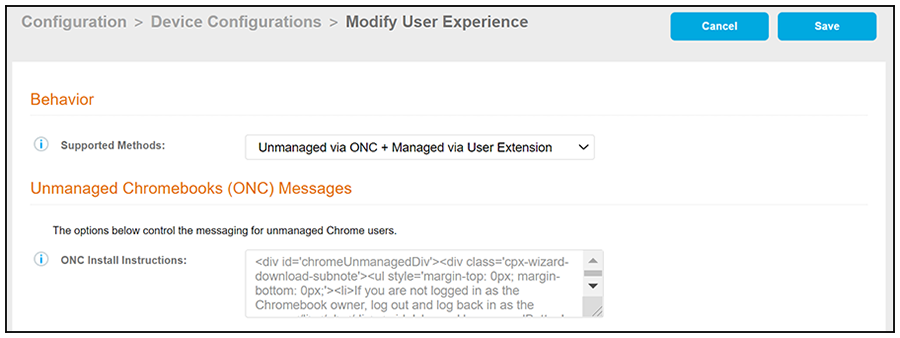
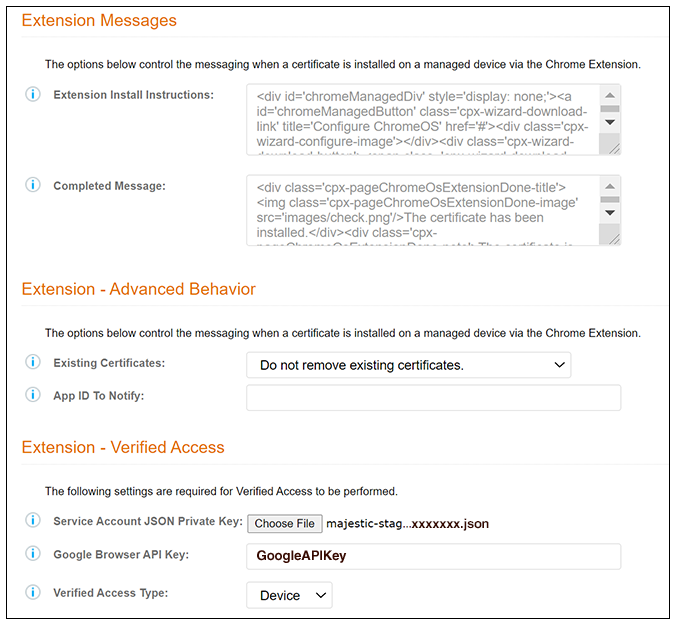
- Edit the Chrome Settings: User experience options. The settings that are available are shown in the following two screens.
- Select the Behavior (Screen
1 above) settings for the device configuration.
- The Supported
Method setting controls the installation methods
available to end-users. By default, installation is handled using an ONC
file, which can be used by both unmanaged and managed devices.
- ONC Only - Allows installation using the ONC file only.
- ONC + User Extension - Allows installation using the ONC file or Chrome extension. If the extension is used, the certificate is installed as the user.
- ONC + Device Extension - Allows installation using the ONC file or Chrome extension. If the extension is used, the certificate is installed as the device.
- User Extension Only - Allows installation to the user TPM using only the Chrome extension.
- Device Extension Only - Allows installation to the device TPM using only the Chrome extension.
- The ONC Install Instructions contain the instructions displayed to the user if the ONC file is used to install the certificate and Wi-Fi settings. This occurs if ONC Only is enabled or if ONC + (User or Device) Extension is enabled, but the user does not have the extension installed.
- The Supported
Method setting controls the installation methods
available to end-users. By default, installation is handled using an ONC
file, which can be used by both unmanaged and managed devices.
- Configure Extension Messages (Screen 2 above).
- Configure Extension -
Advanced Behavior (Screen 2 above).
- The App ID to Notify notifies an app when the certificate installation is complete. This can be useful if an app is managing the enrollment process for the user.
- If using extensions, you can specify that the extension remove existing certificates from the certificate manager. This can be useful in cleaning up the device.
- Configure Extension - Verified Access (Screen 2 above).You will need information from Enabling the Verified Access API on the Google Developer's Site.
- Service Account JSON Private Key: Upload the JSON key from the service account that you created on your Google APIs & Services page.
- Google Browser API Key: Enter or paste in the API key of the verified-access API from your Google APIs & Services page.
- Verified Access Type: From the drop-down list, select either Device or User, depending on whether the verified access check is performed for the user or the device.
- Save the configuration settings.