Preloading AP Firmware in Unleashed Master

Complete the following steps to preload AP firmware in the Unleashed Master AP.
  1. Log in to the Unleashed web interface and enter the administrator name and password. Click Login.
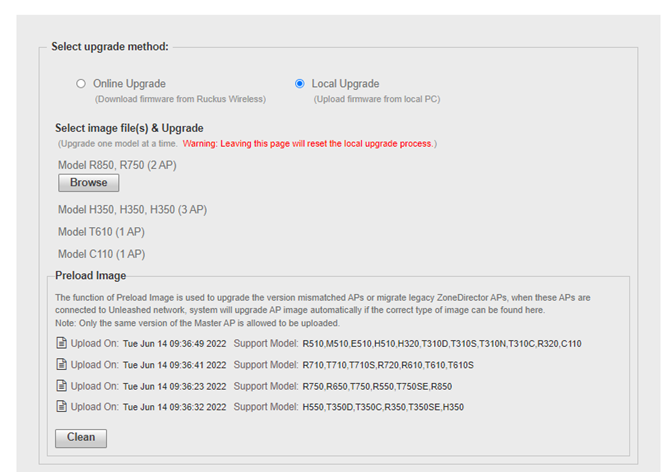
  2. Select Admin & Services > Administration > Upgrade, and select Local Upgrade as the upgrade method.
  3. Download the AP firmware from the following RUCKUS Support Site for the preload:
    https://support.ruckuswireless.com/software?filter=82
    Attention: The version for the migration AP models must match with the Unleashed Dedicated Master version.
  4. In the Preload Image table, click Browse to upload the Unleashed AP firmware for the migration AP model.
    Attention: All preload images will be lost after the Unleashed Master is rebooted.

    Preloading the Unleashed AP Firmware Image

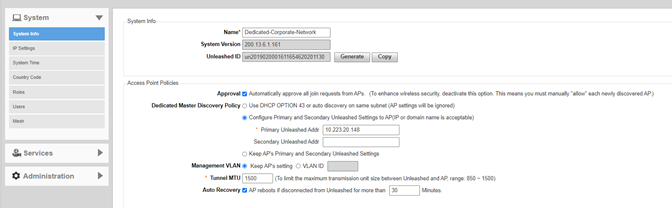
  5. Select Admin & Services > System > System Info > Access Point Policies and complete the following steps:
    1. Select the Approval check box.
    2. For Dedicated Master Discovery Policy, select Configure Primary and Secondary Unleashed Settings to AP.
    3. In the Primary Unleashed Addr field, enter the Unleashed Master IP address.

      Configuring the Primary and Secondary Unleashed IP Addresses

      Note: If Smart Redundancy is enabled, enter the standby Unleashed IP address in the Secondary Unleashed Addr field.