Configuring Pre-Download Firmware Upgrades for ICX Switches
Configure scheduled ICX switch firmware
upgrades with the Pre-Download option to reduce maintenance window downtime.
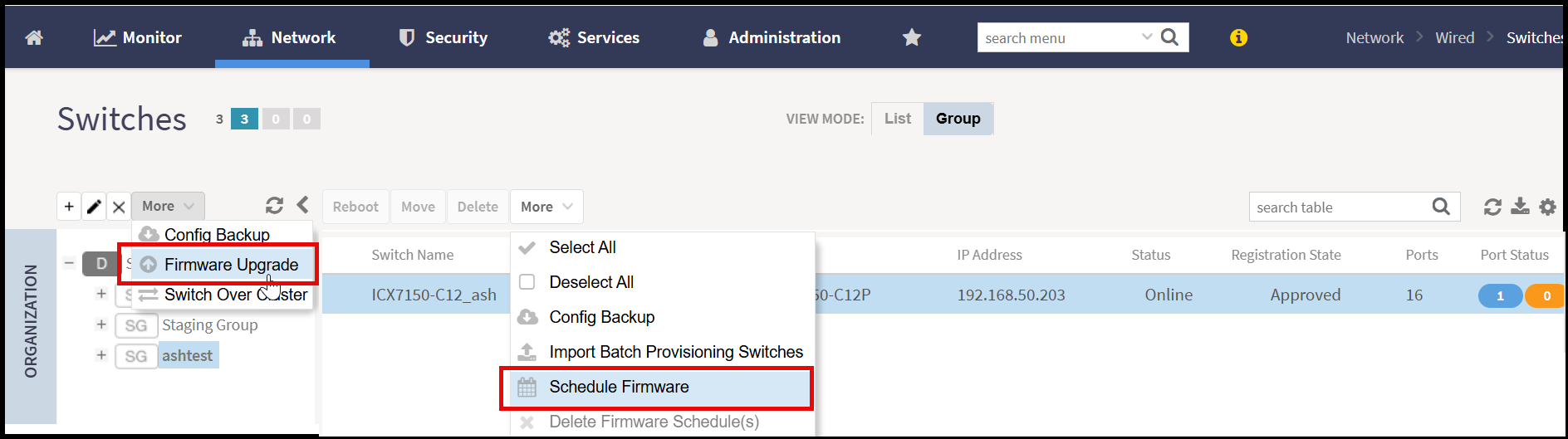
- From the main menu, go to .This displays the Switches screen.
- In the Switches screen, select a Switch Group or an individual Switch from the list and click More.
- In the More drop-down menu, select Firmware Upgrade for a Switch Group or Schedule Firmware for an individual Switch.
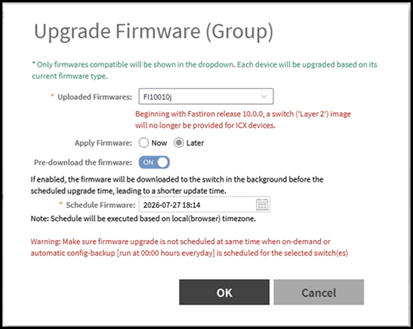
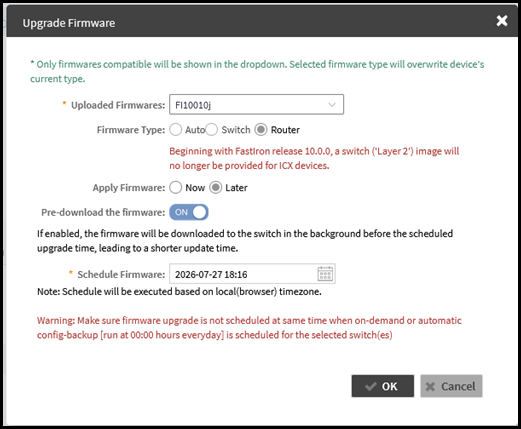
- The Upgrade Firmware
(Group) or Upgrade Firmware window is
displayed based on the selected option.In the Upgrade Firmware enter the following:
- Uploaded Firmwares - Choose the uploaded firmware from the drop-downlist to schedule the pre-dowload firmware upgrade.
- Apply Firmware - Select the option Later to schedule the pre-download firmware upgrade.
- Pre-download the Firmware - By default, this option is disable. Enable the option to pre-download firmware upgrade.
- Schedule
Firmware - Set the execution time in the schedule to
pre-download firmware upgrade.
Note: If the scheduler execution time is is set within 6 hours, the controller displays an error message. Make sure the set Scheduled Firmware execution time more than 6 hours in advance
- To check the pre-download firmware status, select the Switch Group or an individual Switch and scroll down to the Details tab and click Firmware History option. The firmware status is updated in two stages: