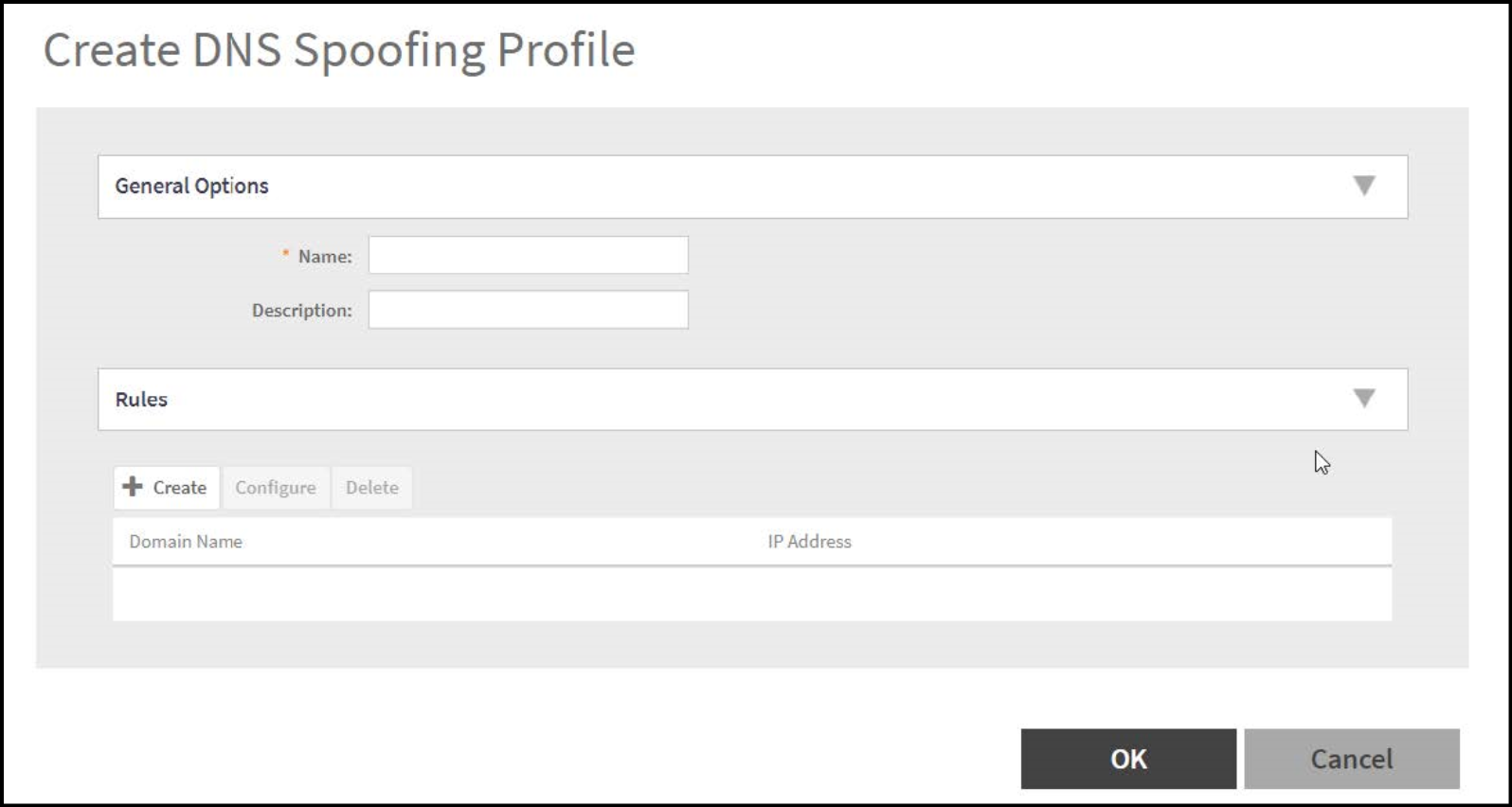
Creating a DNS Spoofing Profile
A DNS spoofing profile allows you to specify individual Fully Qualified Domain Name
(FQDN) entries to bypass DNS resolution and provide clients with the result specified
in the
associated rules.
- Go to
- Select the zone for which you want to create profile.
- Click Create.
- Configure the following:
- Name: Enter a name for the DNS spoofing profile.
- Description: Enter a short description for the profile.
- Click Create, and the Create Rules dialog box is displayed.
- In the Domain Name field, enter the FQDN of an individual host entry.
- In the IP Address field, enter the IPv4 or IPv6 address to resolve the domain name and click Add. If the user sends DNS request with the domain name configured in the DNS Spoofing profile, then the AP responds with the IP address configured in the DNS Spoofing profile for the requested domain name.
- Click OK to confirm the rules.
- Click OK to confirm the creation of DNS spoofing profile.