Generating a Certificate of Entitlement
You must generate the Certificate of Entitlement (CoE) from the
RUCKUS Support portal before you can install your SAU license.
You need the following information to generate a CoE:
Perform the following steps to gather the necessary information and generate a CoE.
- Order a license CoE.
After ordering the license, an Activation Code will be sent to you by email.
Note: 45-day trial licenses are built in to the device and available by default.Note: Do not delete the email message with the electronic Activation Code until the CoE has been generated, in case it is needed for technical support. - Enter the
show versioncommand on your Ruckus device to find the serial number.device> show version Copyright (c) 2017 Ruckus Wireless, Inc. All rights reserved. UNIT 1: compiled on Jul 25 2017 at 12:04:34 labeled as SPR08070b1 (29789712 bytes) from Secondary SPR08070b1.bin SW: Version 08.0.70b1T213 Compressed Boot-Monitor Image size = 786944, Version:10.1.09T215 (spz10109b008) Compiled on Wed Sep 21 05:58:52 2016 UNIT 2: compiled on Jul 25 2017 at 12:04:34 labeled as SPR08070b1 (29789712 bytes) from Secondary SPR08070b1.bin SW: Version 08.0.70b1T213 Compressed Boot-Monitor Image size = 786944, Version:10.1.09T215 (spz10109b008) HW: Stackable ICX7250-24 ========================================================================== UNIT 1: SL 1: ICX7250-24 24-port Management Module Serial #:DUH3821L070 License: ICX7250_L3_SOFT_PACKAGE (LID: fwjINHGnFMF) Current License: L3-PREM-2x10G P-ASIC 0: type B344, rev 01 Chip BCM56344_A0 ========================================================================== UNIT 1: SL 2: ICX7250-SFP-Plus 8-port 80G Module ========================================================================== UNIT 2: SL 1: ICX7250-24 24-port Management Module Serial #:DUJ3845L0FV License: ICX7250_L3_SOFT_PACKAGE (LID: fwlINJKnFhx) Current License: L3-PREM-8x10G ========================================================================== UNIT 2: SL 2: ICX7250-SFP-Plus 8-port 80G Module ==========================================================================
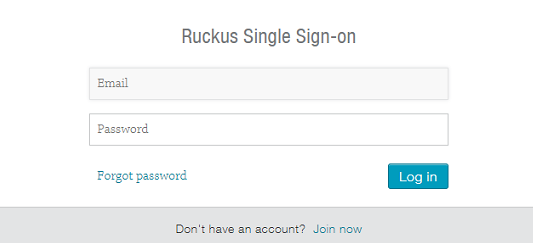
- Click the Activation Code link in the email message or log in to the RUCKUS support portal at https://support.ruckuswireless.com. The Ruckus Single Sign-on window is displayed.
- Enter your email address and password, and click Log in. If you do not have an account, click Join now and follow the instructions.
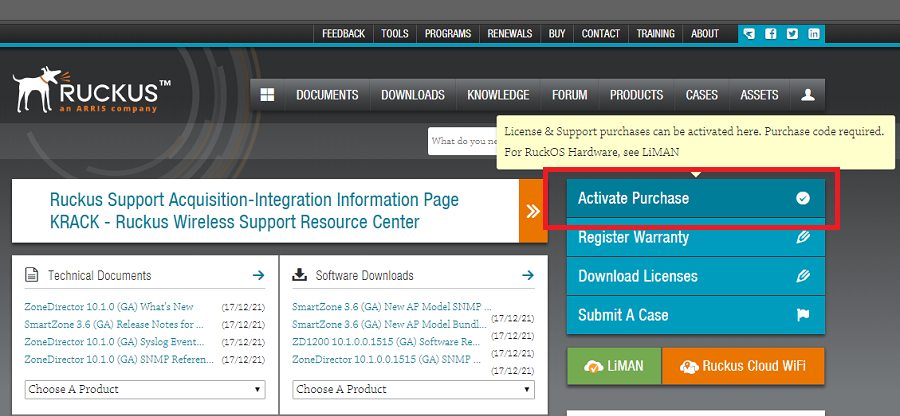
- Click Activate Purchase.
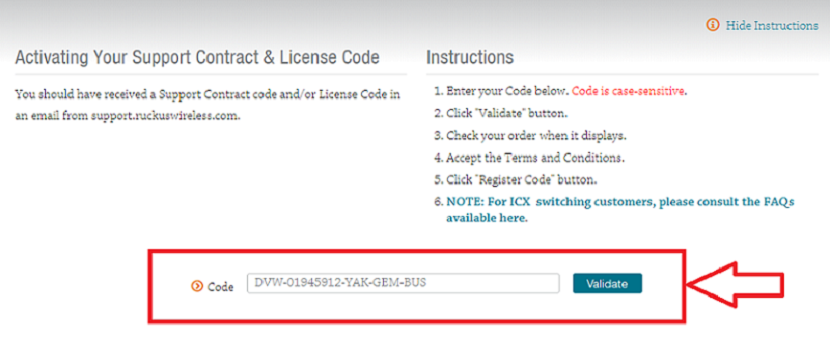
- Enter your Activation Code received, and click
Validate.
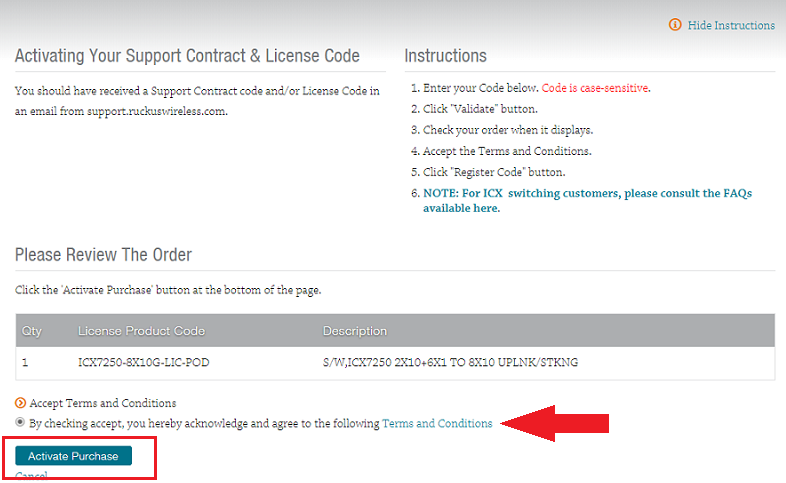
The software license details are displayed.
- Review the information to ensure it is correct. Accept the terms and conditions,
and click
Activate Purchase.
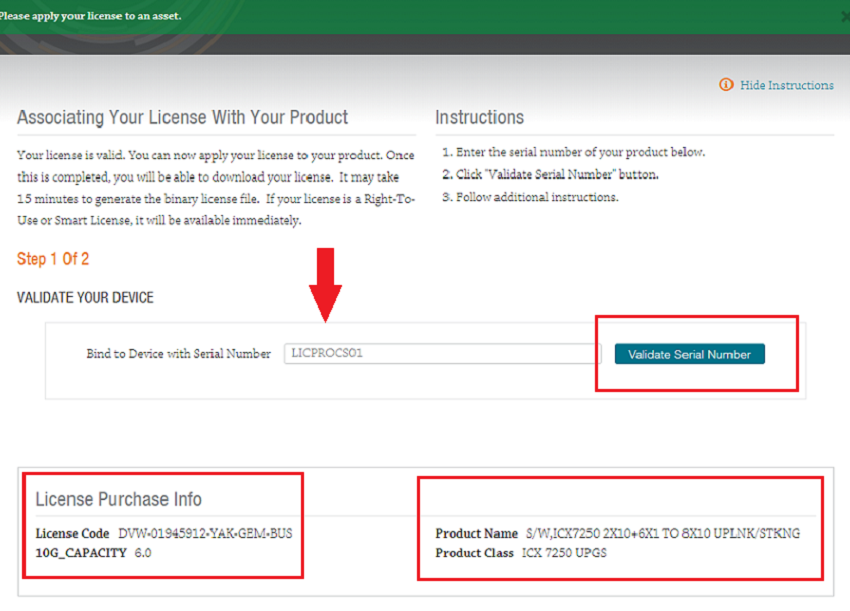
The Associating Your License With Your Product window is displayed.
- Enter the serial number of the device, and click
Validate Serial Number.
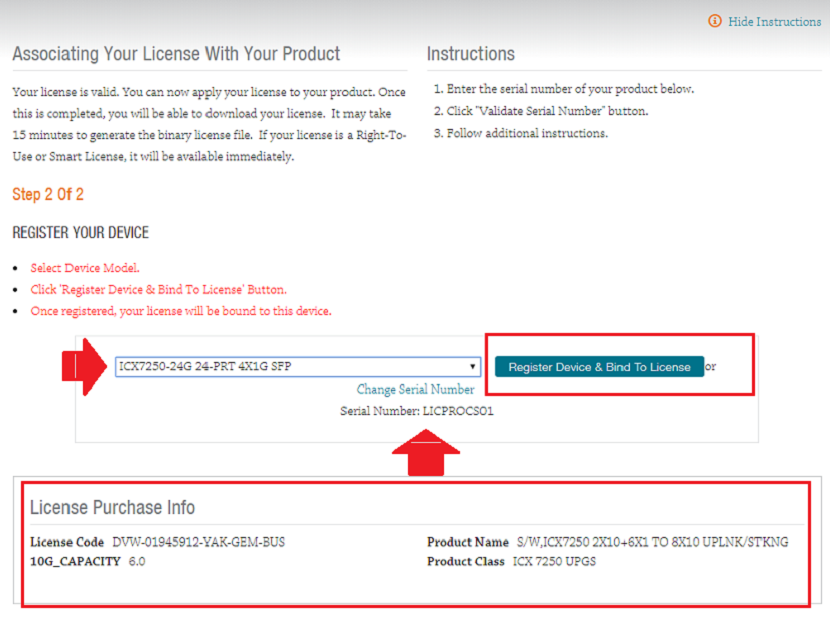
The device information is displayed.
- Review the device information.
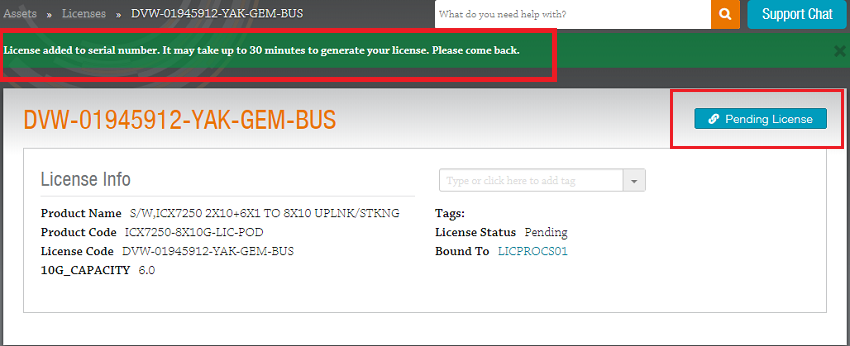
- If the information is correct, click Register Device & Bind To License.
- If the information is incorrect, click Change Serial Number, and re-enter the serial number of the device.
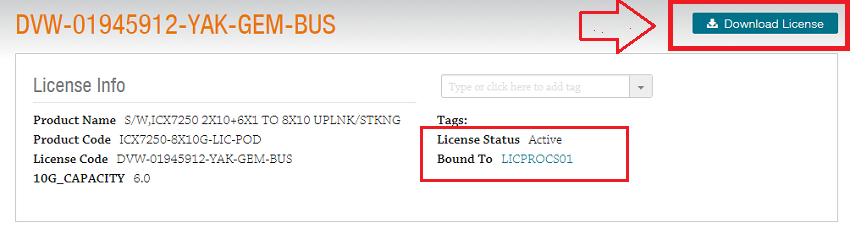
- Click
Download CoE to download the CoE PDF to your PC or Click
Download License to download the XML license file to your PC.
Note that the XML file is only needed if you are going to downgrade your ICX 7250 or 7450 to FastIron 8.0.70 or older releases. After downloading the XML license, you will need to upload the license file to the RUCKUS device. See the RUCKUS FastIron Software Licensing Guide for your release for instructions on uploading the license file.Refer to the FastIron End User License Agreement before enabling SAU licenses on ICX devices.